OSOSS · Product updates Release 265 May 2026 |
| Review draft. Confirm availability before sending; unfinished features are marked as previews. |
Give favorites their own place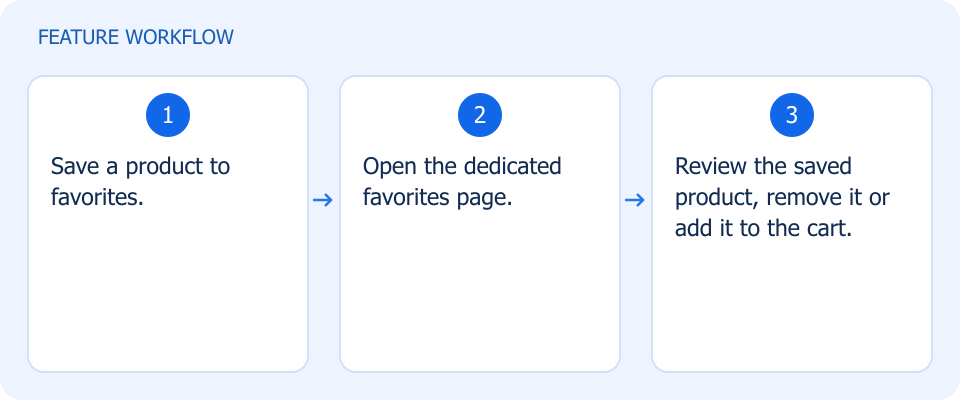 Illustrated workflow, not a product screenshot Business valueLet shoppers return to saved products in one place. A dedicated favorites page helps shoppers revisit saved products, remove items, or move them into the cart. How to use
|
Make categories and variants clearer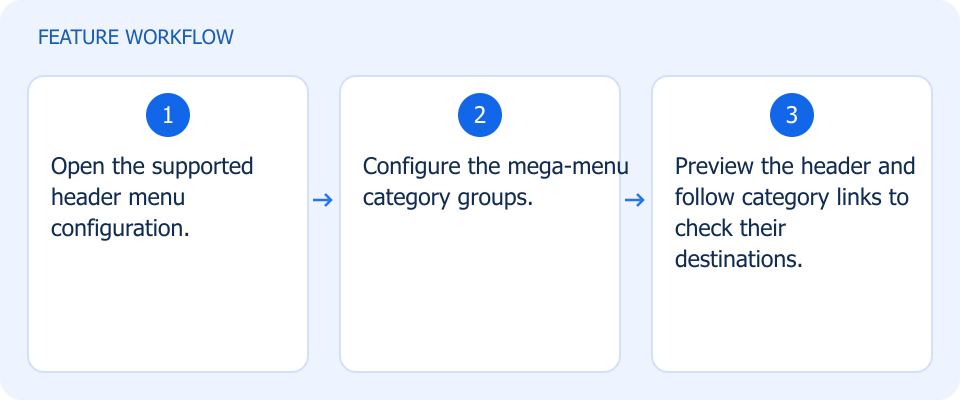 Illustrated workflow, not a product screenshot Business valueMake grouped categories easier to discover from the store header. How to use
|
Make categories and variants clearer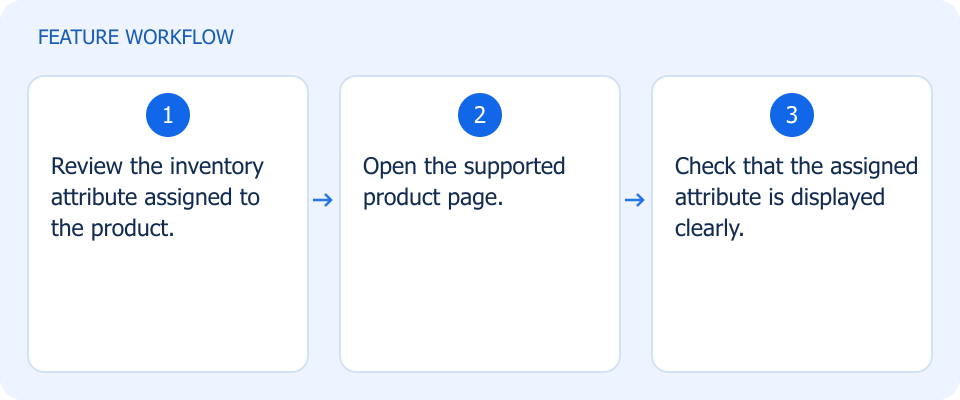 Illustrated workflow, not a product screenshot Business valueShow shoppers the inventory attribute associated with the product. How to use
|
Keep store updates consistent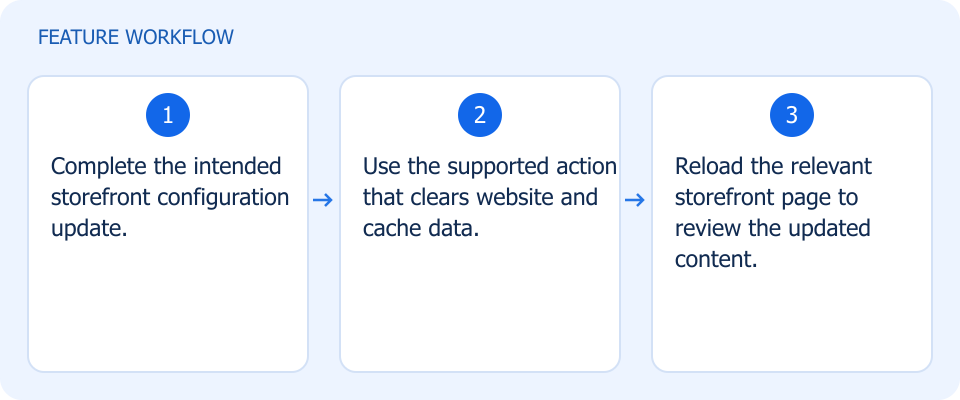 Illustrated workflow, not a product screenshot Business valueRefresh storefront data through one supported cache-clearing action. How to use
|
Keep store updates consistent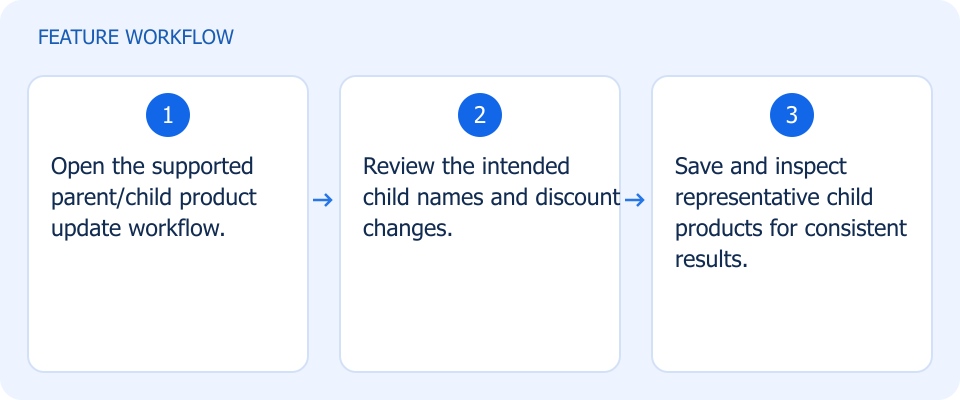 Illustrated workflow, not a product screenshot Business valueKeep child-product pricing and names consistent during updates. How to use
|
Filter products without losing your place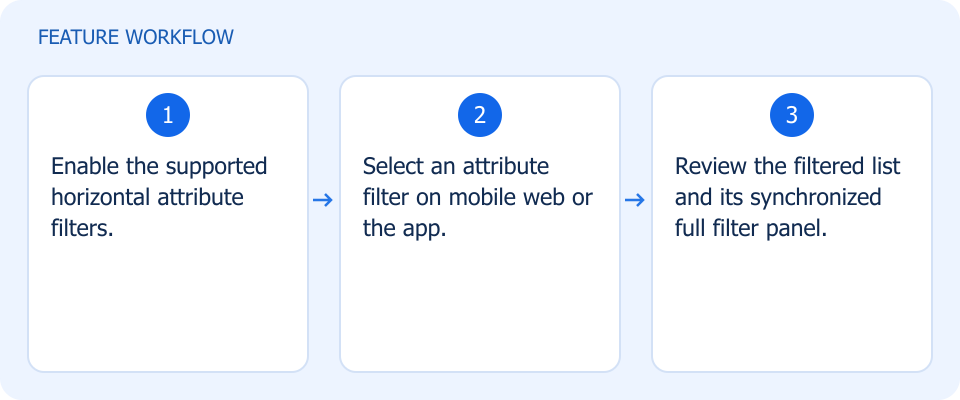 Illustrated workflow, not a product screenshot Business valueNarrow mobile product results without repeatedly opening the full filter panel. Enable horizontal attribute filters on mobile web and apps, synchronized with the full filter panel. How to use
|
Keep payment and delivery references together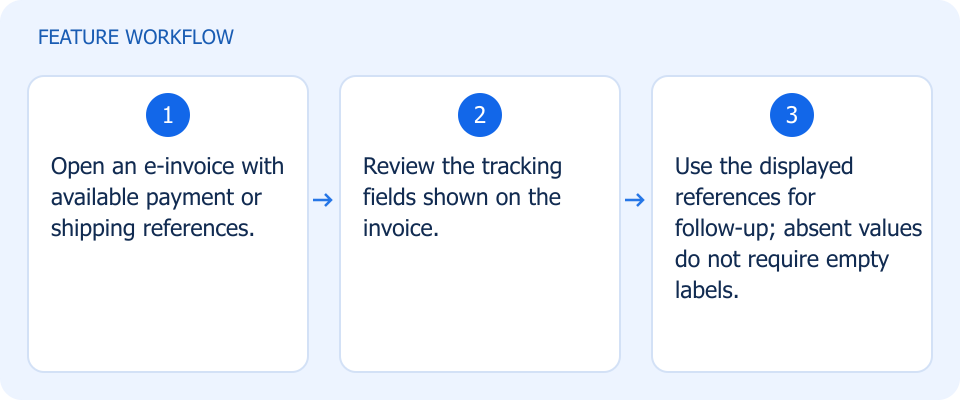 Illustrated workflow, not a product screenshot Business valueKeep invoice recipients informed about payment and shipping references. Show payment and shipping tracking references on e-invoices when values are available, without empty labels. How to use
|
Assign the right seller automatically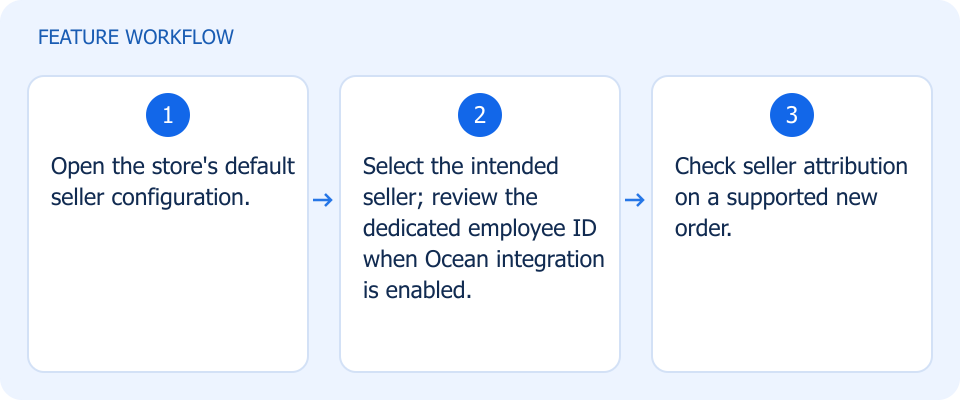 Illustrated workflow, not a product screenshot Business valueApply the intended seller assignment without repeating it for each store order. Set a default seller per store. Ocean integration uses a dedicated employee ID when the plugin is enabled. How to use
|
Record installment payments in place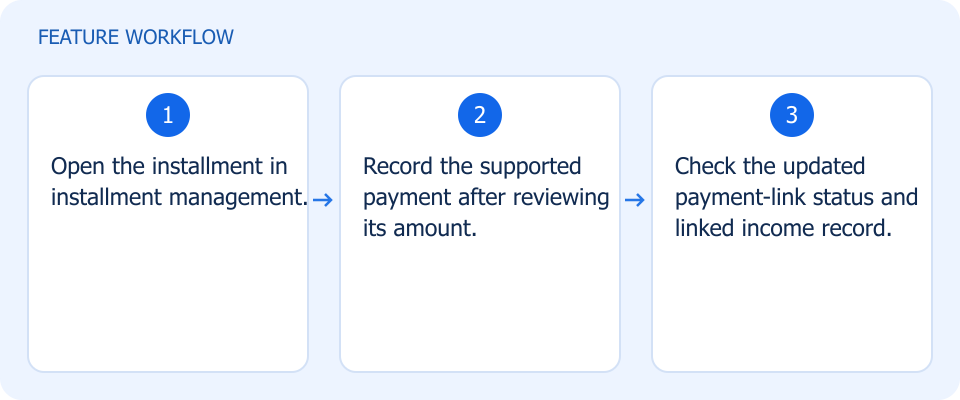 Illustrated workflow, not a product screenshot Business valueRecord an installment collection without losing its payment-link context. Record a payment from installment management, update the payment-link status, and retain the linked income record. How to use
|
A more reliable account tree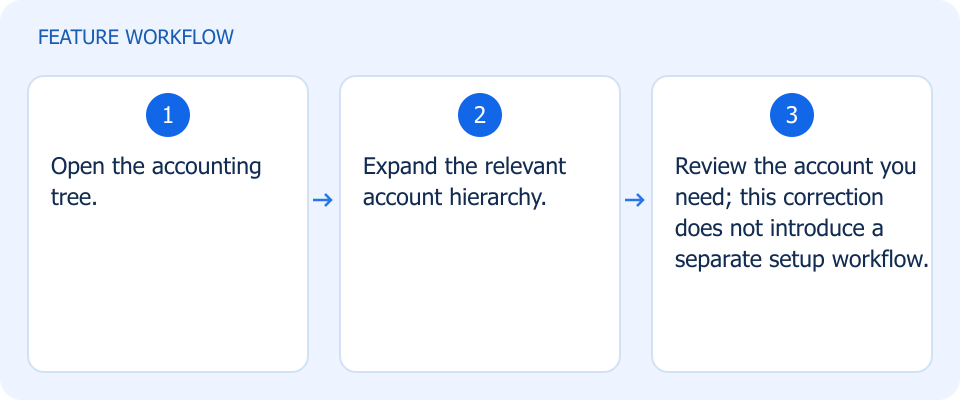 Illustrated workflow, not a product screenshot Business valueNavigate account hierarchy after the corrected tree behavior. This release includes a correction to the accounting tree. How to use
|
Trace transfers back to the sale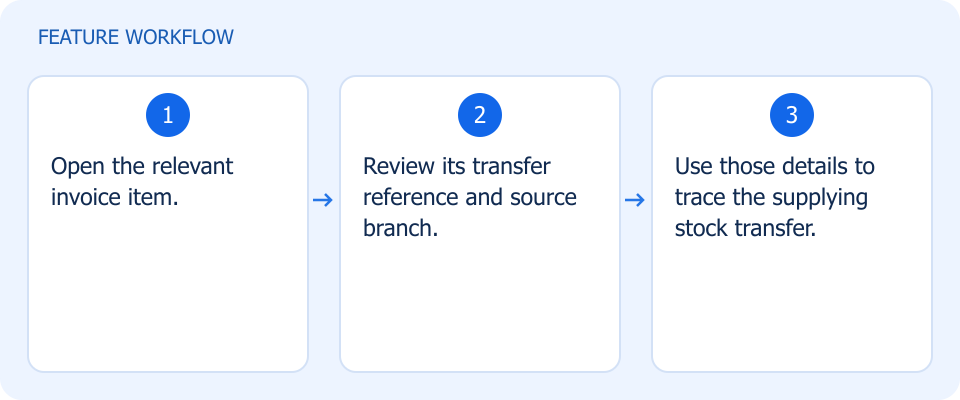 Illustrated workflow, not a product screenshot Business valueSee where transferred invoice stock came from. How to use
|
Trace transfers back to the sale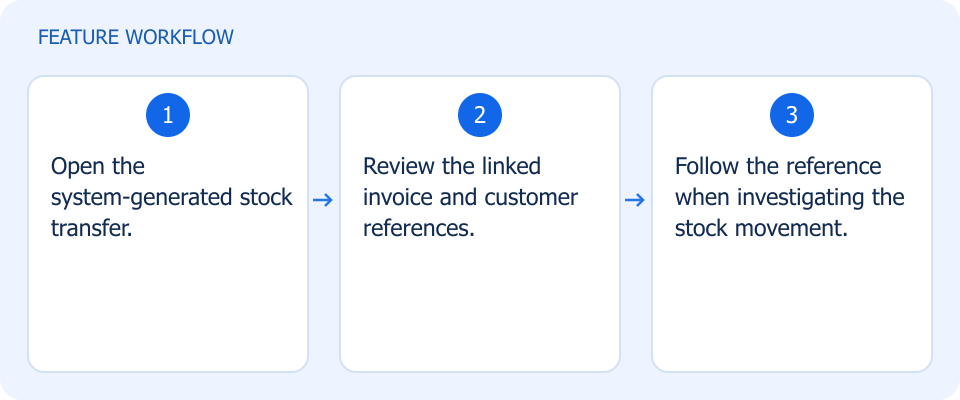 Illustrated workflow, not a product screenshot Business valueTrace an automatic transfer to the invoice and customer that caused it. How to use
|
Know which transfers were reviewed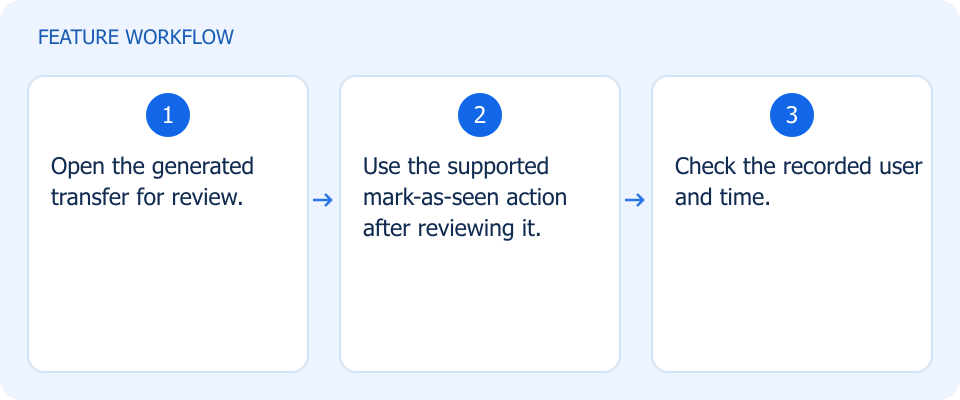 Illustrated workflow, not a product screenshot Business valueKnow who reviewed a system-generated transfer. How to use
|
Know which transfers were reviewed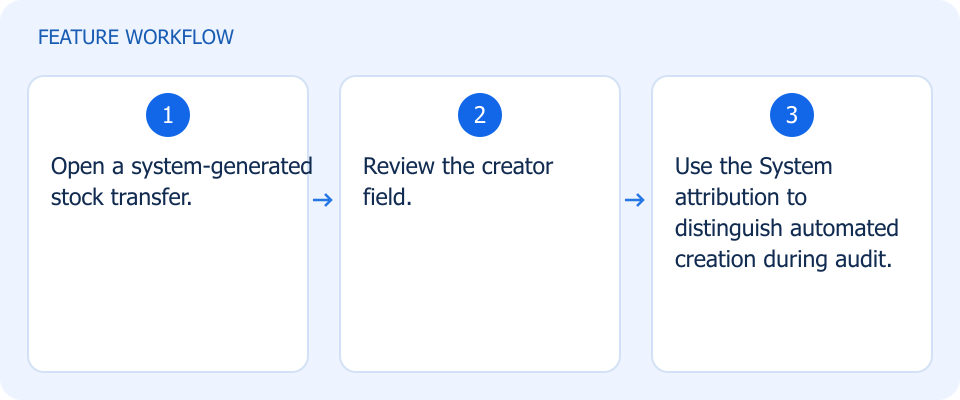 Illustrated workflow, not a product screenshot Business valueDistinguish automated stock transfers from manually created ones. How to use
|
Keep foreign pricing consistent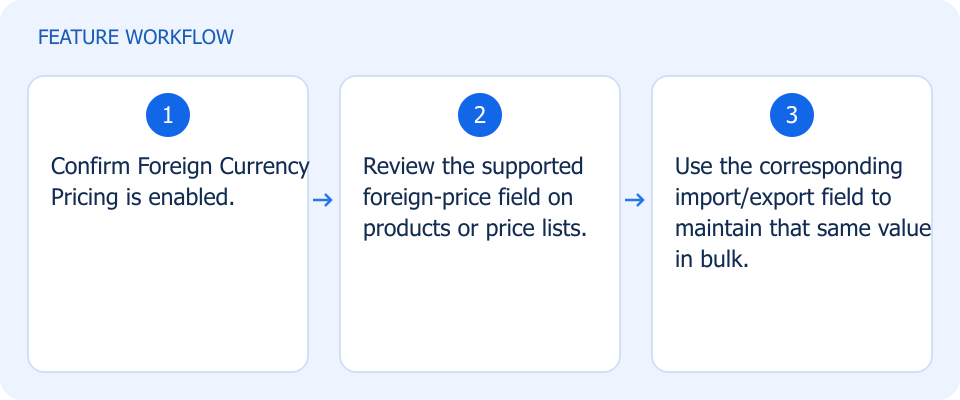 Illustrated workflow, not a product screenshot Business valueMaintain one consistent foreign-price value across catalog workflows. With the Foreign Currency Pricing add-on enabled, manage one foreign-price field across products, price lists, and import/export. How to use
|
Keep customer selection relevant to the branch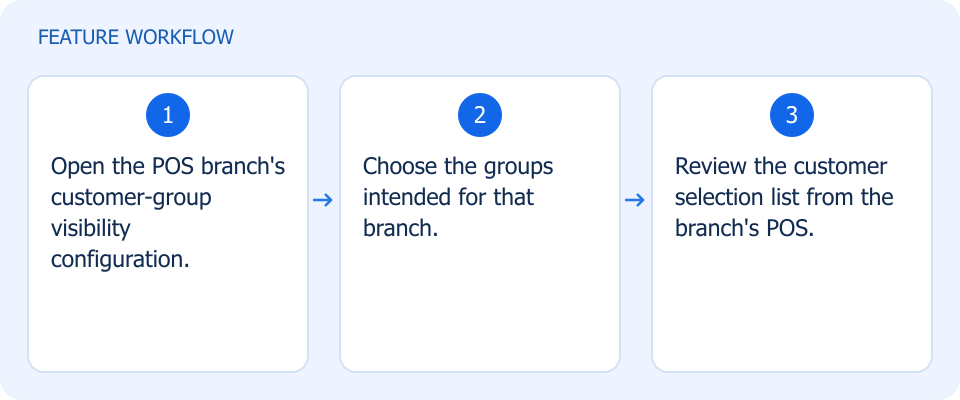 Illustrated workflow, not a product screenshot Business valueLimit branch customer selection to the relevant customer groups. Configure the customer groups visible to a POS branch, helping staff select from the right customer list. How to use
|
Print labels in batches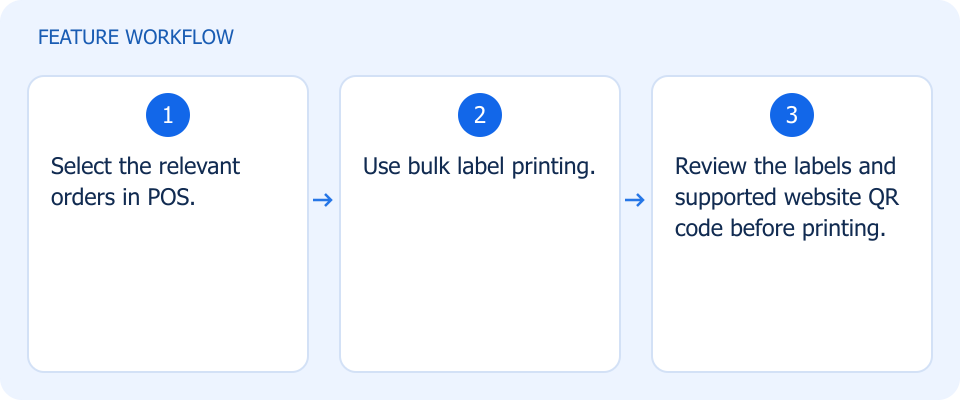 Illustrated workflow, not a product screenshot Business valuePrepare shipping labels for several orders in fewer steps. Select multiple POS orders for bulk label printing, with a website QR code on the shipping label. How to use
|