OSOSS · Product updates Release 2719 May 2026 |
| Review draft. Confirm availability before sending; unfinished features are marked as previews. |
Manage unique-barcode settings in bulk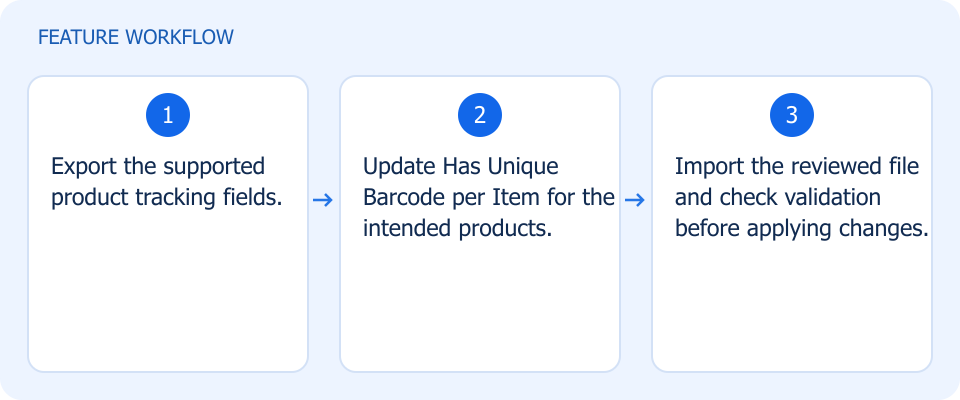 Illustrated workflow, not a product screenshot Business valueUpdate unit-tracking configuration for many products at once. Import and export the Has Unique Barcode per Item setting to update product tracking configuration efficiently. How to use
|
Help readers find their favorite authors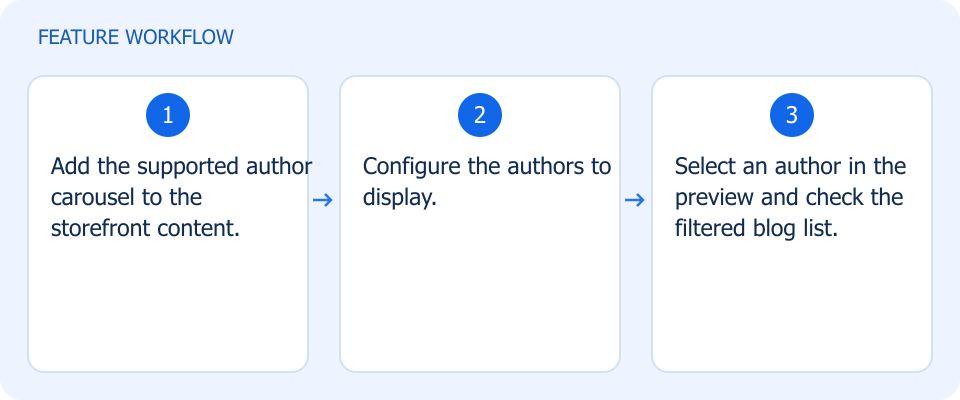 Illustrated workflow, not a product screenshot Business valueHelp readers discover more content from a writer they like. Add an author carousel that opens the blog list filtered to the selected writer. How to use
|
Keep personalized cart items distinct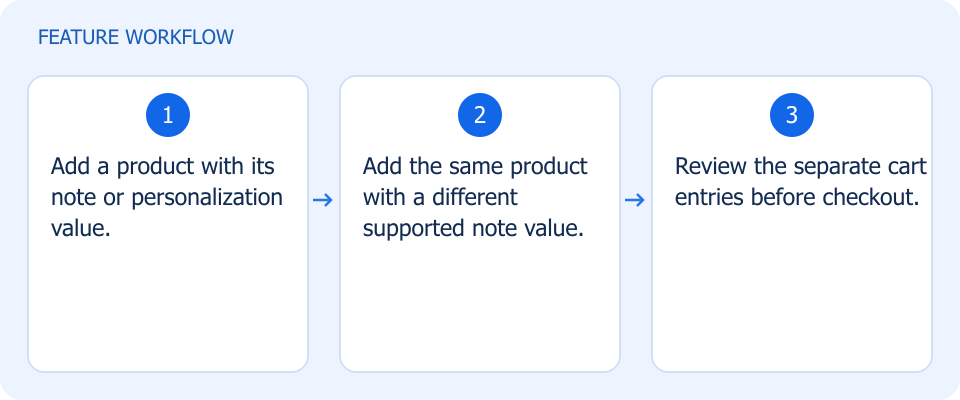 Illustrated workflow, not a product screenshot Business valueKeep different personalization instructions attached to the correct cart item. Different product-note values remain attached to their own cart entries instead of being mixed together. How to use
|
Read stock balances more easily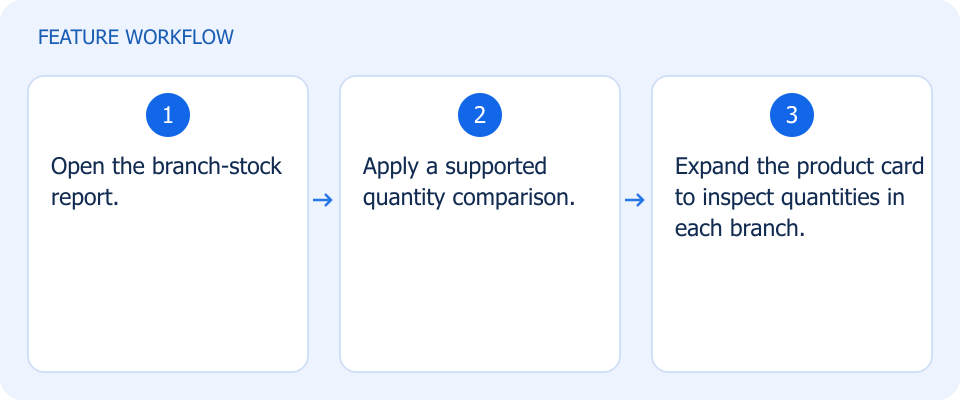 Illustrated workflow, not a product screenshot Business valueSpot branches with the stock quantities you are looking for. Filter branch-stock reports with quantity comparisons and expand product cards to review quantities in each branch. How to use
|
Navigate reports with less effort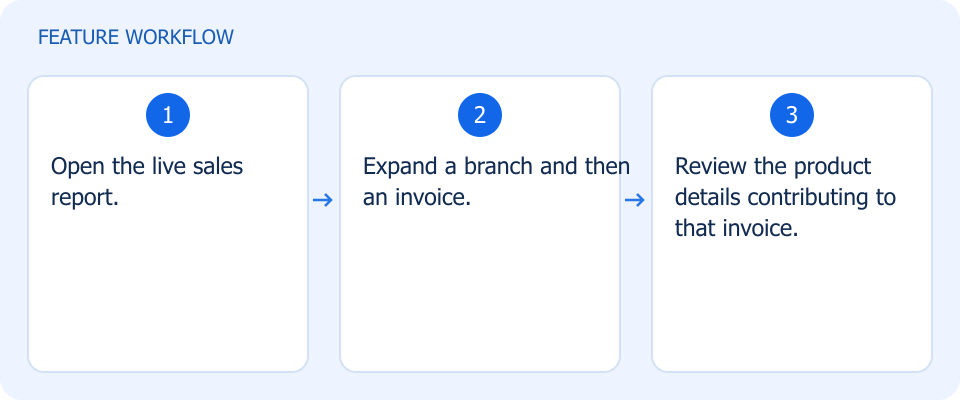 Illustrated workflow, not a product screenshot Business valueInvestigate a live sales total down to the sold product. How to use
|
Navigate reports with less effort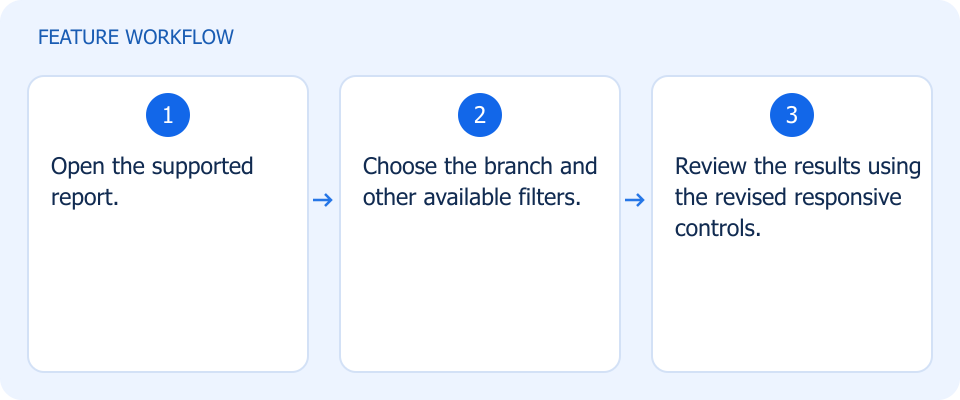 Illustrated workflow, not a product screenshot Business valueUse report controls more comfortably across screen sizes. How to use
|
Export invoice totals without duplication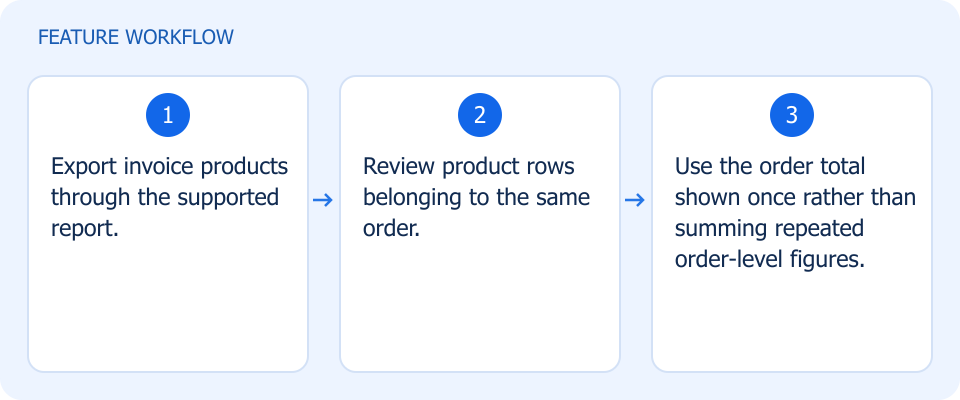 Illustrated workflow, not a product screenshot Business valueAvoid overstated totals when analyzing multi-item invoice exports. When exporting invoice products, order totals appear once per order rather than repeating on every item row. How to use
|
Match commissions to your delivery model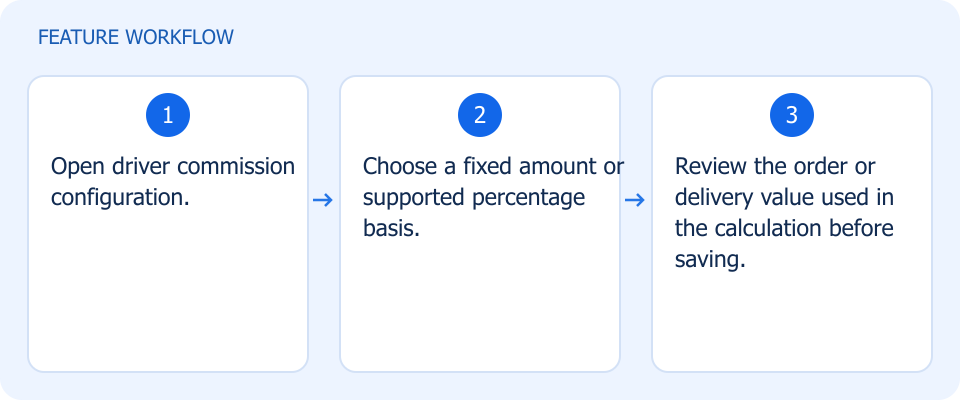 Illustrated workflow, not a product screenshot Business valueAlign driver compensation with your delivery pricing model. Configure driver commissions as fixed amounts or percentages based on the supported order and delivery values. How to use
|
Protect assigned Enjad shipments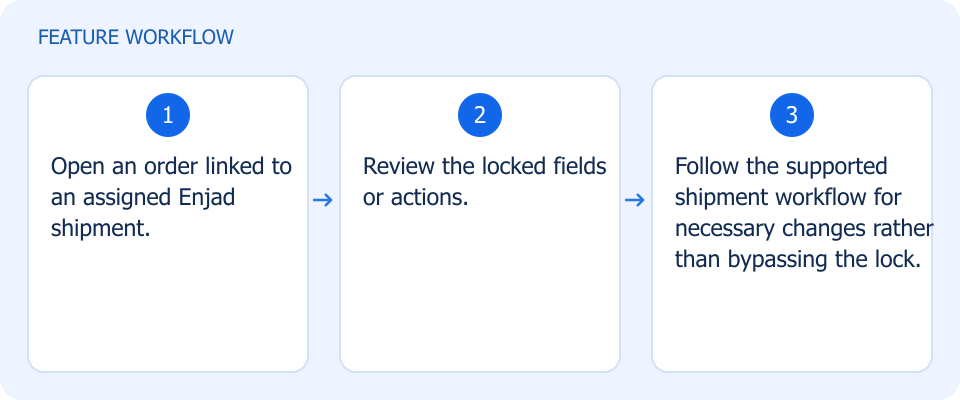 Illustrated workflow, not a product screenshot Business valuePrevent order edits from disrupting an assigned shipment. Orders linked to assigned Enjad shipments are locked against edits that could disrupt shipment synchronization. How to use
|
Choose whether to print tracking numbers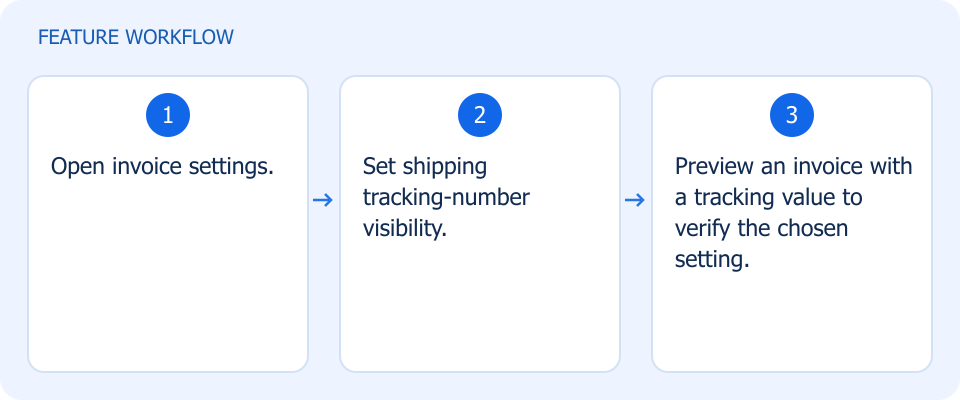 Illustrated workflow, not a product screenshot Business valueKeep tracking information on the printout only when you want it. Use the invoice setting to show or hide the shipping tracking number across invoice templates. How to use
|
Control cancellation emails by scenario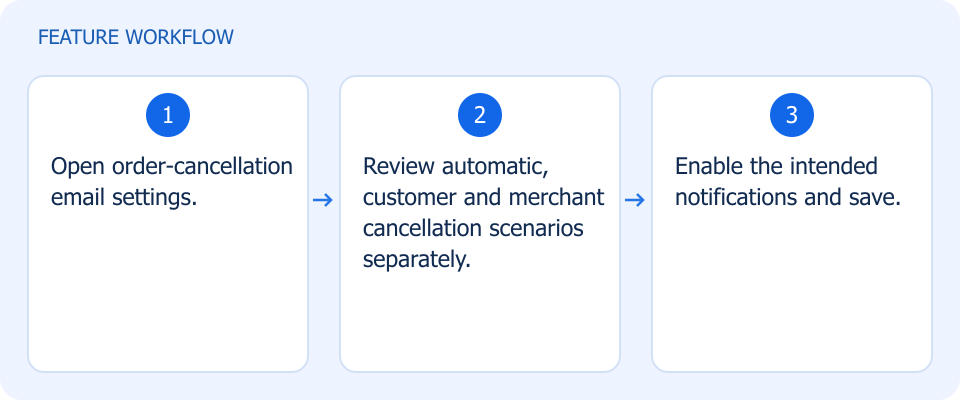 Illustrated workflow, not a product screenshot Business valueSend cancellation emails only for the scenarios your store intends. Enable or disable emails separately for automatic cancellations and cancellations made by customers or merchants. How to use
|
Make financial notifications useful at a glance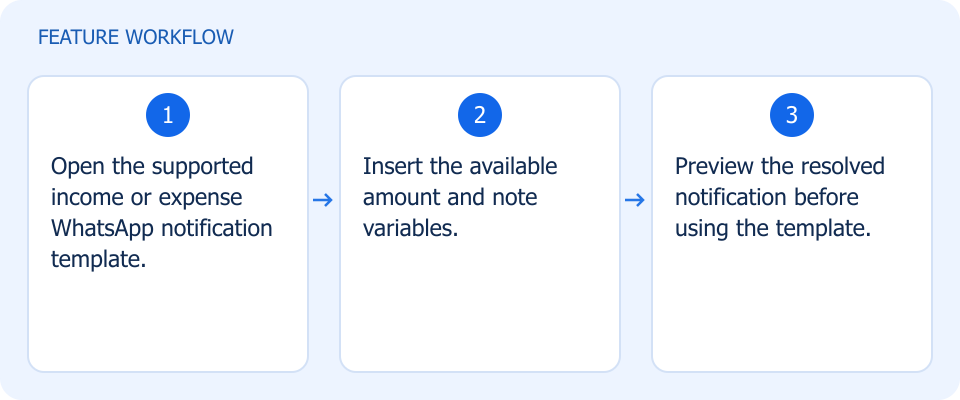 Illustrated workflow, not a product screenshot Business valueUnderstand the amount and context of a financial notification immediately. Include amounts and notes in supported income and expense WhatsApp notification templates. How to use
|
Connect your store to X campaign tracking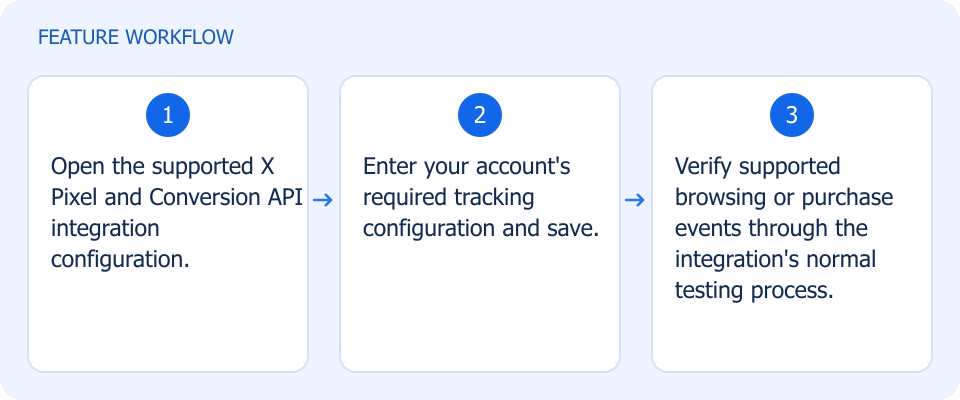 Illustrated workflow, not a product screenshot Business valueConnect supported store events to X campaign measurement. Configure X Pixel and Conversion API tracking for supported browsing and purchase events. How to use
|
Resume one organized customer cart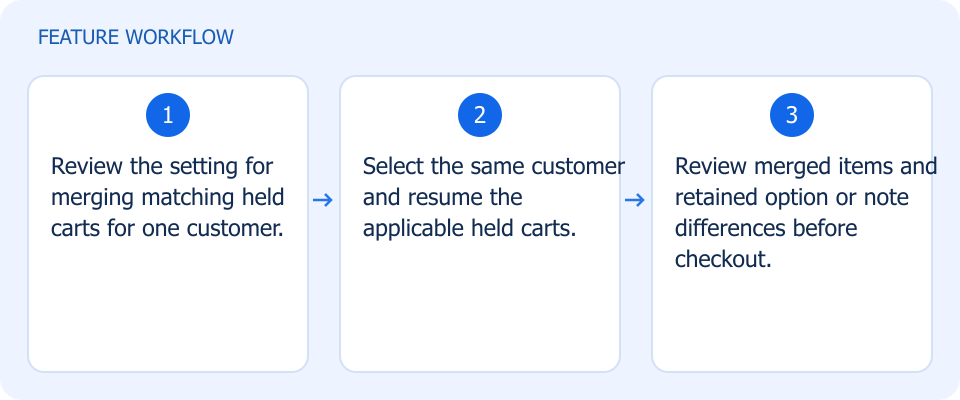 Illustrated workflow, not a product screenshot Business valueResume compatible held carts without losing item-specific differences. Optionally merge matching on-hold carts for the same customer while preserving differences in item options and notes. How to use
|