OSOSS · Product updates Release 282 June 2026 |
| Review draft. Confirm availability before sending; unfinished features are marked as previews. |
See payment fees in your reports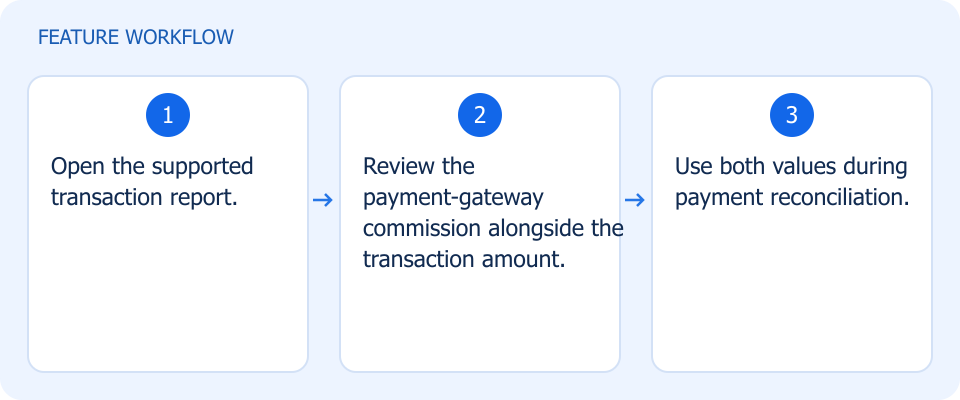 Illustrated workflow, not a product screenshot Business valueReconcile transaction amounts with the gateway fees behind them. Review payment-gateway commissions alongside transaction amounts for clearer reconciliation. How to use
|
Understand why selling prices differ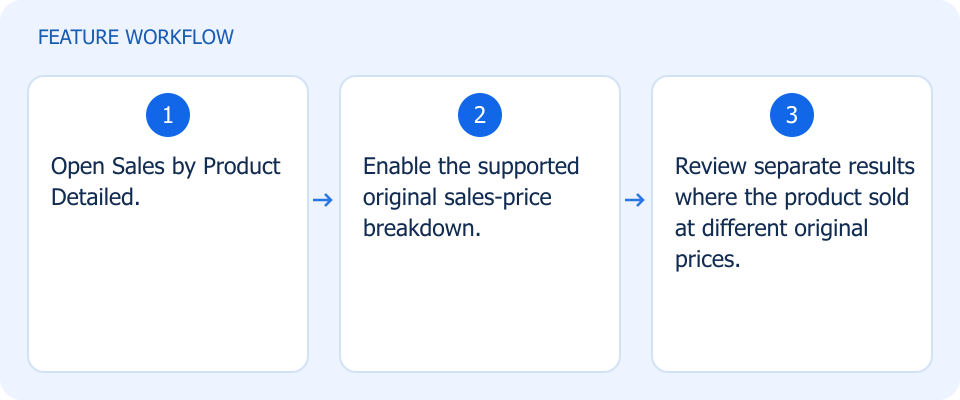 Illustrated workflow, not a product screenshot Business valueUnderstand which selling prices contributed to a product's sales. Enable sales-price breakdowns in Sales by Product Detailed when a product sells at multiple original prices. How to use
|
Identify customers in invoice reports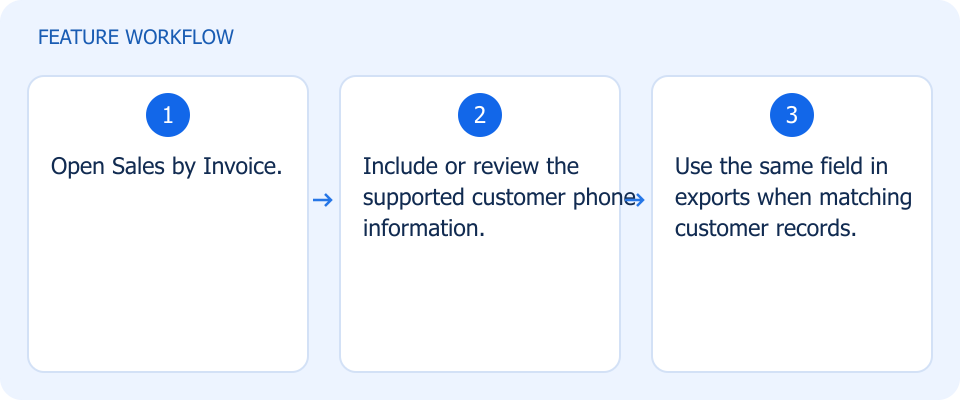 Illustrated workflow, not a product screenshot Business valueDistinguish customers with similar names in sales analysis. Include customer phone information in Sales by Invoice reporting and exports to distinguish similar names. How to use
|
Review performance comfortably on mobile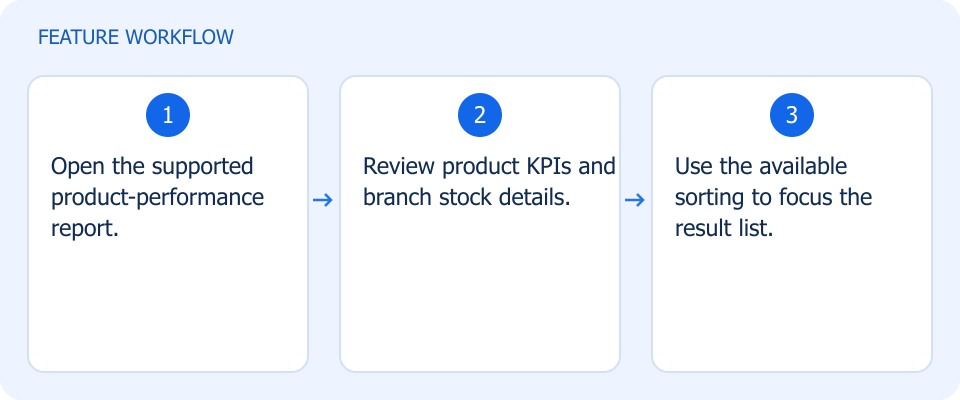 Illustrated workflow, not a product screenshot Business valueRead product indicators and stock context more clearly. How to use
|
Review performance comfortably on mobile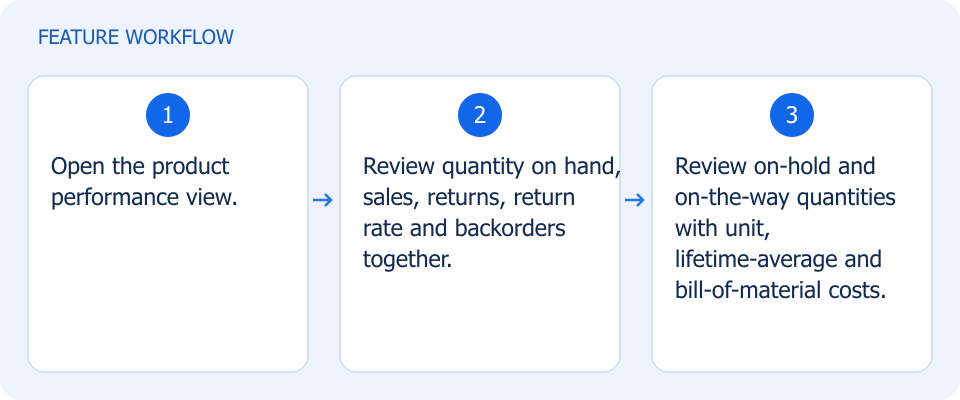 Illustrated workflow, not a product screenshot Business valueReview stock movement and cost indicators in logical groups. How to use
|
Review performance comfortably on mobile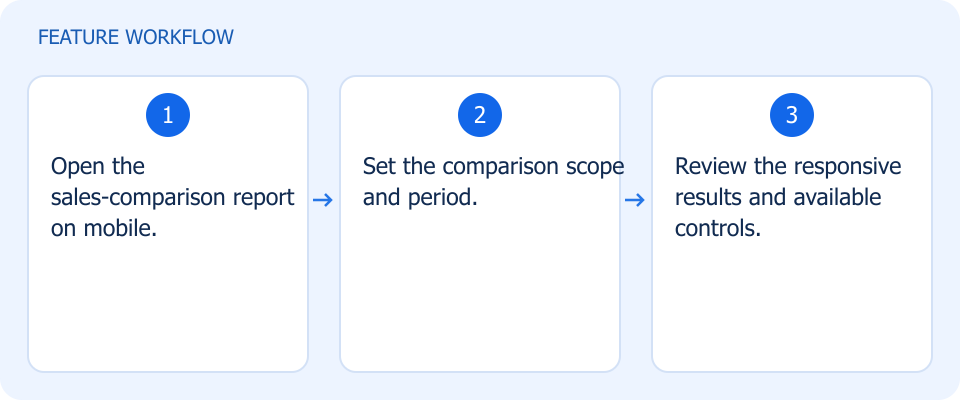 Illustrated workflow, not a product screenshot Business valueCompare sales on smaller screens without losing the reporting context. How to use
|
Print more informative price labels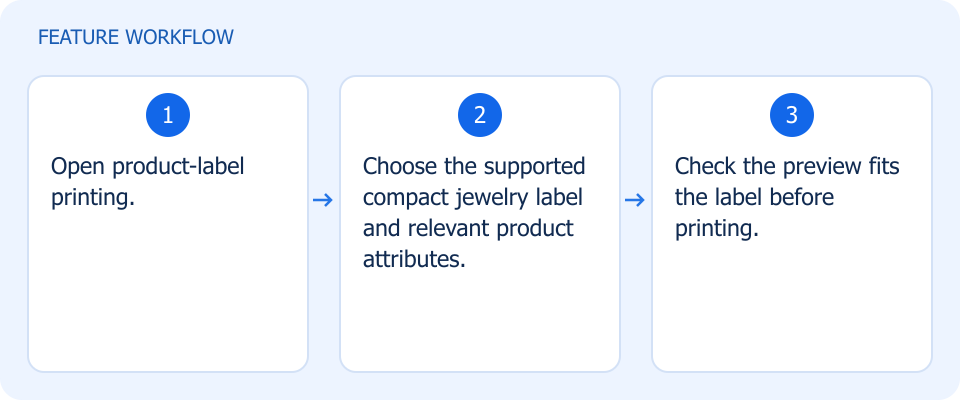 Illustrated workflow, not a product screenshot Business valueFit useful product attributes onto compact jewelry labels. How to use
|
Print more informative price labels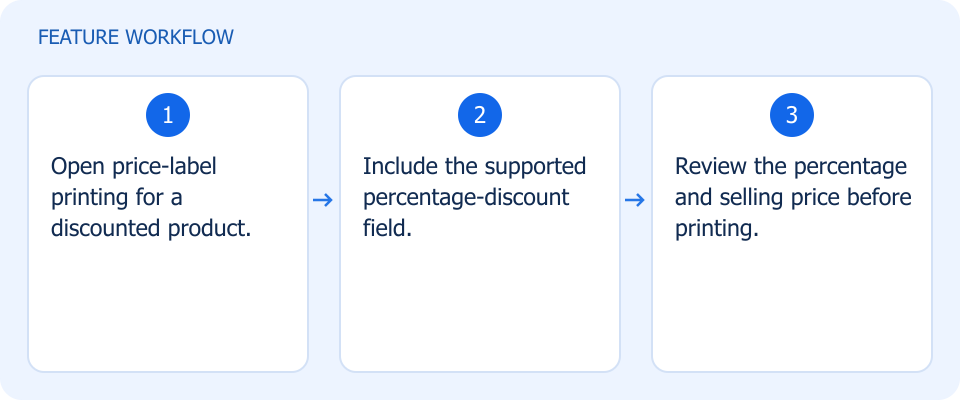 Illustrated workflow, not a product screenshot Business valueMake the discount percentage visible at the shelf or product label. How to use
|
See the images behind each order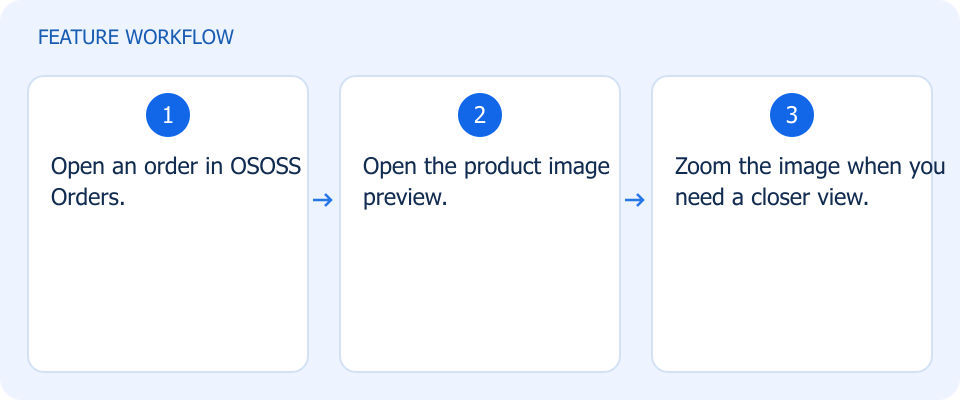 Illustrated workflow, not a product screenshot Business valueInspect the ordered product visually during preparation. How to use
|
See the images behind each order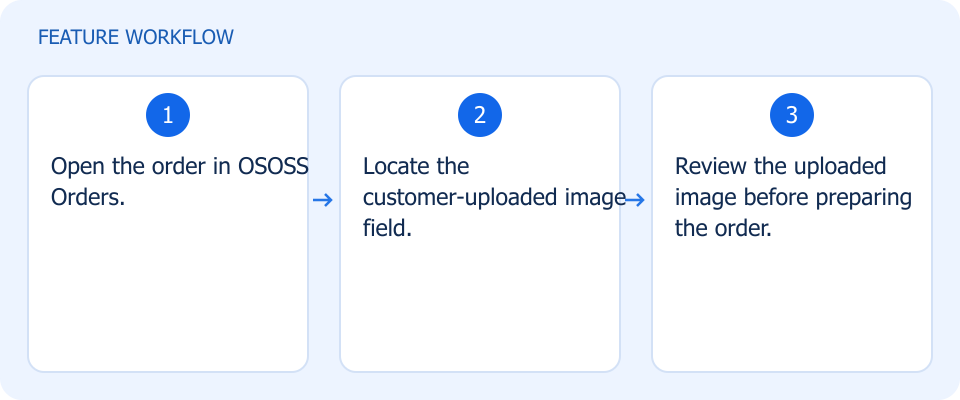 Illustrated workflow, not a product screenshot Business valueKeep customer-provided image instructions beside the order. How to use
|
Prepare bundles with their components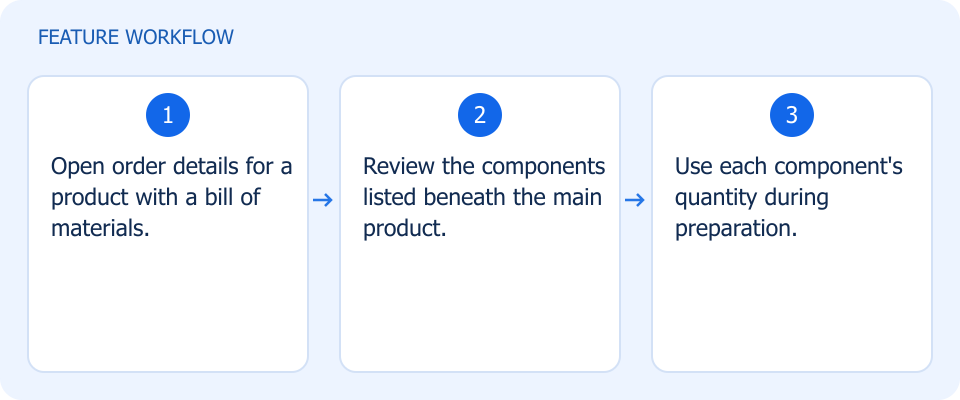 Illustrated workflow, not a product screenshot Business valuePrepare the components of a bundle without overlooking quantities. Review bill-of-materials components and quantities beneath the main product in order details. How to use
|
Adapt your storefront to each screen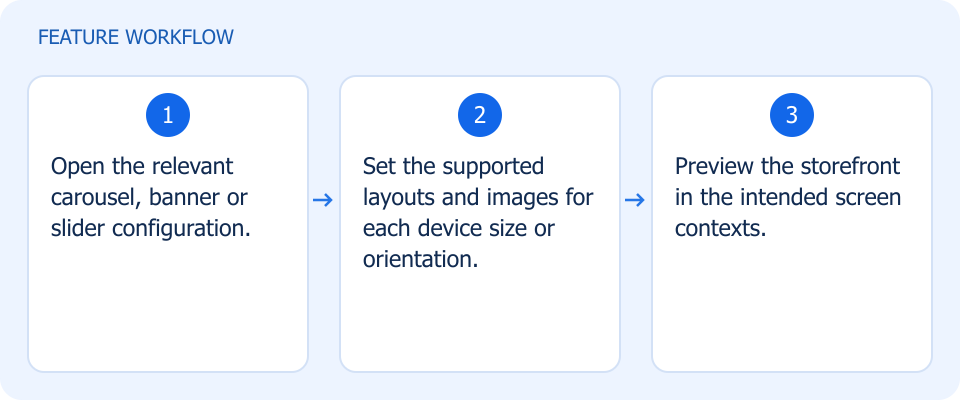 Illustrated workflow, not a product screenshot Business valueKeep promotional visuals usable across device sizes and orientations. Configure carousel, banner, and slider layouts and images for device sizes and orientations. How to use
|
Keep each page on one clear URL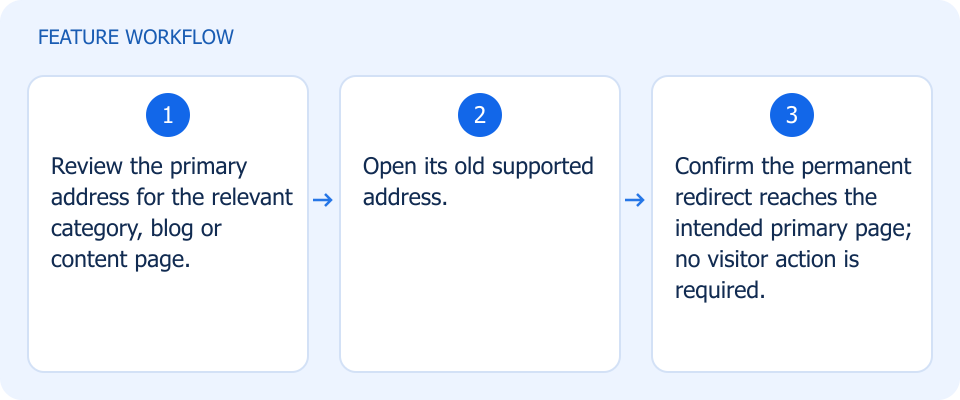 Illustrated workflow, not a product screenshot Business valueKeep old links useful while directing visitors to the primary page. Redirect old category, blog, and content URLs to their primary addresses with permanent redirects. How to use
|
Separate inventory accounting by branch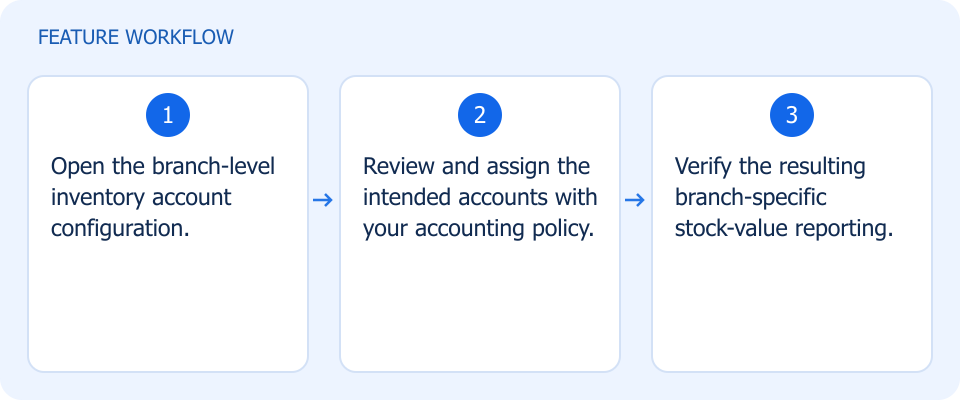 Illustrated workflow, not a product screenshot Business valueAttribute stock value to the relevant branch accounts. Configure branch-level inventory accounts to make stock-value reporting more specific to each location. How to use
|
Make customer relationships easier to read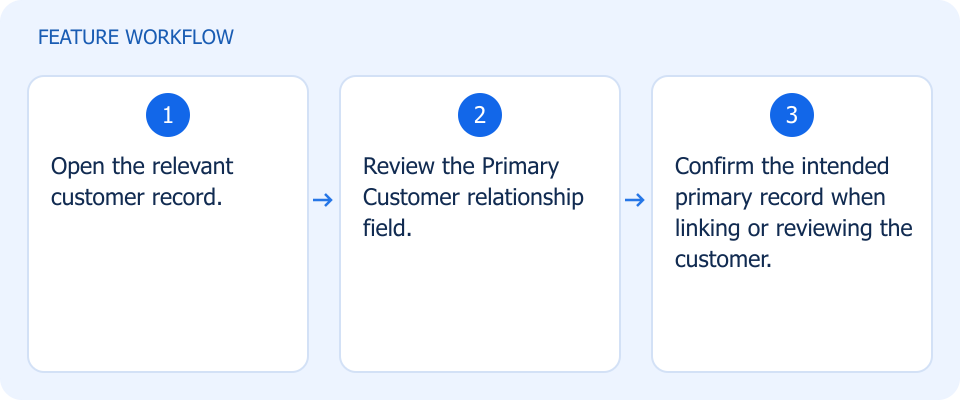 Illustrated workflow, not a product screenshot Business valueRead the primary-customer relationship consistently. How to use
|
Make customer relationships easier to read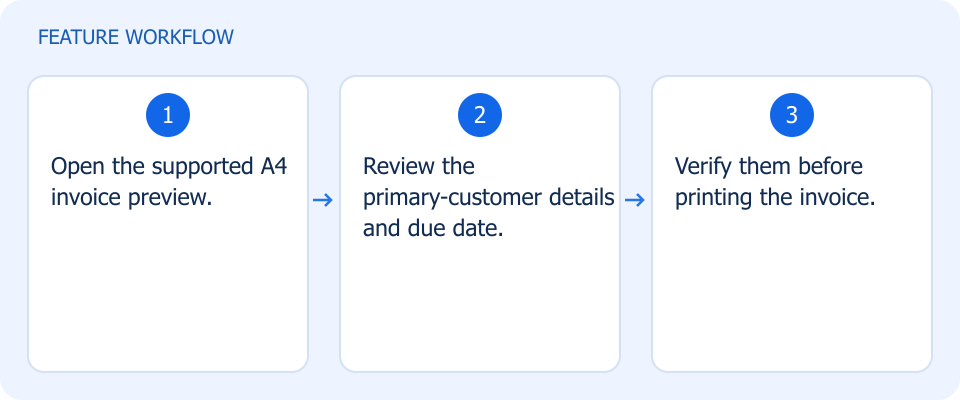 Illustrated workflow, not a product screenshot Business valueMake the main customer and due date clearer on the printed invoice. How to use
|
Work more smoothly with your printing hardware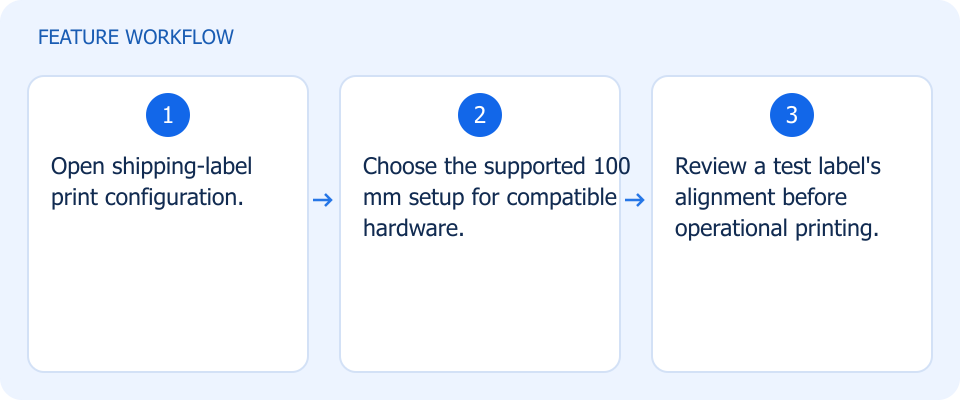 Illustrated workflow, not a product screenshot Business valueUse the supported shipping-label width with compatible printers. How to use
|
Work more smoothly with your printing hardware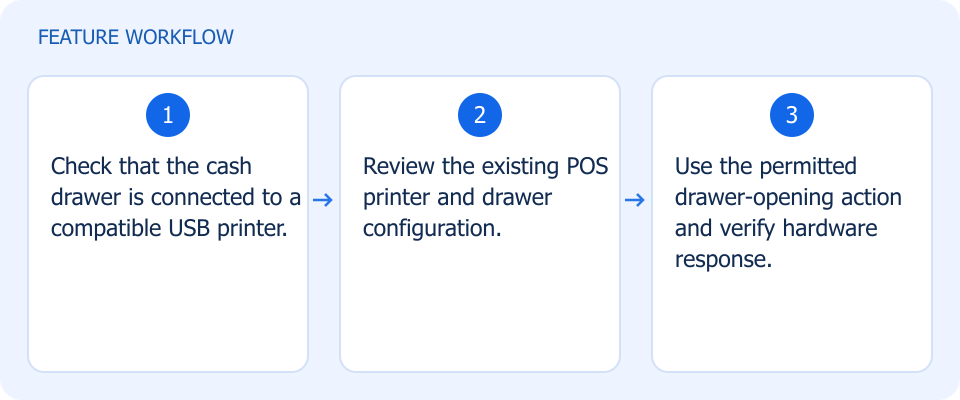 Illustrated workflow, not a product screenshot Business valueOpen a compatible cash drawer through its USB-connected printer. How to use
|
Make receipts easier to use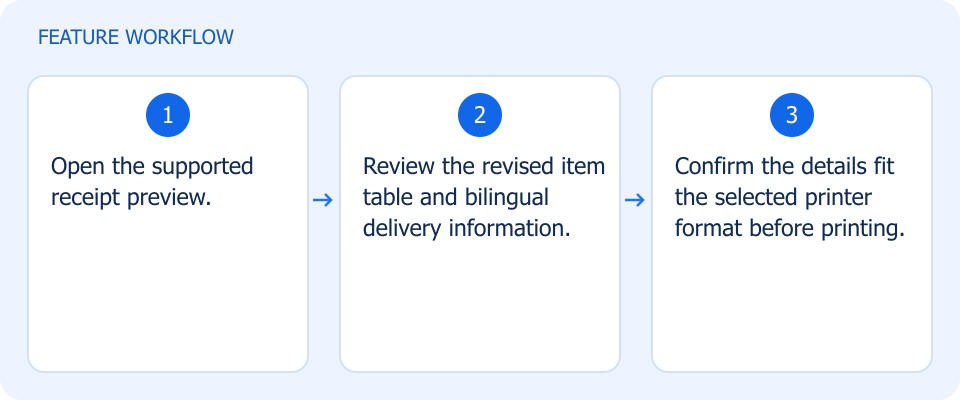 Illustrated workflow, not a product screenshot Business valueMake item and delivery details easier to read on the receipt. Improve receipt readability with clearer item tables and bilingual delivery information. How to use
|
Offer the lowest-priced item free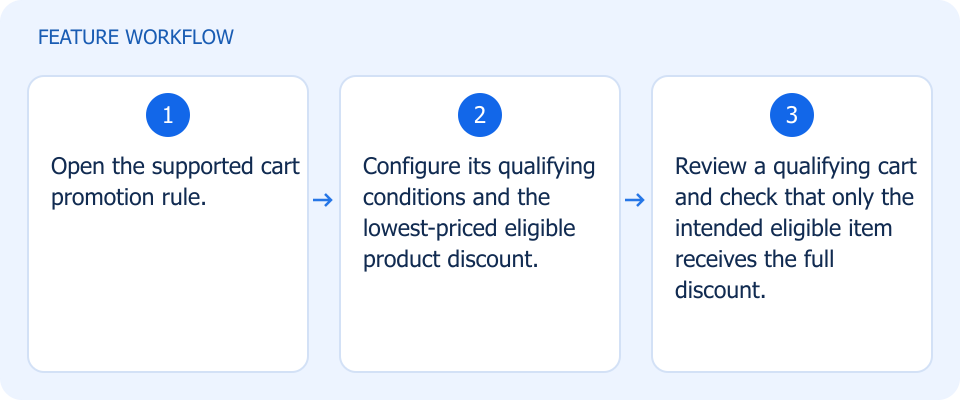 Illustrated workflow, not a product screenshot Business valueRun a qualifying promotion that rewards the lowest-priced eligible item. Configure qualifying cart promotions that apply a full discount to the lowest-priced eligible product. How to use
|