OSOSS · Product updates Release 2916 June 2026 |
| Review draft. Confirm availability before sending; unfinished features are marked as previews. |
Offer payment methods that fit the order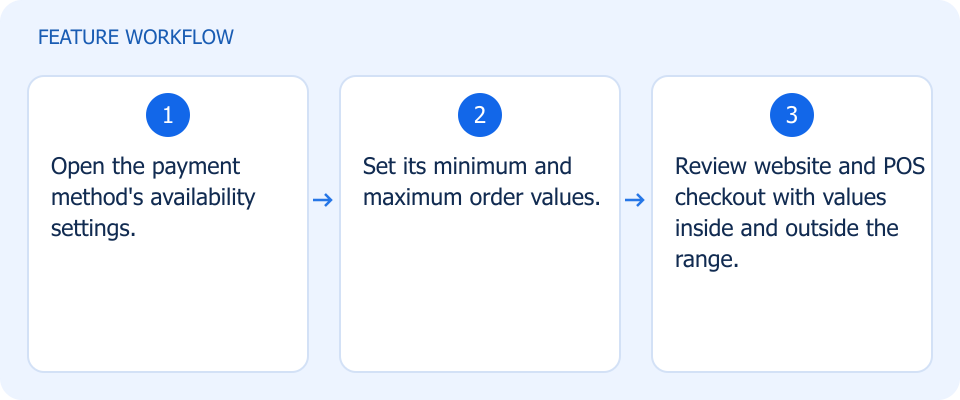 Illustrated workflow, not a product screenshot Business valueOffer payment methods only for orders within the intended value range. Set minimum and maximum order values for payment-method availability on the website and POS. How to use
|
Use customer fields across your workflow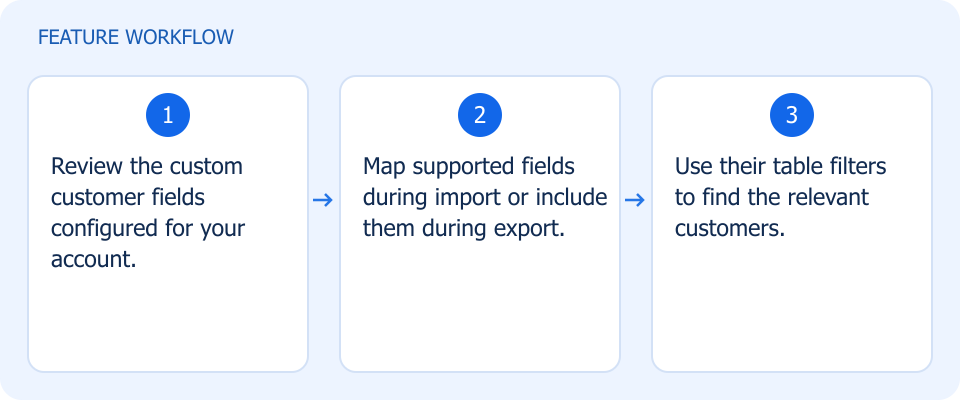 Illustrated workflow, not a product screenshot Business valueUse custom customer data consistently in everyday data work. Manage custom customer fields through import, export, and table filters instead of handling them separately. How to use
|
Connect customer records to account numbers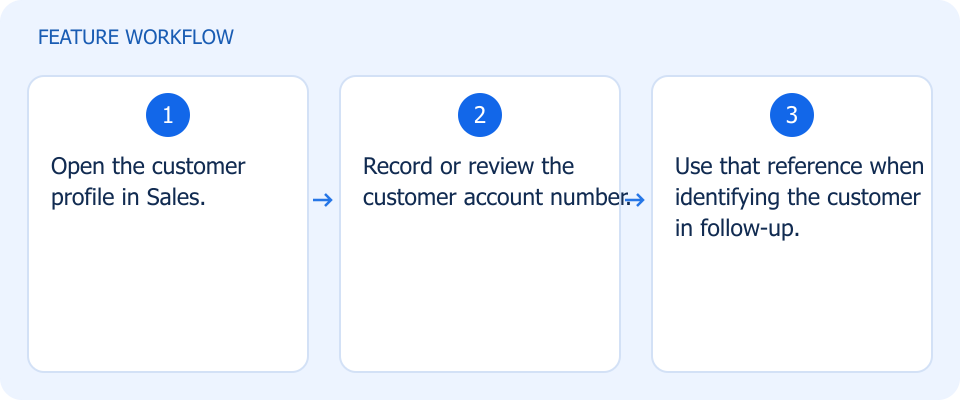 Illustrated workflow, not a product screenshot Business valueDistinguish customer records with their account reference. Store the customer account number in the Sales customer profile for easier identification. How to use
|
Make invoices gift-ready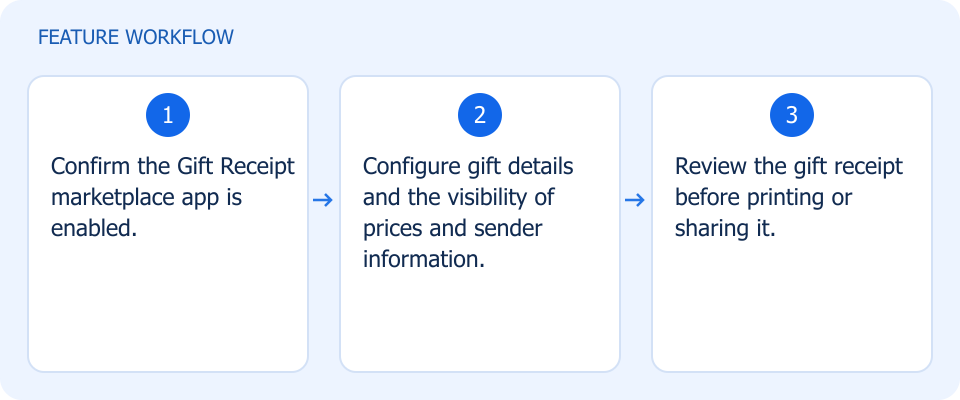 Illustrated workflow, not a product screenshot Business valuePrepare a gift receipt without exposing unwanted prices or sender details. With the Gift Receipt marketplace app enabled, configure gift details and control the visibility of prices and sender information. How to use
|
Choose whether customers can cancel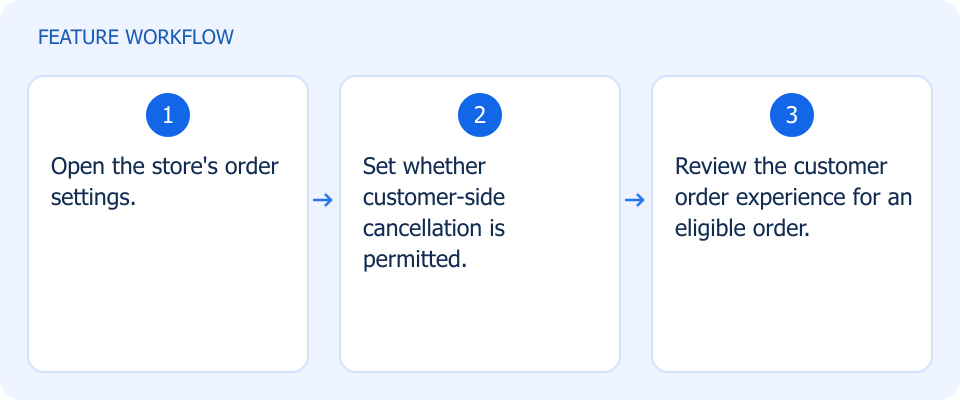 Illustrated workflow, not a product screenshot Business valueMatch customer cancellation to your order-handling policy. Control customer-side order cancellation through the store’s order settings. How to use
|
Update dispatch status from the dashboard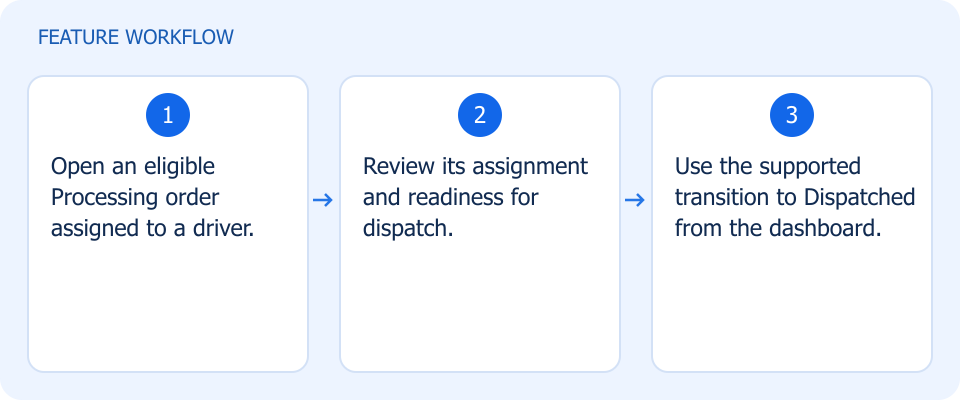 Illustrated workflow, not a product screenshot Business valueUpdate dispatch progress from the merchant's working screen. Move eligible driver-assigned orders from Processing to Dispatched directly from the merchant dashboard. How to use
|
Put the branch name on labels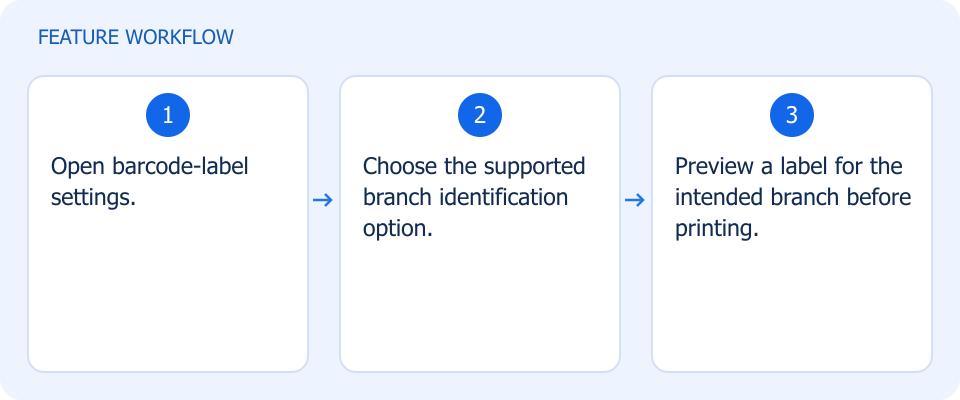 Illustrated workflow, not a product screenshot Business valueIdentify the branch directly from the product label. Choose branch identification on barcode labels instead of relying only on the company name. How to use
|
Review values while receiving stock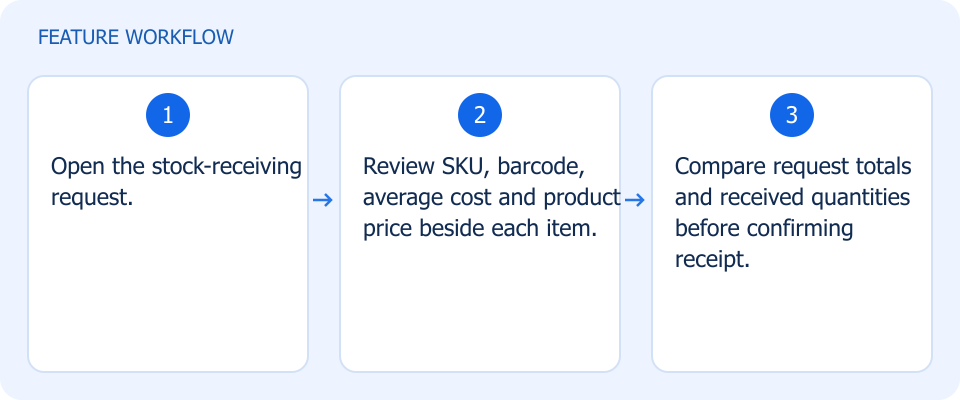 Illustrated workflow, not a product screenshot Business valueCheck product identity and value while receiving stock. See SKU, barcode, average cost, product price, and request totals during stock receiving. How to use
|
Record what actually arrived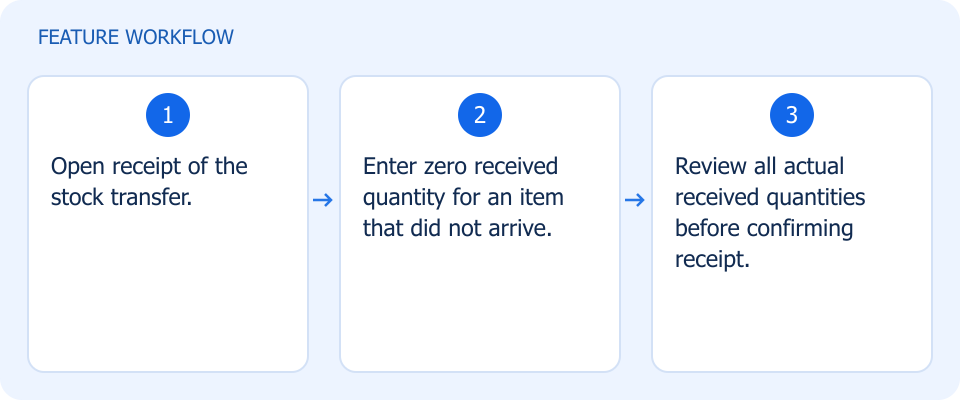 Illustrated workflow, not a product screenshot Business valueAvoid recording inventory for transferred goods that never arrived. Enter zero received quantity for transfer items that did not arrive, rather than recording stock you never received. How to use
|
Import multi-line vouchers together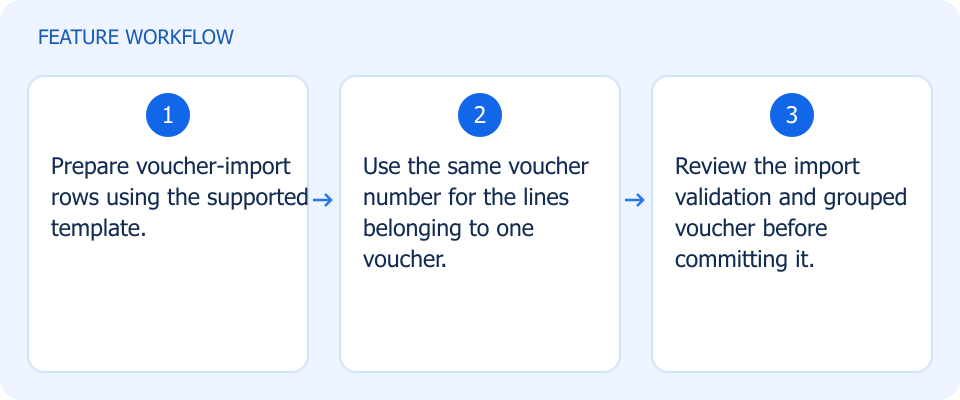 Illustrated workflow, not a product screenshot Business valueImport a multi-line voucher as one coherent accounting document. Use the supported import flow to group accounting voucher lines by voucher number. How to use
|
Brand the login journey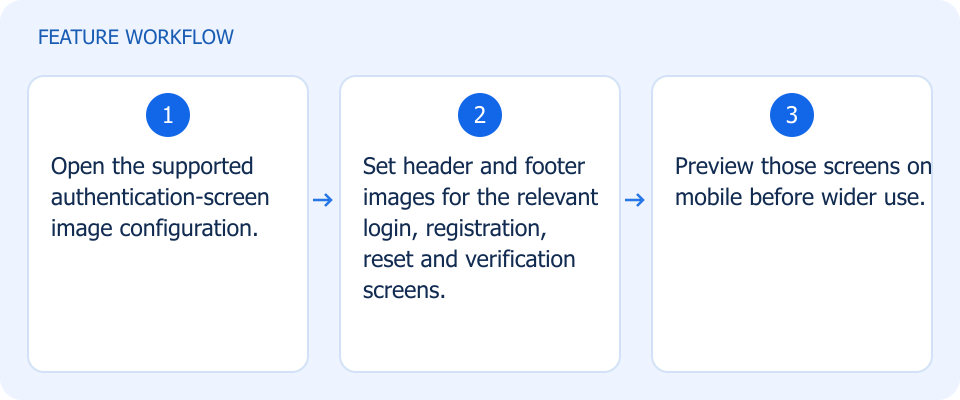 Illustrated workflow, not a product screenshot Business valueKeep your visual identity present throughout account access. Add header and footer images to login, registration, reset-password, and verification screens. How to use
|