OSOSS · Product updates Release 3311 August 2026 |
| Review draft. Confirm availability before sending; unfinished features are marked as previews. |
Let customers choose their delivery time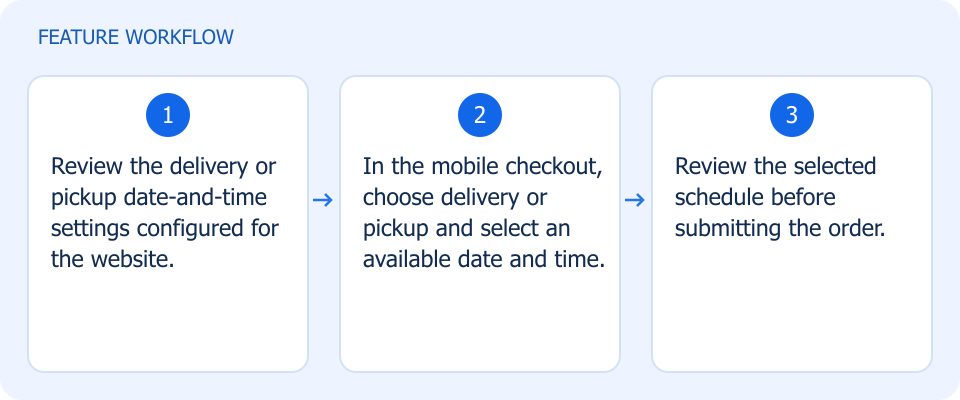 Illustrated workflow, not a product screenshot Business valueReduce delivery coordination by letting customers pick a suitable time at checkout. Mobile delivery and pickup scheduling follows the date-and-time settings already configured for your website. How to use
|
Correct costs across affected inventory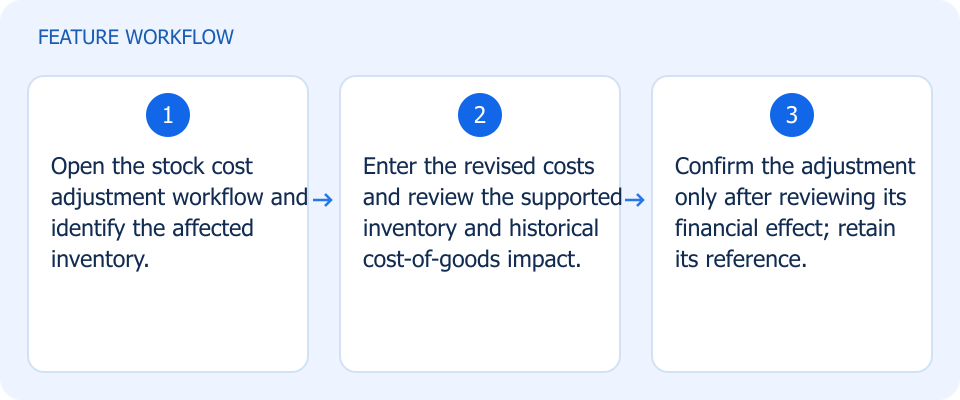 Illustrated workflow, not a product screenshot Business valueCorrect valuation through a traceable adjustment instead of scattered product edits. Create stock cost adjustments with the supported inventory and historical cost-of-goods impact, rather than editing products individually. How to use
|
Start tracking stock without duplicating the product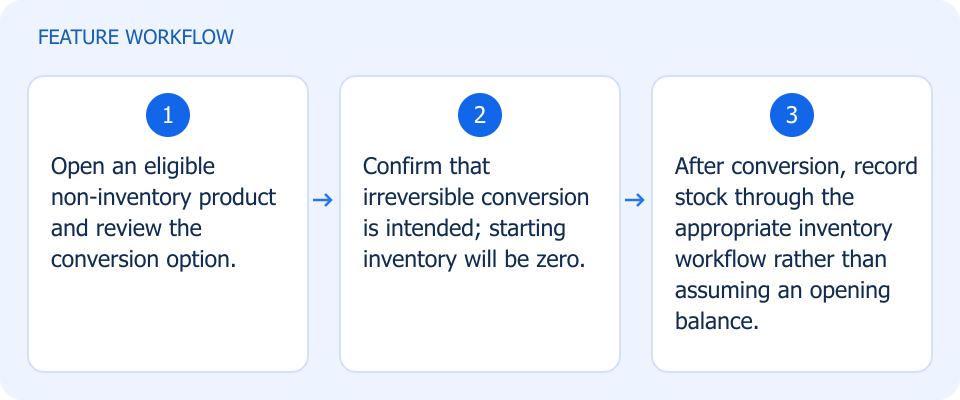 Illustrated workflow, not a product screenshot Business valueBegin tracking an existing product's stock without losing its identity and history. Convert eligible non-inventory products while retaining their identity and history. Conversion is irreversible and stock starts at zero. How to use
|
Tell more of your story in WhatsApp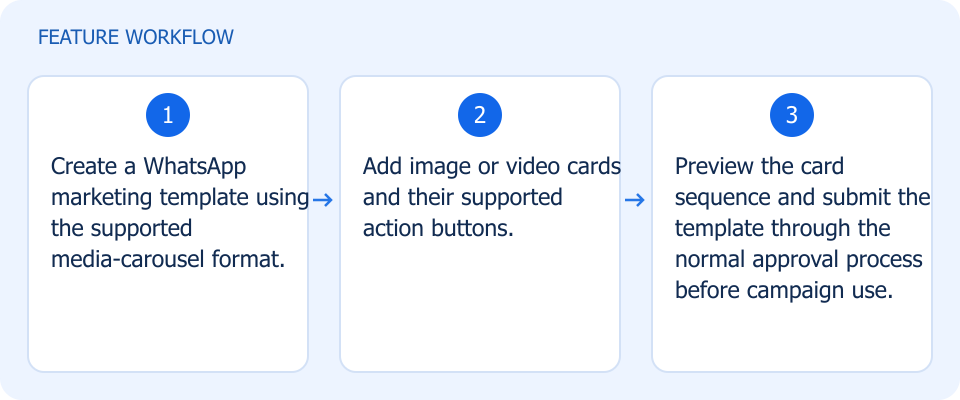 Illustrated workflow, not a product screenshot Business valuePresent several products or offers in one structured WhatsApp message. Create media-carousel marketing templates with image or video cards and supported calls to action. How to use
|
Make low-stock alerts specific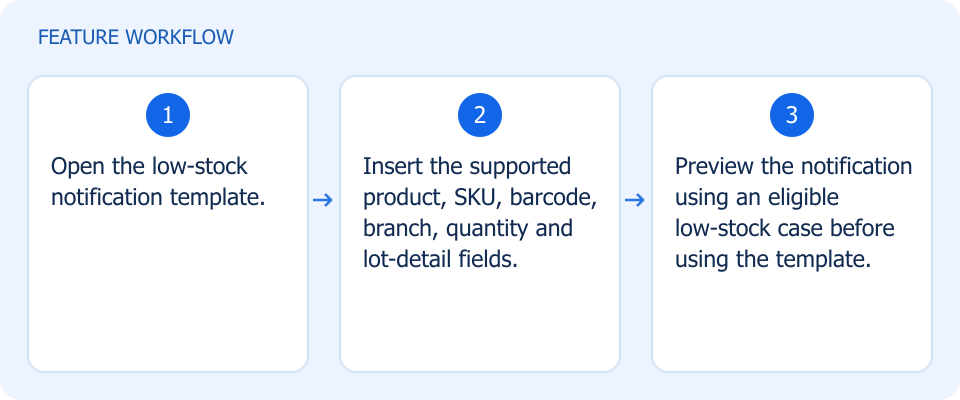 Illustrated workflow, not a product screenshot Business valueGive the replenishment team enough context to act directly from the alert. Include product, SKU, barcode, branch, quantity, and supported lot details in low-stock notification templates. How to use
|
Trace the exact quantities sold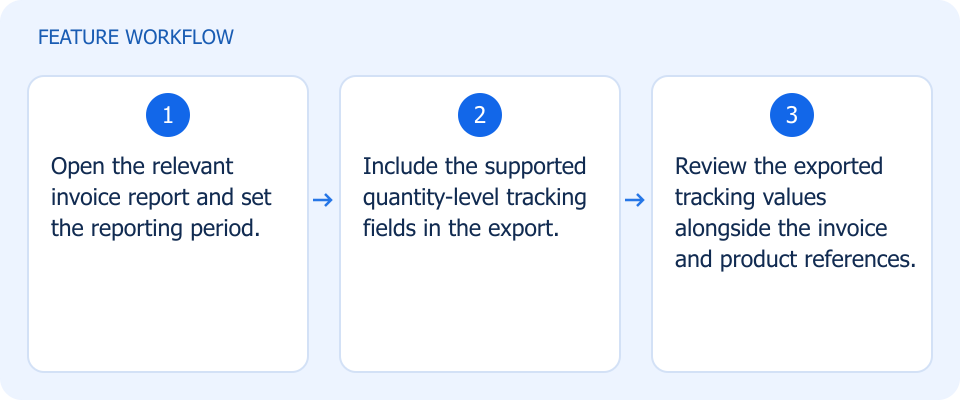 Illustrated workflow, not a product screenshot Business valueKeep sold-unit tracking available outside the invoice report. How to use
|
Trace the exact quantities sold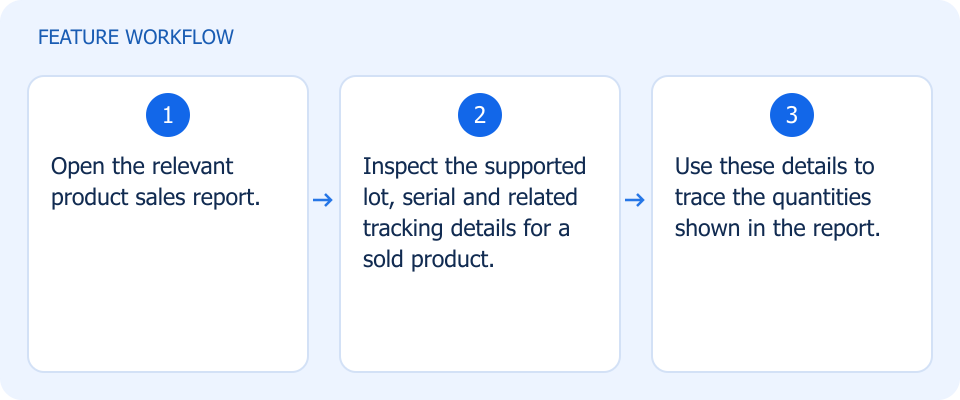 Illustrated workflow, not a product screenshot Business valueInvestigate sales at lot or serial level instead of relying only on product totals. How to use
|
Switch from product totals to inventory lots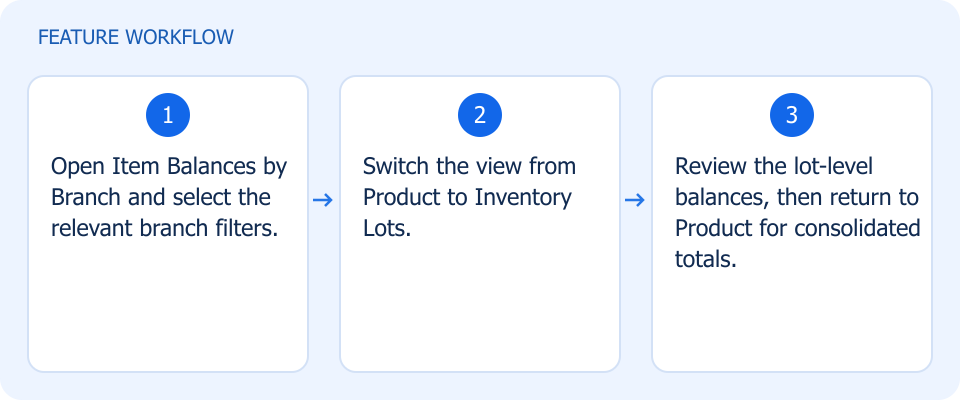 Illustrated workflow, not a product screenshot Business valueExplain a stock total by seeing the individual lots behind it. Choose Product or Inventory Lots view in Item Balances by Branch to investigate the stock behind each total. How to use
|
Read available and sold quantities consistently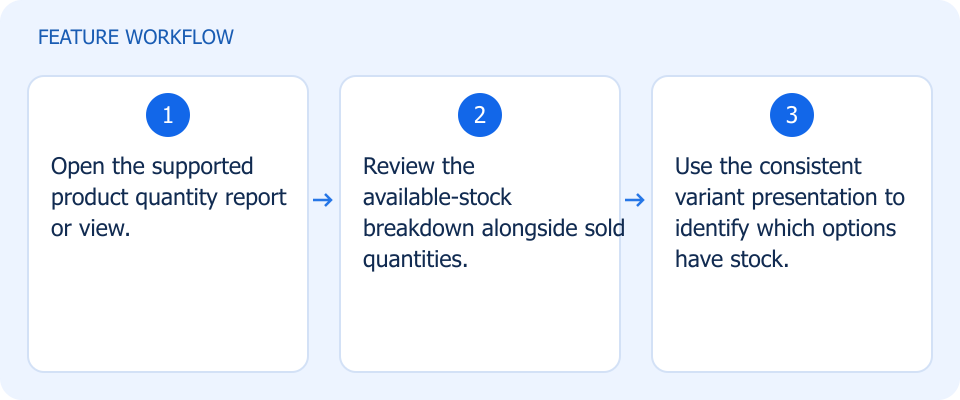 Illustrated workflow, not a product screenshot Business valueCompare available and sold variant quantities without switching interpretation. Review available stock using the same clearer variant presentation used for sold quantities. How to use
|
See gold and silver stock separately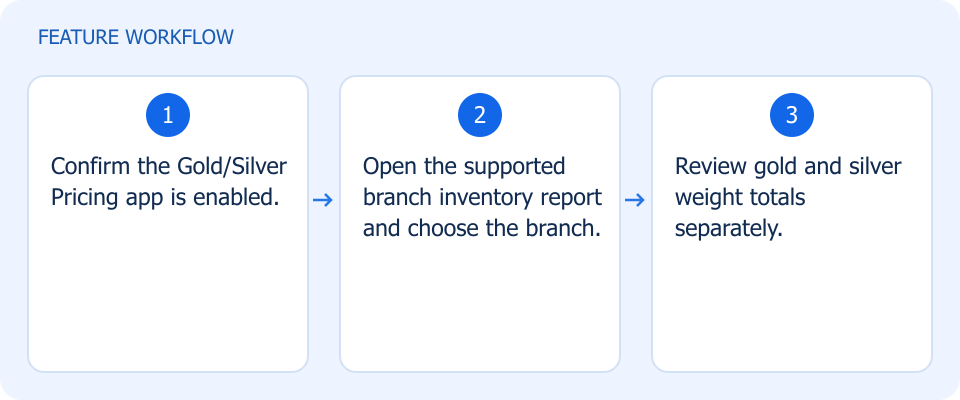 Illustrated workflow, not a product screenshot Business valueDistinguish the weight held in each precious metal by branch. With the Gold/Silver Pricing app enabled, review separate gold and silver weight totals by branch. How to use
|
Release abandoned reservations sooner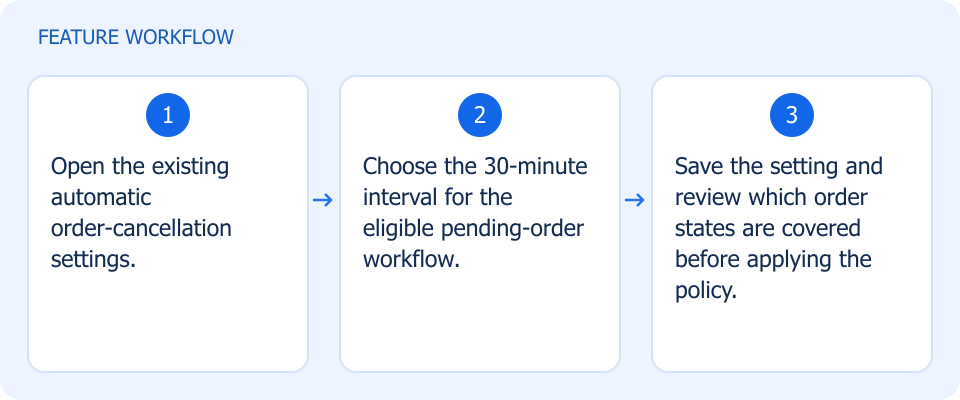 Illustrated workflow, not a product screenshot Business valueFree stock tied to abandoned pending orders sooner. Select a 30-minute auto-cancellation interval for eligible pending orders using the existing cancellation workflow. How to use
|
Choose the currency for invoice printing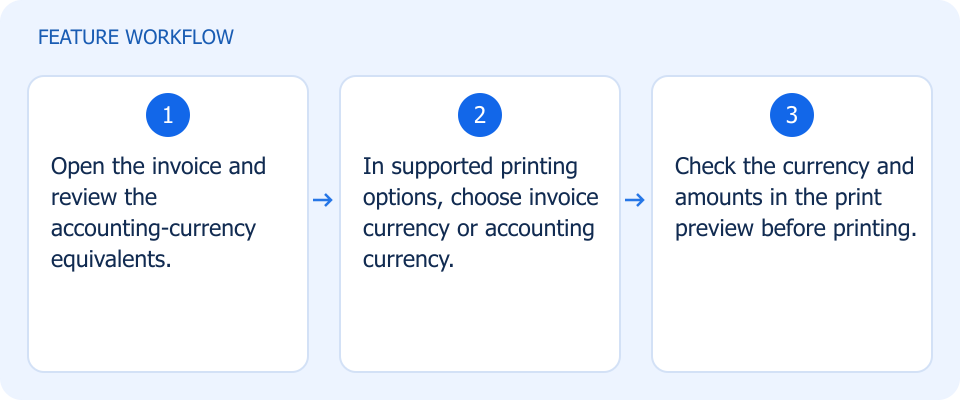 Illustrated workflow, not a product screenshot Business valueGive recipients invoice amounts in the supported currency they need to review. Review accounting-currency equivalents and select the supported invoice or accounting currency when printing. How to use
|
Print delivery receipts on A4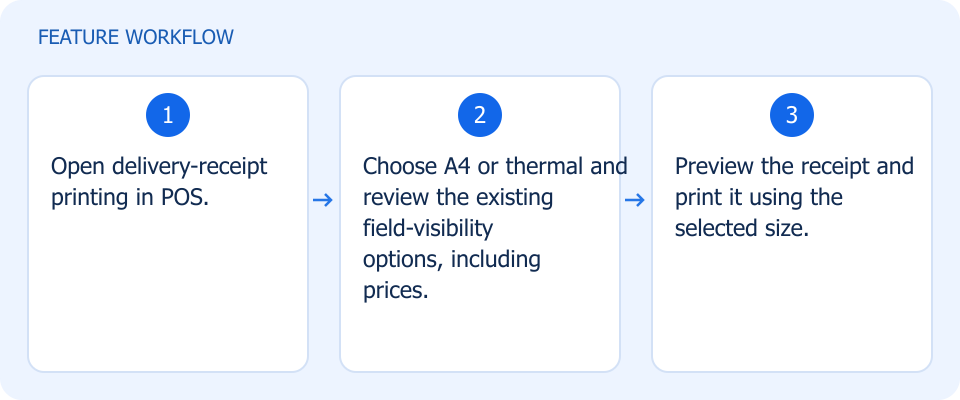 Illustrated workflow, not a product screenshot Business valueUse a full-page delivery receipt while controlling what the recipient can see. Choose A4 or thermal delivery receipts and retain existing field-visibility controls, including hiding prices. How to use
|
Separate supplier payments from stock receipt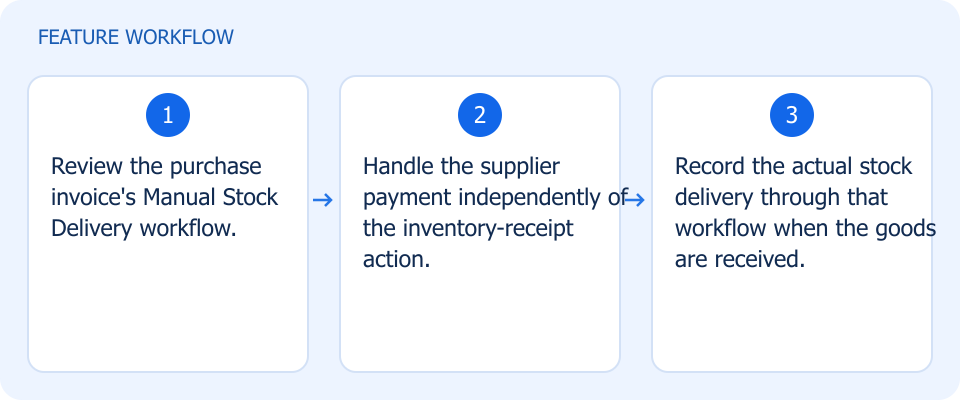 Illustrated workflow, not a product screenshot Business valueKeep purchasing payments and actual stock receipt aligned with separate operational events. Use the Manual Stock Delivery workflow to control when a purchase invoice affects inventory independently of payment handling. How to use
|
Adjust only the costs that need changing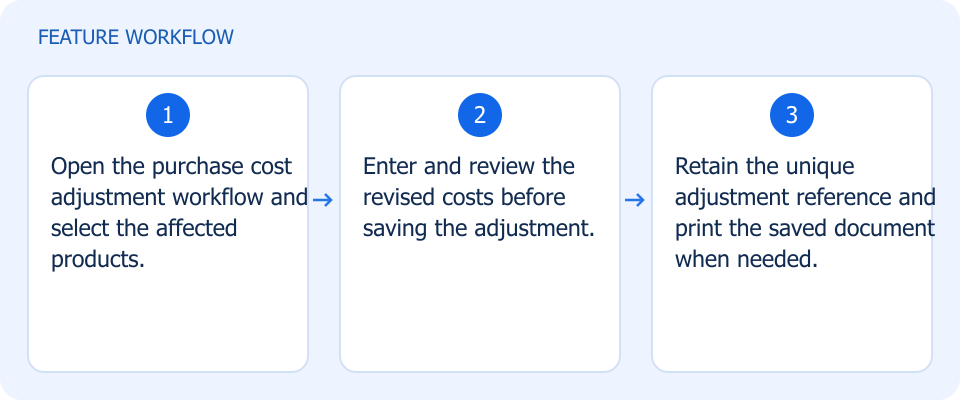 Illustrated workflow, not a product screenshot Business valueTarget cost corrections to the affected purchased products and keep an audit document. Select products for purchase cost adjustments, retain a unique adjustment reference, and print the saved document. How to use
|
Make gateway fees more transparent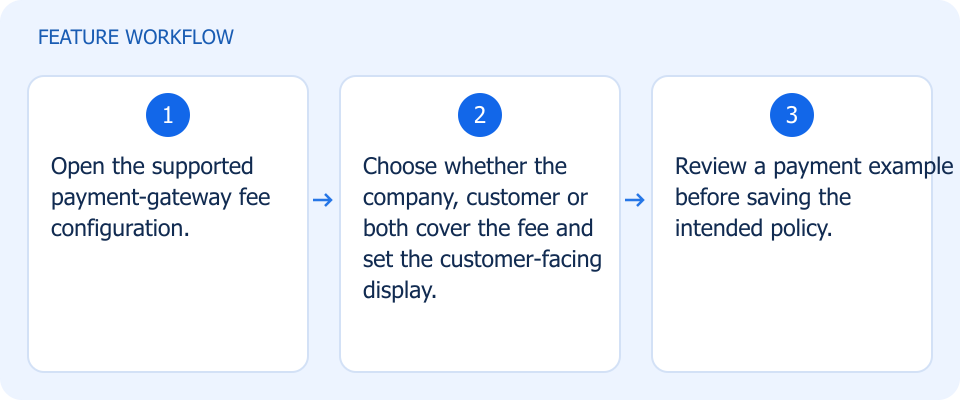 Illustrated workflow, not a product screenshot Business valueMake payment costs explicit before deciding who absorbs them. Configure whether the company, customer, or both cover gateway fees, and how the customer-paid portion is displayed. How to use
|