OSOSS · Product updates Maintenance update 1 |
| Review draft. Confirm availability before sending; unfinished features are marked as previews. |
Choose how product prices appear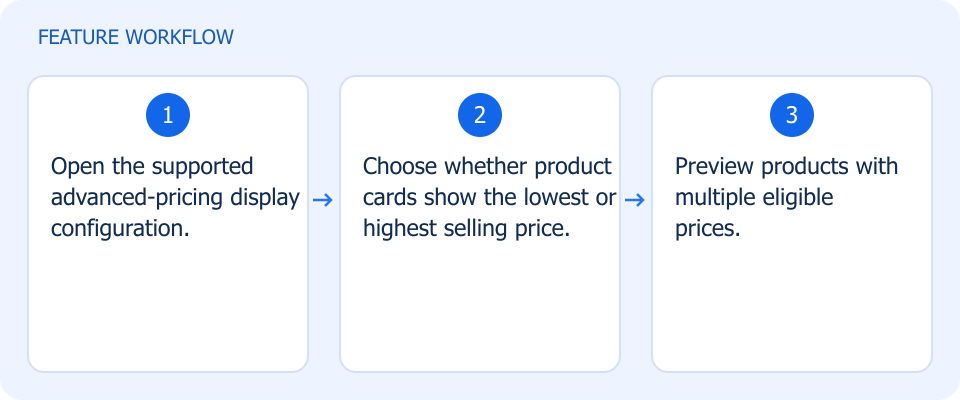 Illustrated workflow, not a product screenshot Business valuePresent the price range in the way that fits your merchandising policy. Show the lowest or highest selling price from supported advanced-pricing options on product cards. How to use
|
Show each team the information it needs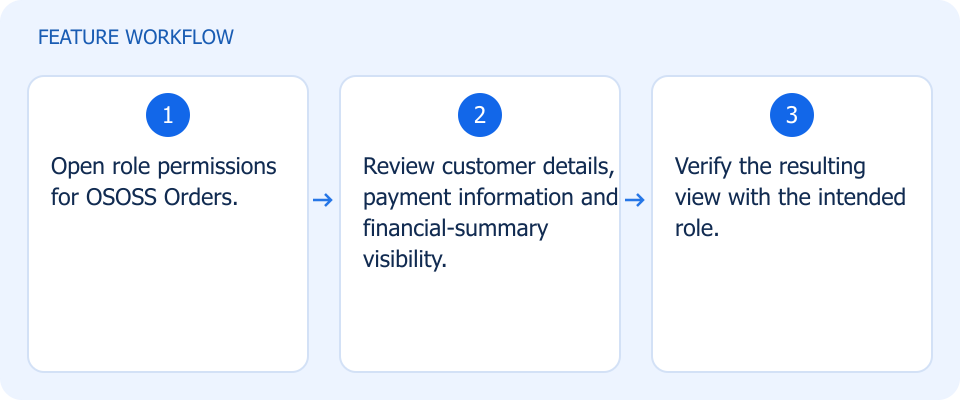 Illustrated workflow, not a product screenshot Business valueKeep sensitive customer and payment information limited to the right team. Control customer details, payment information, and financial summaries by role in OSOSS Orders. How to use
|
Move directly between orders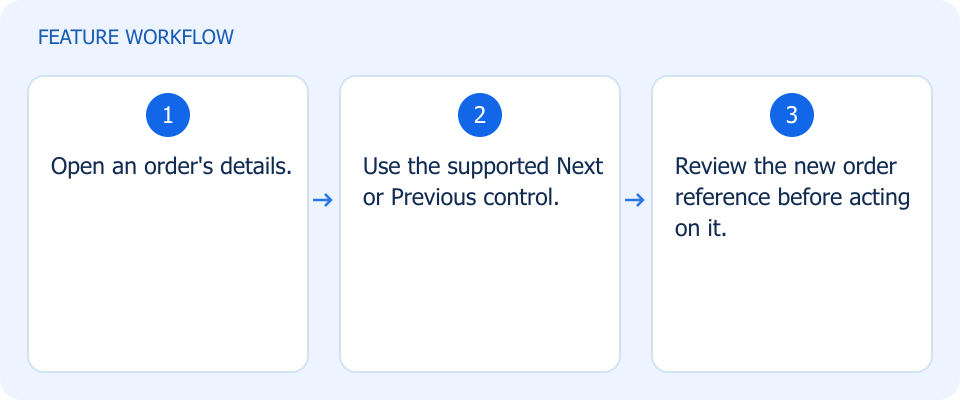 Illustrated workflow, not a product screenshot Business valueReview consecutive orders without repeatedly returning to the list. Use Next and Previous controls in order details without returning to the full order list. How to use
|
Bring more invoice details into imports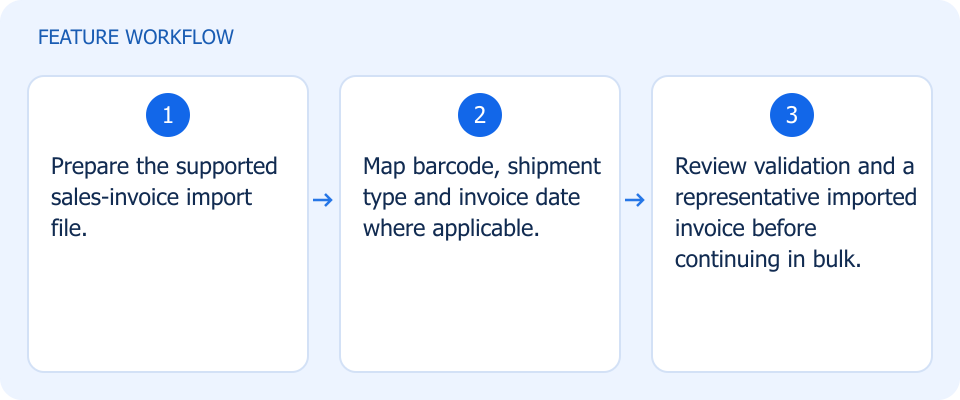 Illustrated workflow, not a product screenshot Business valuePreserve more source-document context during invoice import. Include barcode, shipment type, and invoice date when importing sales invoices. How to use
|
Keep product text consistent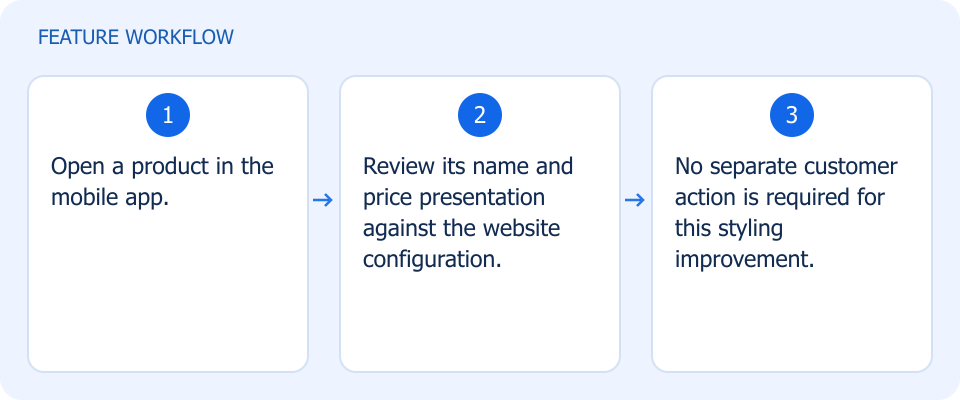 Illustrated workflow, not a product screenshot Business valueKeep product names and prices visually consistent between channels. Align mobile product-name and price styling with the website for clearer cross-channel presentation. How to use
|
Control the app opening message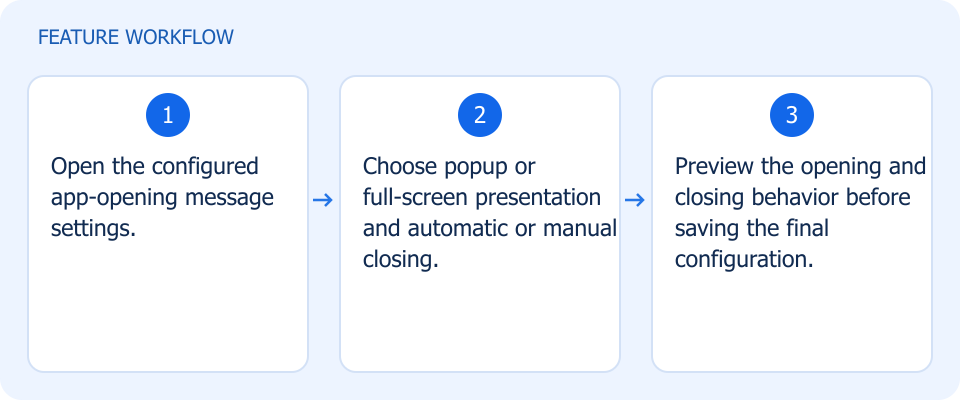 Illustrated workflow, not a product screenshot Business valueChoose an app-opening message that fits the intended experience. Choose popup or full-screen presentation and automatic or manual closing for the configured opening message. How to use
|
Inspect product images closely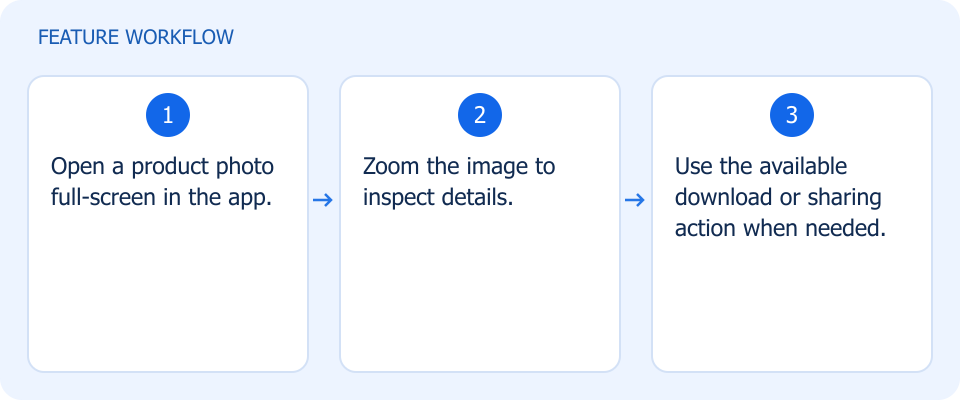 Illustrated workflow, not a product screenshot Business valueLet shoppers inspect and share product-image details from mobile. Open product photos full-screen, zoom, download, or share them from the mobile app. How to use
|
Make saved and related products easier to find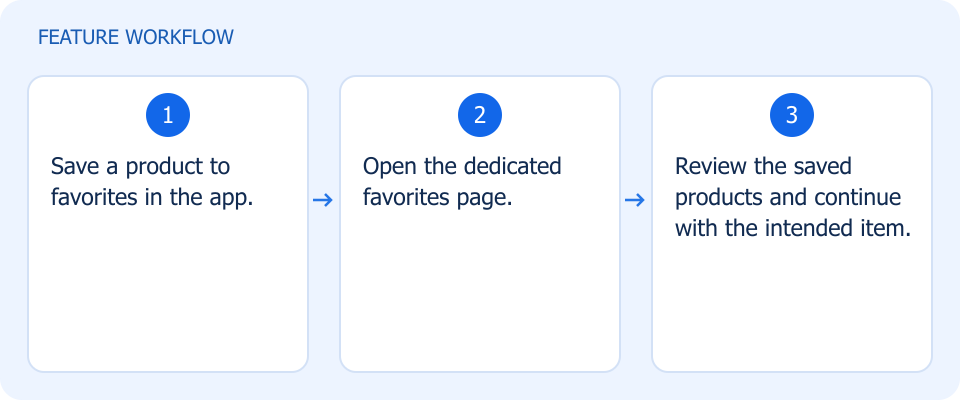 Illustrated workflow, not a product screenshot Business valueReturn to saved mobile products without searching again. How to use
|
Make saved and related products easier to find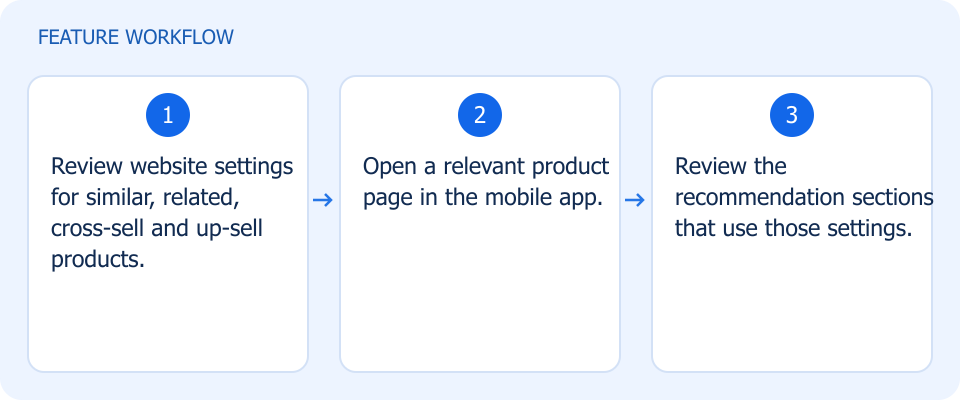 Illustrated workflow, not a product screenshot Business valueCarry your website's product recommendations into the app. How to use
|
Share products and carts from your phone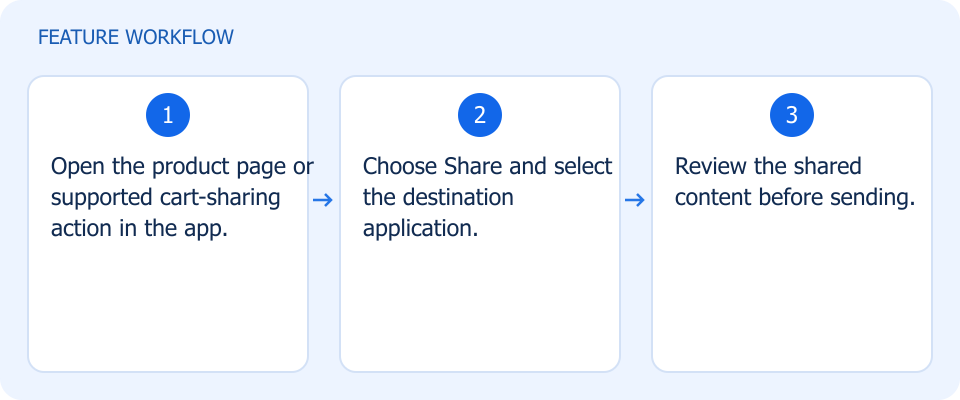 Illustrated workflow, not a product screenshot Business valueShare a product or supported cart information through the phone's own sharing flow. Use native sharing to send product pages and supported cart information to other apps. How to use
|
Trace refunds from the sales report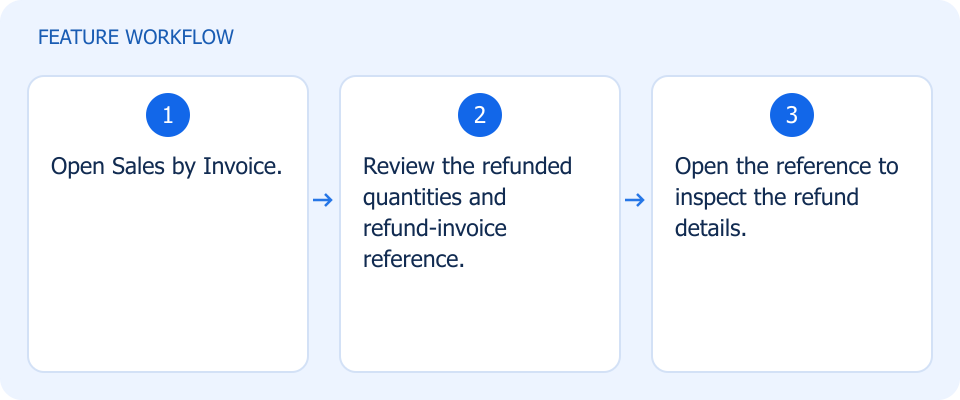 Illustrated workflow, not a product screenshot Business valueTrace a reported refund to its underlying refund invoice. Open refund invoice references and review refunded quantities from Sales by Invoice. How to use
|
Review sales at each original price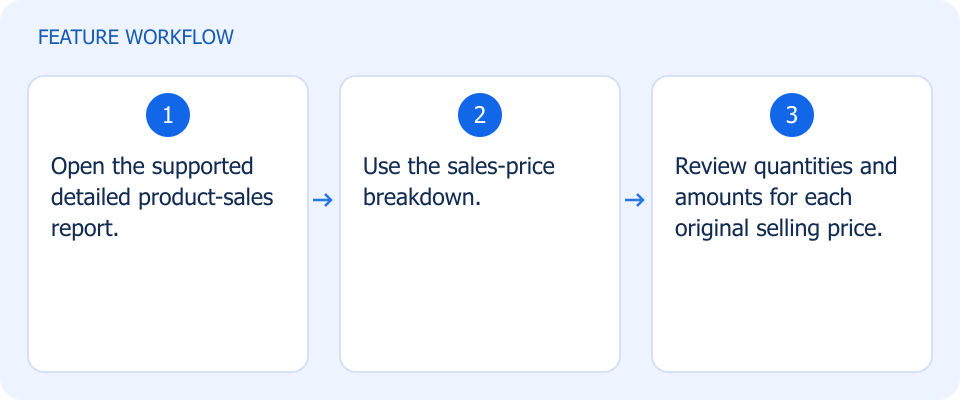 Illustrated workflow, not a product screenshot Business valueUnderstand sales made at different original prices. The update includes sales-price breakdown improvements for products sold at different prices. How to use
|
See transfer values before stock moves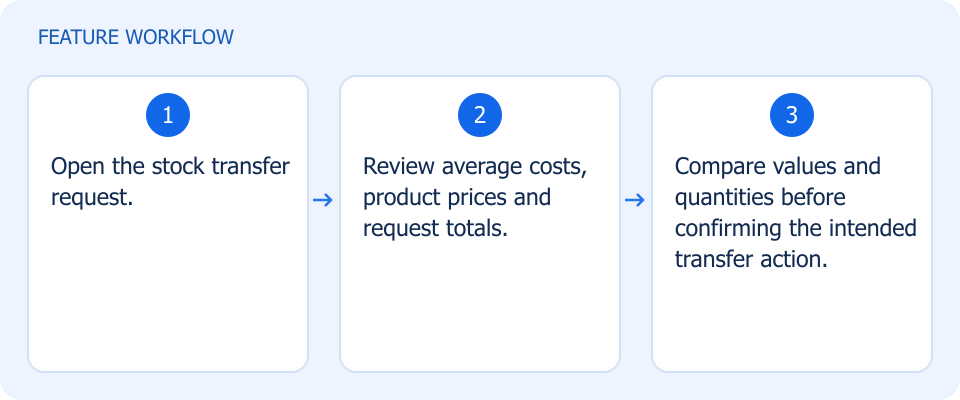 Illustrated workflow, not a product screenshot Business valueReview the value of stock before committing its transfer. Review average cost, product prices, and totals within stock transfer requests. How to use
|
Archive products without losing them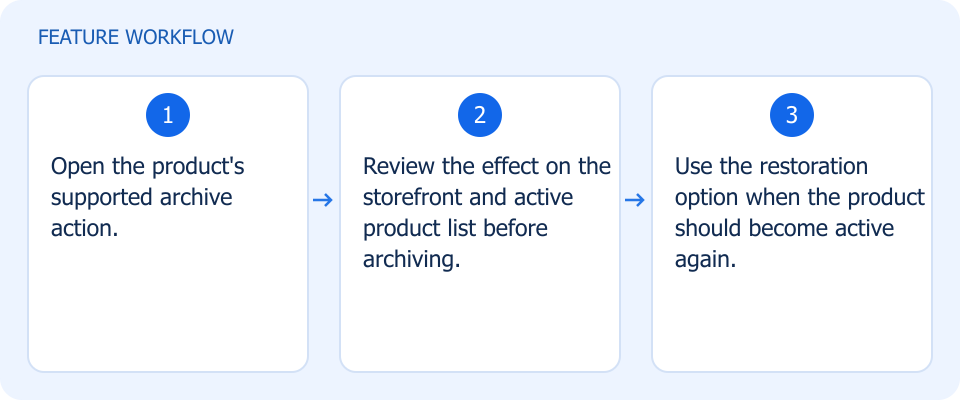 Illustrated workflow, not a product screenshot Business valueRemove inactive products from active browsing while retaining a restoration option. Move inactive products out of the storefront and active list, with an option to restore them later. How to use
|