
POS Exchange Orders
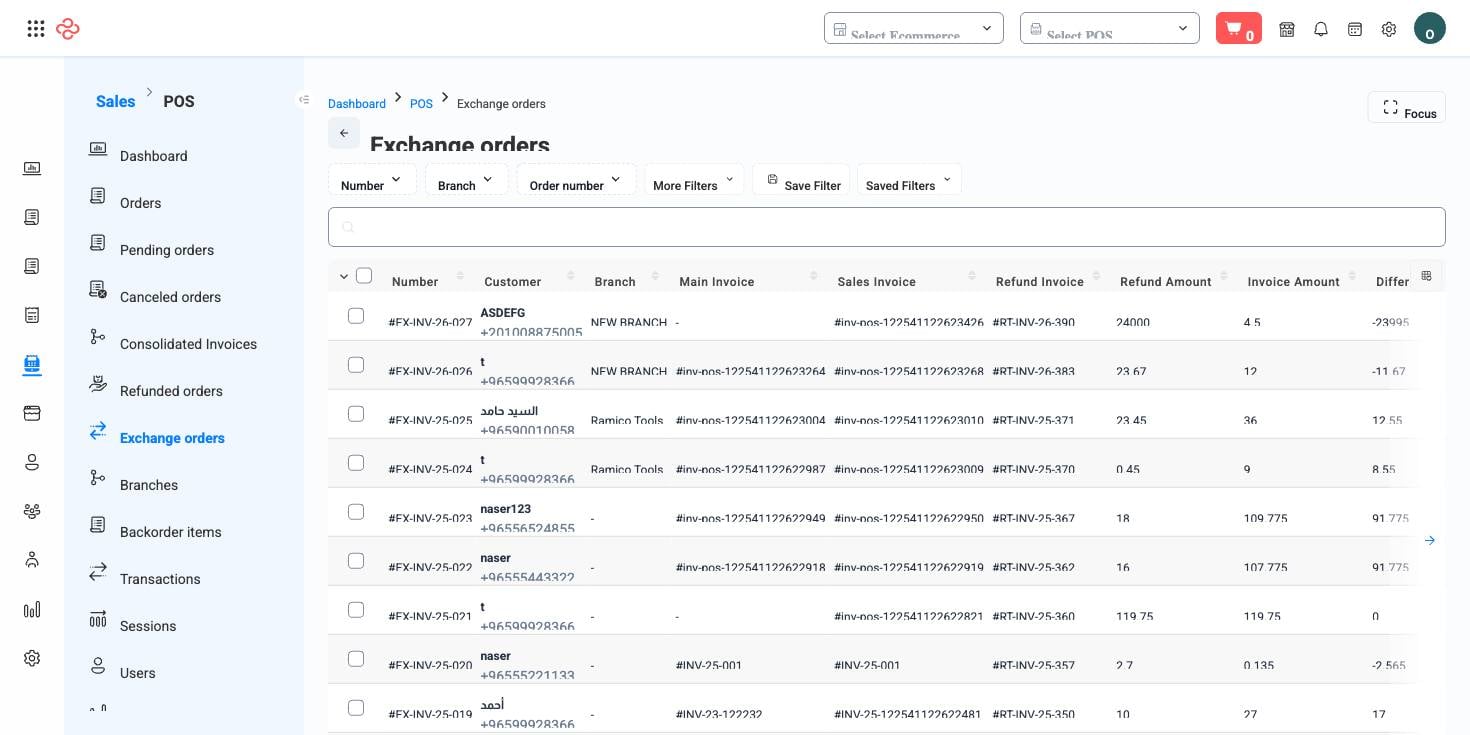
An exchange is the middle path between a sale and a refund: the customer returns an item and walks out with a different one. Exchange Orders lists every swap processed at your registers, with the returned items, the replacement items, and any price difference settled - all linked back to the original sale.
Menu path: Sales > POS > Exchange Orders
URL: https://my.ososs.com/dashboard/pos/exchange-orders
How exchanges work
Exchanges are processed by the cashier on the register app - the customer presents the item, the cashier pulls up the original sale, takes the return, and rings up the replacement in one operation. The result is an exchange document that appears in this dashboard list automatically.
An exchange touches three things at once:
| Aspect | What happens |
|---|---|
| Stock | The returned item goes back to inventory; the replacement item goes out |
| Money | If the replacement costs more, the customer pays the difference; if less, the difference is returned |
| Records | The exchange document links to the original order, so history stays auditable |
Reading the list
The list is browse-and-review: use the quick tools shared across OSOSS lists - manage columns (the icon at the right of the header row), saved filters, focus mode, and rows-per-page with a page jumper - to shape the view. Filter by date range or branch to review exchange activity for a shift, a week, or a location.
Review exchange activity
- Go to Sales > POS > Exchange Orders.
- Filter to the period and branch you care about.
- Scan for patterns: the same product being exchanged repeatedly often points to a sizing, quality, or listing problem rather than customer whim.
- Open any record to see the returned and replacement items and the settled difference.
Export the current view
- Apply your filters and select the columns you want (manage columns).
- Press Export All - the export respects your current filters and column selection.
Exports are useful for monthly product-quality reviews: a spreadsheet of one month's exchanges, grouped by product, tells you exactly where to look.
What you can do on this page
Every action on this page, step by step. What you see depends on your role, so a control your account is not set up for simply does not appear.
Export the list
- Filter and choose your columns first - the export mirrors exactly what is on screen, not the whole table.
- Click Export All.
- The file downloads as a spreadsheet: one row per record, your visible columns in your order.
Full reference
Every option and control on this page, at a glance.
Standard list tools
Every list page in OSOSS shares these controls:
- Manage columns - the icon at the right edge of the header row: search columns, tick to show or hide, drag to reorder. Your selection persists for your user.
- Quick search - matches the page's primary field.
- Filter chips + More Filters - the chips are your defaults; More Filters exposes the full set below.
- Save Filter / Saved Filters - name a filter combination and recall it in one click; one can be your default view.
- Reset - clears filters back to defaults.
- Export All - downloads the current filtered rows with exactly the columns you have selected.
- Focus - hides the surrounding chrome for a full-width table.
- Row selection - the header checkbox selects the page or all matching rows, enabling bulk actions.
- Rows per page and page jumper - at the foot of the table.
- Custom fields - anything you define under Settings > Custom Fields appears here as both a column and a filter.