
Dashboard Home
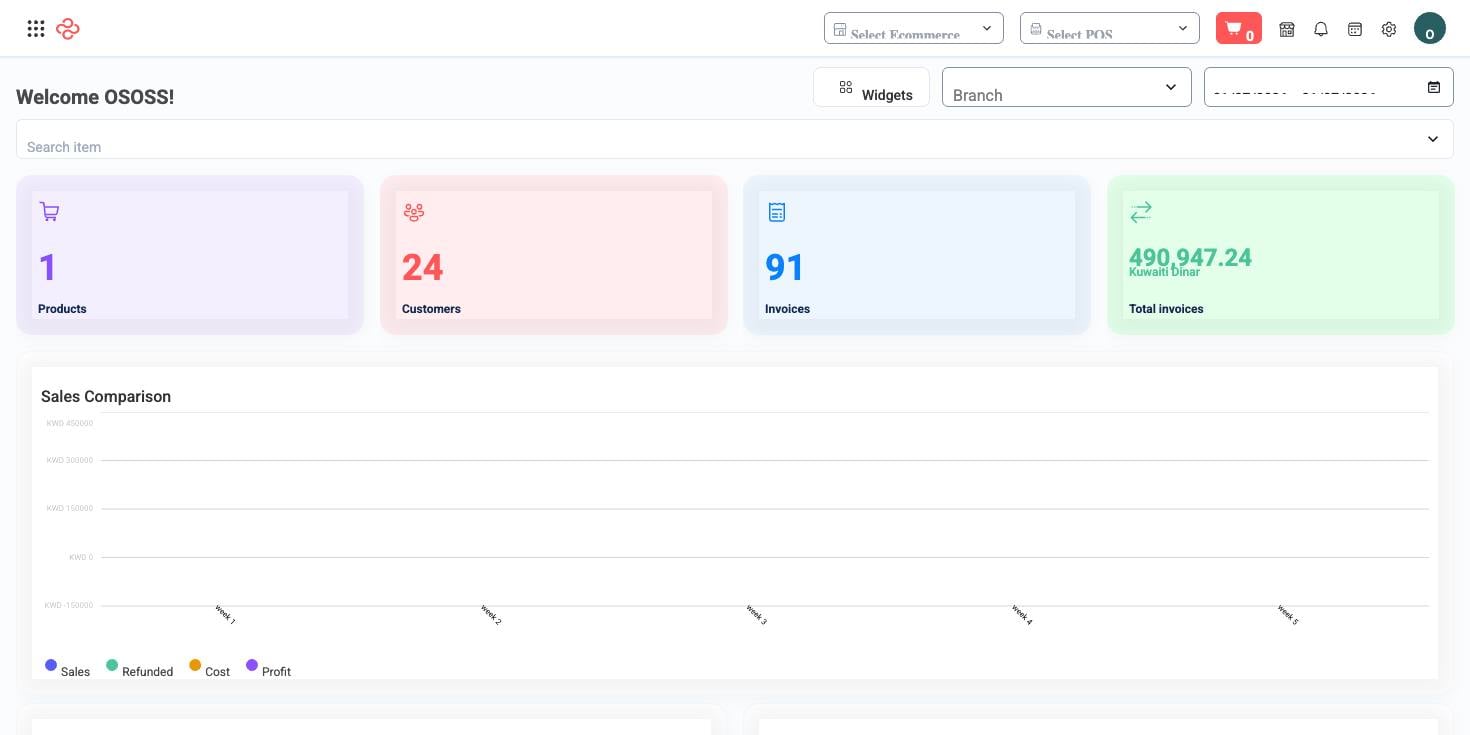
The Dashboard home is the one screen that answers "how is the business doing right now" without opening a report. It combines four headline counters with a grid of sales, expense, product and cashier widgets, all recalculated against a single date range and branch selection, so the whole page tells one consistent story instead of a dozen unrelated numbers.
Menu path: Dashboard
URL: https://my.ososs.com/dashboard
How the home dashboard works in OSOSS
The page is a widget board, not a fixed report. The four counters at the top - Products, Customers, Invoices and Total Invoices - come from a single statistics call, and Total Invoices is a money figure shown in your account currency while the other three are counts. Everything below them is an individual widget that fetches its own slice of data.
The widgets cover the operational questions a manager asks daily:
| Widget group | What it answers |
|---|---|
| Daily sales, sales comparison, total invoices in the year | Is the trend up or down against the same period before |
| Sales by category, sales by add-ons, sales by countries, sales by branch | Where the revenue is coming from |
| Order status | How much is stuck between placed and delivered |
| Expenses, gateway payments | What went out, and through which payment provider it came in |
| Best performing products, slow moving products | What to reorder and what to discount |
| Top POS cashiers by sales | Who is actually selling on the floor |
Every widget reads the same two controls at the top of the page, so changing the range or the branch reshapes the entire board at once. Widgets that depend on a module you do not use simply come back empty rather than breaking the page.
Set your view
- Set the date range at the top right. It opens on the current month by default and OSOSS remembers your last choice in the browser, so tomorrow's visit reopens where you left off.
- Pick one or more branches in the Branch selector. It is a multi-select: leaving it empty means every branch you are allowed to see, and picking two compares them inside the same figures.
- Use the product search bar below the filters to jump straight to a product's record instead of navigating the catalog.
- Read the counters first, then the widgets. The counters are absolute; the widgets are the explanation.
Rearrange the board
- Click Widgets. The grid switches into edit mode.
- Drag a widget by its header to move it, or drag its corner to resize it. Widths are flexible, heights are fixed per widget type.
- Click Widgets again to lock the layout.
Your arrangement is stored in the browser you are using, not on your OSOSS account, so a colleague on another machine keeps their own layout and yours resets if you clear browser data.
Full reference
Every option and control on this page, at a glance.
Standard list tools
Every list page in OSOSS shares these controls:
- Manage columns - the icon at the right edge of the header row: search columns, tick to show or hide, drag to reorder. Your selection persists for your user.
- Quick search - matches the page's primary field.
- Filter chips + More Filters - the chips are your defaults; More Filters exposes the full set below.
- Save Filter / Saved Filters - name a filter combination and recall it in one click; one can be your default view.
- Reset - clears filters back to defaults.
- Export All - downloads the current filtered rows with exactly the columns you have selected.
- Focus - hides the surrounding chrome for a full-width table.
- Row selection - the header checkbox selects the page or all matching rows, enabling bulk actions.
- Rows per page and page jumper - at the foot of the table.
- Custom fields - anything you define under Settings > Custom Fields appears here as both a column and a filter.
Related pages
- Sales Reports - the detailed figures behind the sales widgets
- POS Reports - per session and per cashier detail behind the POS widget
- Inventory Reports - stock and movement detail behind the product widgets
- Branches - the branches the filter offers
What you can do on this page
Every action on this page, step by step. What you see depends on your role, so a control your account is not set up for simply does not appear.
Export the list
- Filter and choose your columns first - the export mirrors exactly what is on screen, not the whole table.
- Click Export All.
- The file downloads as a spreadsheet: one row per record, your visible columns in your order.