
Marketplace (App Store)
The Marketplace is the add-on store for your OSOSS account. Some of what it sells is an integration with an outside company - a payment provider, a courier, WhatsApp Business - and some of it is a part of OSOSS itself that stays switched off until you subscribe to it. Either way, the Marketplace is where the decision is made, the money is agreed, and the settings live.
Menu path: Settings > Marketplace
URL: https://my.ososs.com/dashboard/general-settings/marketplace
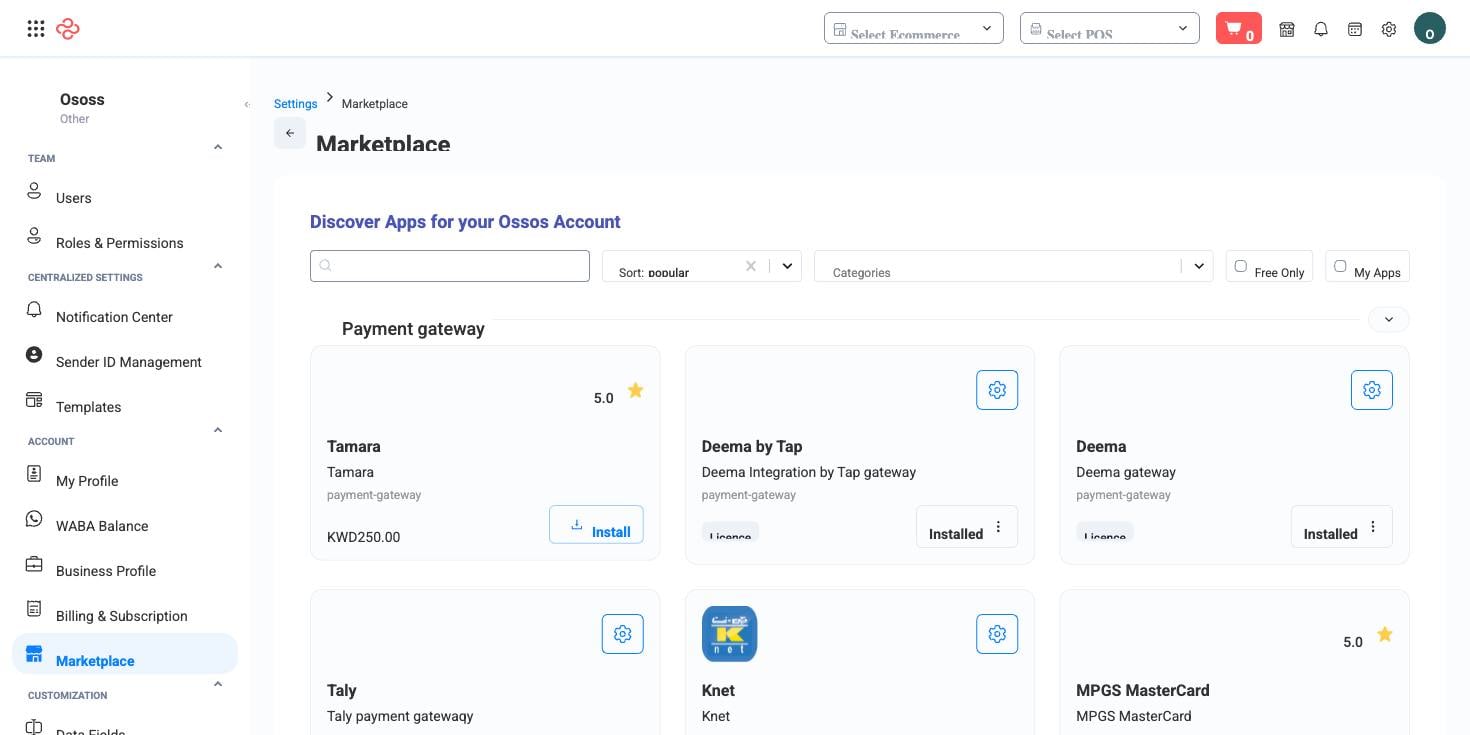
How the Marketplace works in OSOSS
Items are grouped into collapsible sections by category, and the filter bar narrows them by Software, Payment gateway or Shipping method, by search text, by Free only, or by My apps to see just what you already have. Sorting is by Popular by default.
Each card shows the item's logo, name, description, type and rating. Recurring items are priced per year in your regional currency with a line stating the tax included; free items show Free. Some carry a Licence tag listing the licences attached to your account instead of a price.
Add-ons that unlock OSOSS features
These are not third-party apps. Each one is a feature of the dashboard that stays hidden until it is activated here, and its own guide article says so:
| Add-on | Code |
|---|---|
| Fiscal Years | marketplace.fiscal-year |
| WhatsApp Business API (WABA) | marketplace.waba_api |
| RSS feed | marketplace.rss |
| Reservation system (Appointments) | marketplace.reservation.system |
| Consultation system | marketplace.consultation.system |
| School system | marketplace.school.system |
| ETA (Egyptian Tax Authority) | marketplace.eta |
| Certificate generator | marketplace.certificate-generator |
| Barcode reader | marketplace.barcode-reader |
| Event management | marketplace.event-management |
| SKU generator | marketplace.sku-generator |
| Gold company mode | marketplace.gold-company-mode |
| Gold price feed | marketplace.gold-company-mode.gold_price |
| Silver price feed | marketplace.gold-company-mode.silver_price |
| Size charts | marketplace.size-chart |
| Blogs | marketplace.blog.system |
| Exchange orders | marketplace.exchange-orders |
| Foreign currency product pricing | marketplace.foreign-currency-product-pricing |
| Virtual Try-On | marketplace.virtual-try-on |
| Sitemap | marketplace.sitemap |
| Gift receipt | marketplace.gift-receipt |
Until the matching add-on is active, the menu entry and the settings that depend on it are simply absent - not disabled, absent. That is the answer to most "the guide mentions a page I cannot find" questions.
Activation and billing
What the card's button says depends on the item's price and your subscription state:
| Button | When you see it | What it does |
|---|---|---|
| Install | The item is free | Activates it immediately, no cart |
| Try for free | The item is paid and your subscription is still in trial | Activates it for the trial, no charge |
| Add to cart | The item is paid and your subscription is live | Adds a twelve-month subscription to your cart |
| Added to cart | Already in the cart | Offers Remove |
| Installed | Active on your account | Offers Uninstall and Contact support |
| Cancel request | You uninstalled a paid add-on | Resumes it, cancelling the cancellation |
So the paid path is: Add to cart, then complete checkout from the cart, and the add-on activates once payment is taken. Some items show a disclaimer you must read and accept before installing, and Virtual Try-On opens its own drawer with terms to tick.
Uninstalling behaves differently depending on where you are. During a trial it removes the add-on straight away. On a live subscription it schedules the cancellation: the card shows Ends at with the date and the feature keeps working until then. That grace period is why Cancel request exists - press it before the end date and nothing is lost.
Configure what you installed
An installed card swaps its rating for a settings icon, and what opens depends on the item. Payment gateways get a credentials drawer, courier integrations get their API data plus a Sync locations action that pulls the carrier's coverage into your Locations, WhatsApp Business opens its own connection and terms flow, and everything else opens a settings drawer built from the fields that item needs. Webhook endpoints for a payment gateway account are managed here too, each with a code and a test flag.
Full reference
Every option and control on this page, at a glance.
Dialogs and drawers
- Vto Install Drawer
Related pages
- Subscriptions - your plan, cart and what you are billed for
- Gateways - configure payment providers that are not add-ons
- Delivery Management - price the couriers you install here
- Waba Balance - top up WhatsApp messaging after activating WABA
What you can do on this page
Every action on this page, step by step. What you see depends on your role, so a control your account is not set up for simply does not appear.
Delete a record
- Open the row's actions menu and choose Delete.
- Confirm in the dialog. There is no undo from the interface.
- If the record is referenced elsewhere - used on a document, tied to a transaction - the delete is refused and the reason shown.