
POS Sessions
A session is a register shift: it begins when a cashier opens the register with a counted cash float, collects every sale made during the shift, and ends with a closing count that is reconciled against what the system expected. Sessions are how you prove - shift by shift, drawer by drawer - that the cash in the till matches the sales in the system.
Menu path: Sales > POS > Sessions
URL: https://my.ososs.com/dashboard/pos/sessions
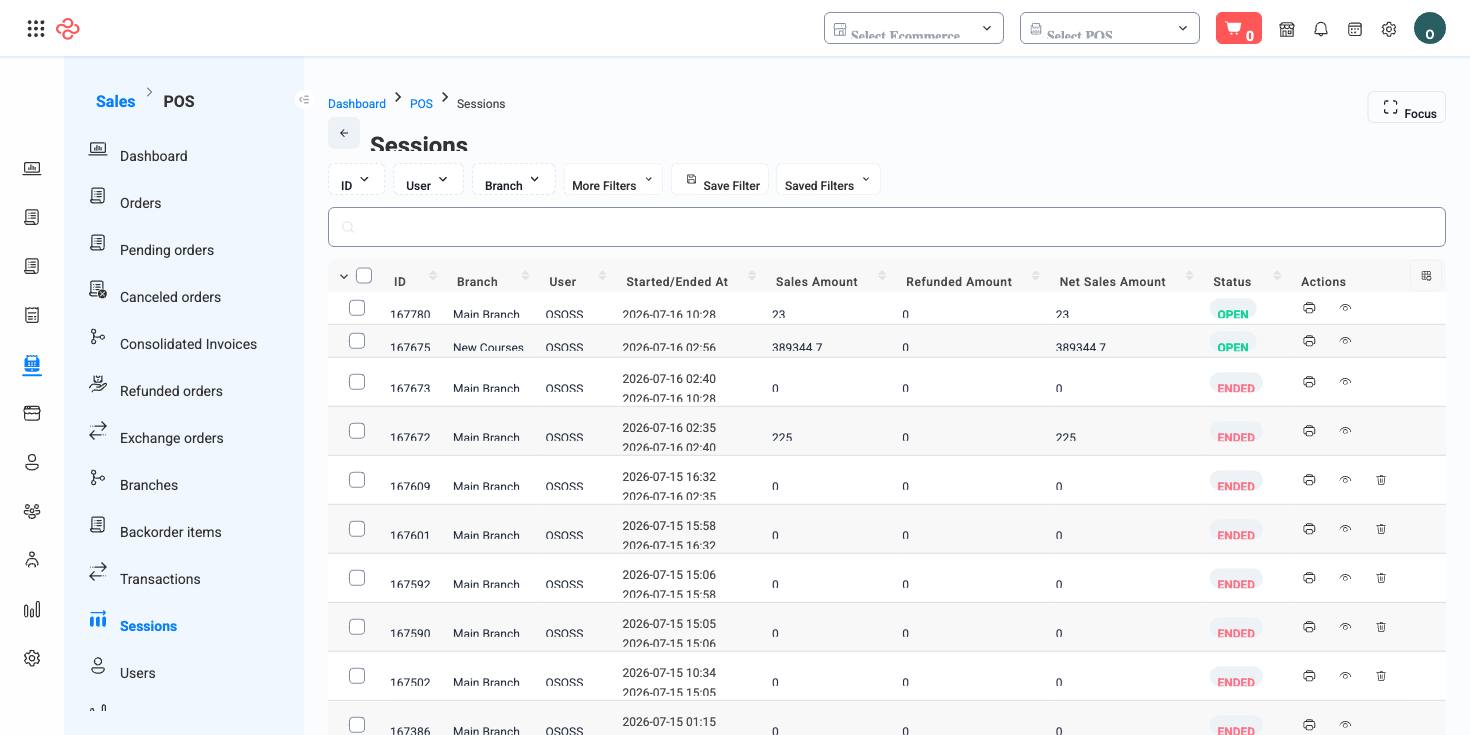
How sessions work
Sessions are opened and closed on the register app; the dashboard is where you monitor and audit them. The lifecycle:
| Stage | What happens |
|---|---|
| Open | The cashier starts a session on the device and records the opening cash (the float placed in the drawer) |
| Active | Every order, payment, refund, and exchange made at that register attaches to the session |
| Close | The cashier counts the drawer and enters the closing amounts; the system compares them with the expected balance |
| Reconciled | Expected vs. counted is settled - any difference is recorded as an over/short for that shift |
The expected closing balance is calculated automatically: opening cash, plus cash sales, minus cash refunds. Card and other non-cash payments are tracked per session too, so each payment method can be reconciled against its own total.
Reading the list
Each row is one session. Use the quick search box to find a specific session, and the standard list tools - manage columns (icon at the right of the header row), saved filters, focus mode, rows-per-page and page jumper - to shape the view. Open a row to see the session's full details: opening and closing figures, the orders and payments it contains, and its reconciliation result.
Sessions can also be printed - the printed session summary is the paper record many merchants attach to the physical cash-drop envelope.
Review a closed session
- Go to Sales > POS > Sessions and search or filter for the shift.
- Open the session and compare the opening cash, expected closing balance, and counted amount.
- If there is a difference, open the session's orders and payments to trace it - refunds and canceled orders are the usual suspects.
- Print the session summary if you file paper records per shift.
Export the current view
- Apply your filters and select the columns you want (manage columns).
- Press Export All - the export respects current filters and column selection.
Exporting a month of sessions gives you an over/short history per register and per cashier - the fastest way to see whether discrepancies are random noise or a pattern.
What you can do on this page
Every action on this page, step by step. What you see depends on your role, so a control your account is not set up for simply does not appear.
Open and read a record
- Click the row, or choose View in the row's actions menu.
- The detail page shows the record's own fields, its related documents, and the actions that apply to it in its current state.
- Use the breadcrumb or your browser's back button to return - your filters, sort, and page position are preserved.
Export the list
- Filter and choose your columns first - the export mirrors exactly what is on screen, not the whole table.
- Click Export All.
- The file downloads as a spreadsheet: one row per record, your visible columns in your order.
Print or save as PDF
- Choose Print in the row's actions menu, or open the record and use Print there.
- Pick the template or format if you are prompted.
- Your browser's print dialog opens - print it, or choose Save as PDF as the destination.
Full reference
Every option and control on this page, at a glance.
Standard list tools
Every list page in OSOSS shares these controls:
- Manage columns - the icon at the right edge of the header row: search columns, tick to show or hide, drag to reorder. Your selection persists for your user.
- Quick search - matches the page's primary field.
- Filter chips + More Filters - the chips are your defaults; More Filters exposes the full set below.
- Save Filter / Saved Filters - name a filter combination and recall it in one click; one can be your default view.
- Reset - clears filters back to defaults.
- Export All - downloads the current filtered rows with exactly the columns you have selected.
- Focus - hides the surrounding chrome for a full-width table.
- Row selection - the header checkbox selects the page or all matching rows, enabling bulk actions.
- Rows per page and page jumper - at the foot of the table.
- Custom fields - anything you define under Settings > Custom Fields appears here as both a column and a filter.