
Drivers
Drivers manages your delivery fleet: who delivers, what they carry, what commission they earn, and what cash they collect on your behalf. Every driver-delivered order threads through this page's records.
Menu path: Sales > Drivers
URL: https://my.ososs.com/dashboard/drivers
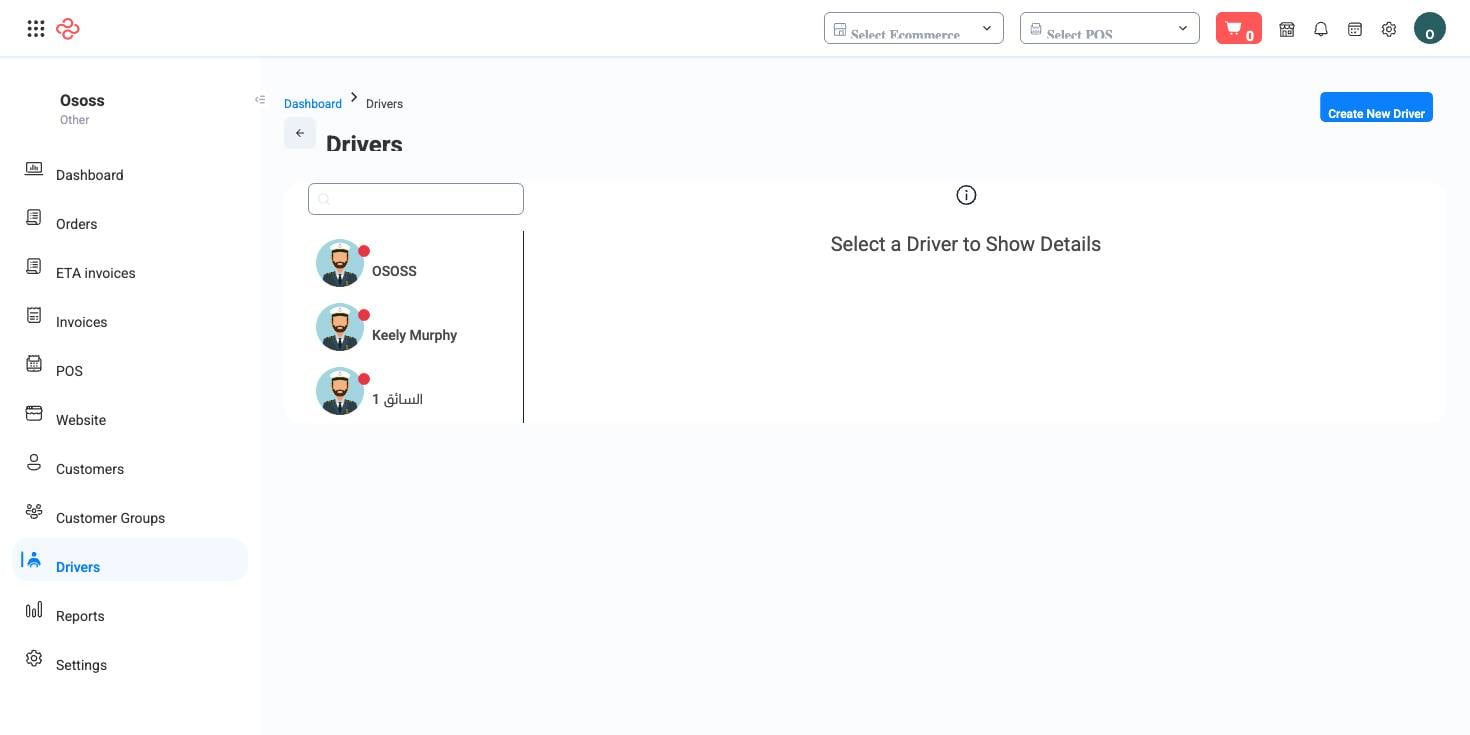
What a driver record holds
Opening a driver shows four tabs:
| Tab | Contents |
|---|---|
| Basic information | Identity, phone, status |
| Orders | Every order assigned to this driver, with delivery state |
| Statement | The money ledger: commissions earned, cash collected, what's settled and what's owed |
| Statistics | Delivery counts and performance over time |
The driver money cycle
Two flows run in opposite directions and both settle here:
- Commission - what you owe the driver per delivery. When a driver's order reaches Fulfilled, the Pay Commission action on the order settles it.
- Collected cash - what the driver owes you after cash-on-delivery orders. The Collect Amount action records the handover.
The driver's Statement tab reconciles both, so end-of-week settlement is a read-off, not a spreadsheet.
Add a driver
- Go to Sales > Drivers and click Create.
- Enter their details and commission arrangement.
- Save - the driver becomes selectable in the Shipping Options drawer on orders.
What you can do on this page
Every action on this page, step by step. What you see depends on your role, so a control your account is not set up for simply does not appear.
Export the list
- Filter and choose your columns first - the export mirrors exactly what is on screen, not the whole table.
- Click Export All.
- The file downloads as a spreadsheet: one row per record, your visible columns in your order.
Full reference
Every option and control on this page, at a glance.
List columns
Shown by default: Invoice date, Format number, Order status tag, Customer, Amount, Incomes - gateway, Payment status tag, Driver commission, Collection status, Is commission paid
Filters (2)
- Identity and numbering: ID
- Other: Availability
Form fields (14)
Assigned branch ID, Car modal, Car number, Commission amount type, Commission type, Default commission, Email, Image, Mobile, Name, Offline gateways, Online gateways, Payment methods, Roles
Standard list tools
Every list page in OSOSS shares these controls:
- Manage columns - the icon at the right edge of the header row: search columns, tick to show or hide, drag to reorder. Your selection persists for your user.
- Quick search - matches the page's primary field.
- Filter chips + More Filters - the chips are your defaults; More Filters exposes the full set below.
- Save Filter / Saved Filters - name a filter combination and recall it in one click; one can be your default view.
- Reset - clears filters back to defaults.
- Export All - downloads the current filtered rows with exactly the columns you have selected.
- Focus - hides the surrounding chrome for a full-width table.
- Row selection - the header checkbox selects the page or all matching rows, enabling bulk actions.
- Rows per page and page jumper - at the foot of the table.
- Custom fields - anything you define under Settings > Custom Fields appears here as both a column and a filter.