
Online PG Transactions
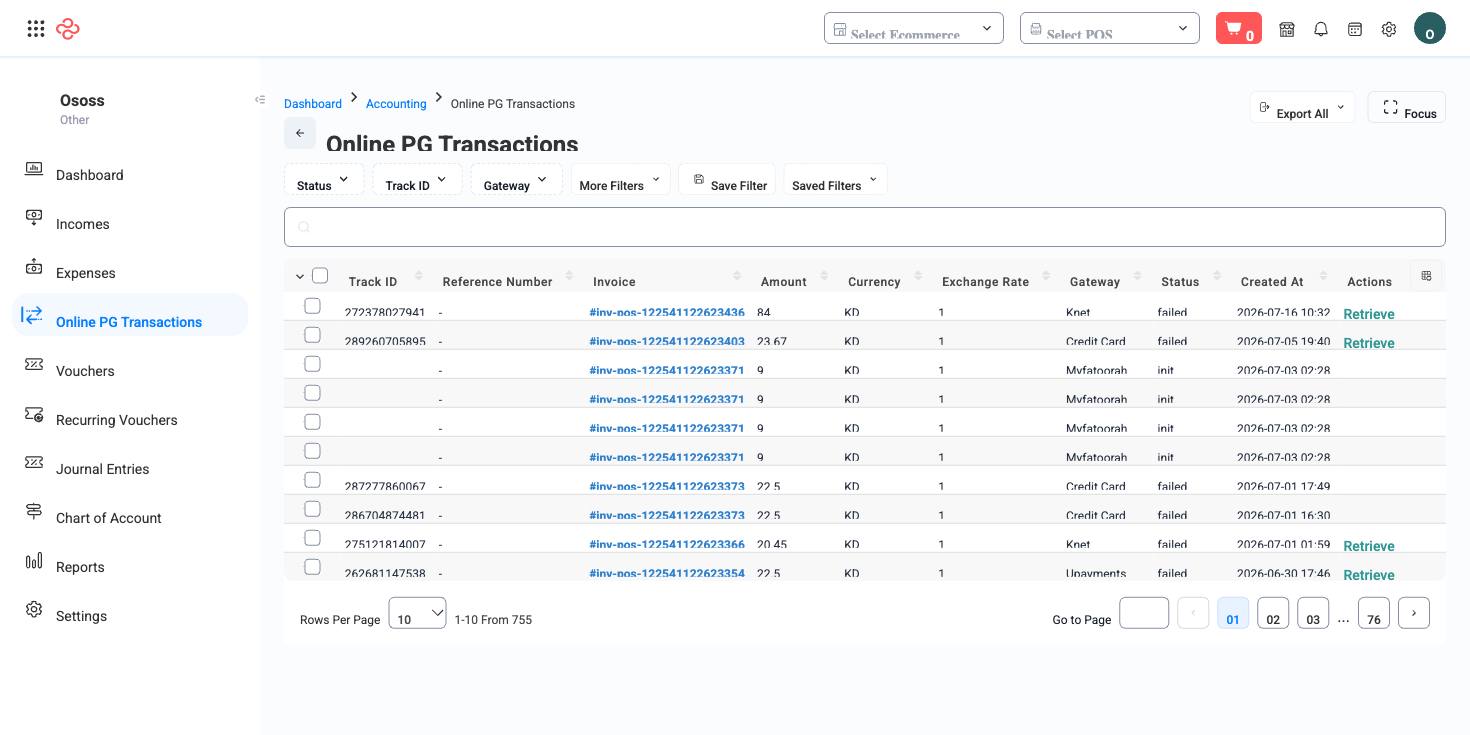
This page is the gateway's side of the story. Every attempt a customer makes to pay online - from the store, the mobile app, a payment link, or an API checkout - creates a transaction record here with the gateway's own track ID and reference, its amount and currency, and its outcome. When a bank payout does not match what your sales figures say, this is the list that tells you why.
Menu path: Accounting > Online PG Transactions
URL: https://my.ososs.com/dashboard/accounting/online_PG_transactions
How online transactions work in OSOSS
A transaction is created the moment the customer is sent to the gateway, not when they succeed. That is why the list carries three statuses:
| Status | What happened | What it means for you |
|---|---|---|
| Init | The customer was handed to the gateway and never came back with an answer | No money, and no Income posted. Usually an abandoned payment; occasionally a lost callback |
| Paid | The gateway confirmed the payment | An income is posted and the invoice is marked paid |
| Failed | The gateway declined or the customer's payment did not complete | No money. The customer normally retries, producing a second row |
Several rows for one order is normal, then, and not a sign of double charging - a customer who fails twice and succeeds on the third try leaves three transactions and one payment.
Each row keeps the fields you need to argue with a gateway: Track ID and Reference ID as the gateway knows them, the Amount with its Currency and the Exchange rate applied if the customer paid in a currency other than your company's, the Gateway used, and the created timestamp. The Invoice column links straight to the Invoice or Consolidation Invoice the payment belongs to, so you never have to search for it by amount.
The page is read-only except for one action. Retrieve re-queries the gateway for a transaction's real outcome and updates the record with what comes back. It appears only on rows where a re-query is meaningful, and it is the right tool when a customer insists they were charged but the row still reads Init or Failed - the gateway confirms, the status corrects, and the income posts.
Reconcile a gateway payout
- When a settlement reaches your bank, note the batch period the gateway states.
- Filter this list to that Gateway and that date range, with Status set to Paid.
- Compare the total against the deposit. The gap should be the gateway's fees, nothing more.
- Investigate anything paid here but absent from the payout, or in the payout but not here, quoting the Track ID to the gateway's support.
- Use Retrieve on any Init row inside the period before you conclude a payment is missing.
Reading the list
Filter on track ID, status, gateway, invoice number, and a date range, and sort by ID, amount, retrieve count, status, or creation time. Sorting by retrieve count surfaces the transactions that have been re-queried repeatedly, which is usually where a gateway integration problem is hiding.
Full reference
Every option and control on this page, at a glance.
Standard list tools
Every list page in OSOSS shares these controls:
- Manage columns - the icon at the right edge of the header row: search columns, tick to show or hide, drag to reorder. Your selection persists for your user.
- Quick search - matches the page's primary field.
- Filter chips + More Filters - the chips are your defaults; More Filters exposes the full set below.
- Save Filter / Saved Filters - name a filter combination and recall it in one click; one can be your default view.
- Reset - clears filters back to defaults.
- Export All - downloads the current filtered rows with exactly the columns you have selected.
- Focus - hides the surrounding chrome for a full-width table.
- Row selection - the header checkbox selects the page or all matching rows, enabling bulk actions.
- Rows per page and page jumper - at the foot of the table.
- Custom fields - anything you define under Settings > Custom Fields appears here as both a column and a filter.
Related pages
- Incomes - the posted accounting side of every paid transaction
- Gateways - where the gateway credentials and callbacks are configured
- Invoices - the documents these payments settle
What you can do on this page
Every action on this page, step by step. What you see depends on your role, so a control your account is not set up for simply does not appear.
Export the list
- Filter and choose your columns first - the export mirrors exactly what is on screen, not the whole table.
- Click Export All.
- The file downloads as a spreadsheet: one row per record, your visible columns in your order.