
POS Orders
Every sale rung up at a register lands here. POS Orders is the dashboard-side view of everything your cashiers sell through the POS app - a live, searchable record of each transaction, tied to the session, branch, and cashier that produced it. While the register app is where sales happen, this page is where owners and managers watch them happen.
Menu path: Sales > POS > Orders
URL: https://my.ososs.com/dashboard/pos/new-orders
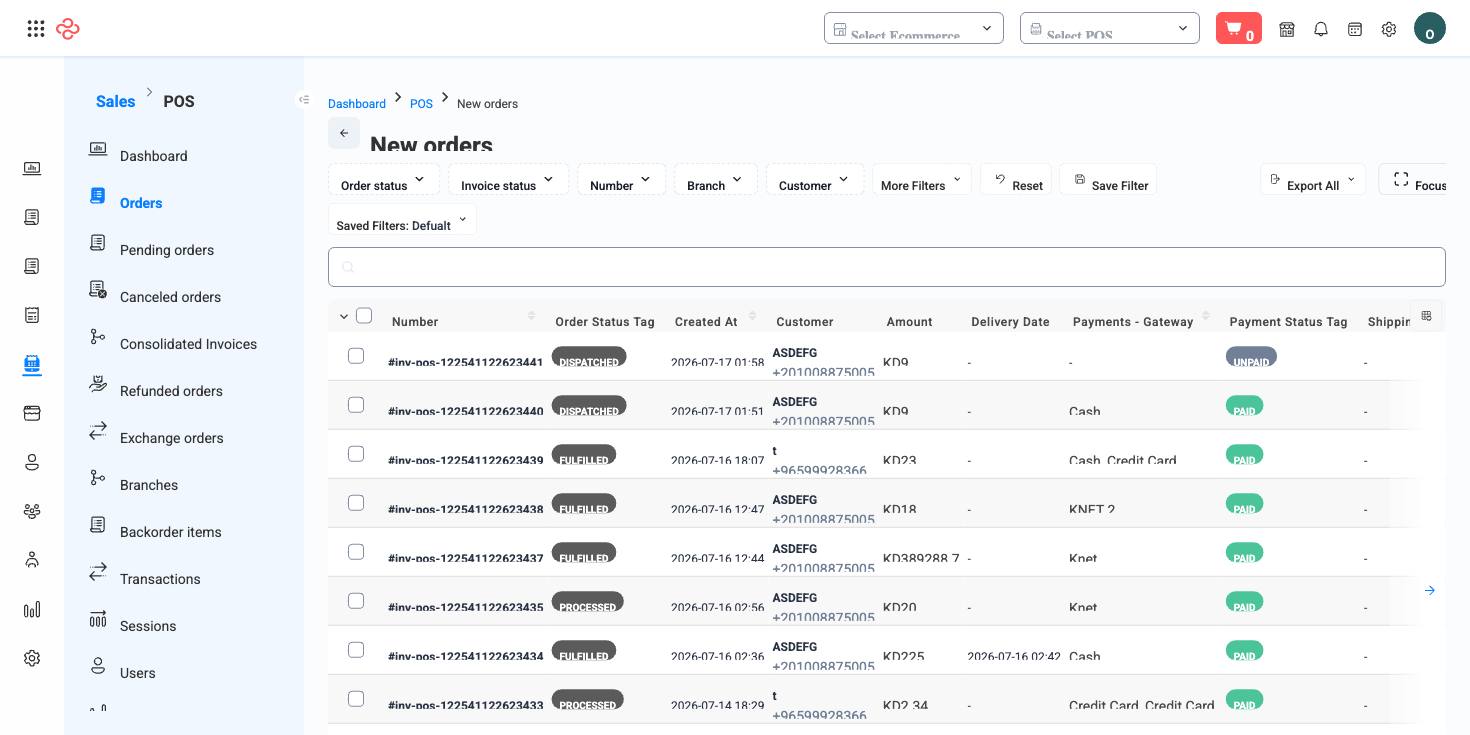
How POS orders work
A POS order is created the moment a cashier completes a sale on a register device. Because register sales are paid on the spot, the order and its payment arrive together - there is no unpaid balance to chase, unlike website or manual invoices. Each order carries its context with it: which branch it was sold at, which session (register shift) it belongs to, and which POS user handled it.
The page gives you separate views for orders that need attention:
| View | What it shows |
|---|---|
| Orders | Completed register sales |
| Pending | Orders started but not yet finalized - for example, held or awaiting completion |
| Canceled | Orders that were voided before completion |
Reading the list
The list works like every list in OSOSS: use the manage-columns icon at the right edge of the header row to add, remove, or reorder columns; combine filters and press Save Filter to keep a view you use daily; switch on focus mode to hide the navigation while you work; and control paging with the rows-per-page selector and page jumper.
Click any row to open the order's full details - its items, amounts, payment breakdown, and history.
Review a day's register sales
- Go to Sales > POS > Orders.
- Filter by the branch and the date you want to review.
- Scan the list, or open individual orders to inspect items and payments.
- Switch to the Pending and Canceled views to catch anything that did not complete normally.
Export the current view
- Apply your filters and choose your columns with manage columns.
- Press Export All - the file contains exactly the rows matching your filters, with exactly the columns you selected.
This makes end-of-day or end-of-month extracts repeatable: save the filter once, then export whenever you need the data.
What you can do on this page
Every action on this page, step by step. What you see depends on your role, so a control your account is not set up for simply does not appear.
Open and read a record
- Click the row, or choose View in the row's actions menu.
- The detail page shows the record's own fields, its related documents, and the actions that apply to it in its current state.
- Use the breadcrumb or your browser's back button to return - your filters, sort, and page position are preserved.
Actions on a single record
These appear in the row's actions menu and on the record page, and only when the record's current state allows them:
- Assign Invoice To Driver - hands the order to a delivery driver, who then sees it in the driver app.
- Cancel - voids the document while keeping it on file for audit; stock and balances it touched are released.
- Create Consolidation Invoice - merges the selected documents into one consolidated invoice.
- Delivered - sets the delivery state to delivered.
- Dispatched - sets the delivery state to dispatched/out for delivery.
- Fulfill - marks the order as delivered/completed and commits the stock movement.
- Fulfill Paid Invoice - fulfills only invoices that are already fully paid - useful as a bulk step at end of day.
- Mark As Paid - settles the document without going through a payment gateway; use it for cash or off-system payment.
- Pay Commission - records the vendor's or agent's commission payout for this document.
- Processed - moves the record to processed.
Export the list
- Filter and choose your columns first - the export mirrors exactly what is on screen, not the whole table.
- Click Export All.
- The file downloads as a spreadsheet: one row per record, your visible columns in your order.
Full reference
Every option and control on this page, at a glance.
List columns
Also available: Amount, Barcode, Collection status, Currency, Currency code, Customer, Customer group, Delivery datetime, Delivery tag, Delivery type, Driver, Driver commission, Due, Format number, ID, Invoice number, Is commission paid, Is delivery, Is paid, Is returned, Note, Order status, Order status tag, Paid, Payment gateway, Payment method, Payment status tag, Platform name, POS session ID, Purchase order, Seller, Shipping address, Shipping method, Source, Status, Status tag, Type, Unpaid, UTM campaign, UTM content, UTM medium, UTM source, UTM term, VAT number
Expandable column groups: Customer, Incomes, Items - Each group expands to its own sub-columns in the manage-columns dialog.
Filters (46)
- Identity and numbering: Academic year ID, Barcode, Branch ID, Consolidation invoice ID, Coupon ID, Customer company ID, Customer ID, Driver ID, Format number, Gateway ID, ID, Ids, Not in consolidation invoice, Number, Order number, Paid, Payment ID, POS branch ID, POS session ID, POS user ID, Product ID, Shipping method ID, Track ID, User ID
- Dates and periods: From date, From delivery date, From delivery time, From payment due, Invoice date, To date, To delivery date, To delivery time, To payment due
- Money and payment: Collection status, Payment status, Same company currency
- Location and delivery: Area, City, Country
- Status and flags: ETA status, Has extra expenses, Order status, Platform, Source, Status
- Other: Purchase order
Record actions
- Assign Invoice To Driver
- Cancel
- Create Consolidation Invoice
- Delivered
- Dispatched
- Fulfill
- Fulfill Paid Invoice
- Mark As Paid
- Pay Commission
- Processed
Sortable columns
Delivery date time, Delivery tag text, Order status tag, Payment status tag text
Standard list tools
Every list page in OSOSS shares these controls:
- Manage columns - the icon at the right edge of the header row: search columns, tick to show or hide, drag to reorder. Your selection persists for your user.
- Quick search - matches the page's primary field.
- Filter chips + More Filters - the chips are your defaults; More Filters exposes the full set below.
- Save Filter / Saved Filters - name a filter combination and recall it in one click; one can be your default view.
- Reset - clears filters back to defaults.
- Export All - downloads the current filtered rows with exactly the columns you have selected.
- Focus - hides the surrounding chrome for a full-width table.
- Row selection - the header checkbox selects the page or all matching rows, enabling bulk actions.
- Rows per page and page jumper - at the foot of the table.
- Custom fields - anything you define under Settings > Custom Fields appears here as both a column and a filter.