
Exchange Invoices
An exchange is a return and a sale in one transaction: the customer brings something back and takes something else. OSOSS records it as a single document that generates both sides, so stock, money and paperwork stay consistent.
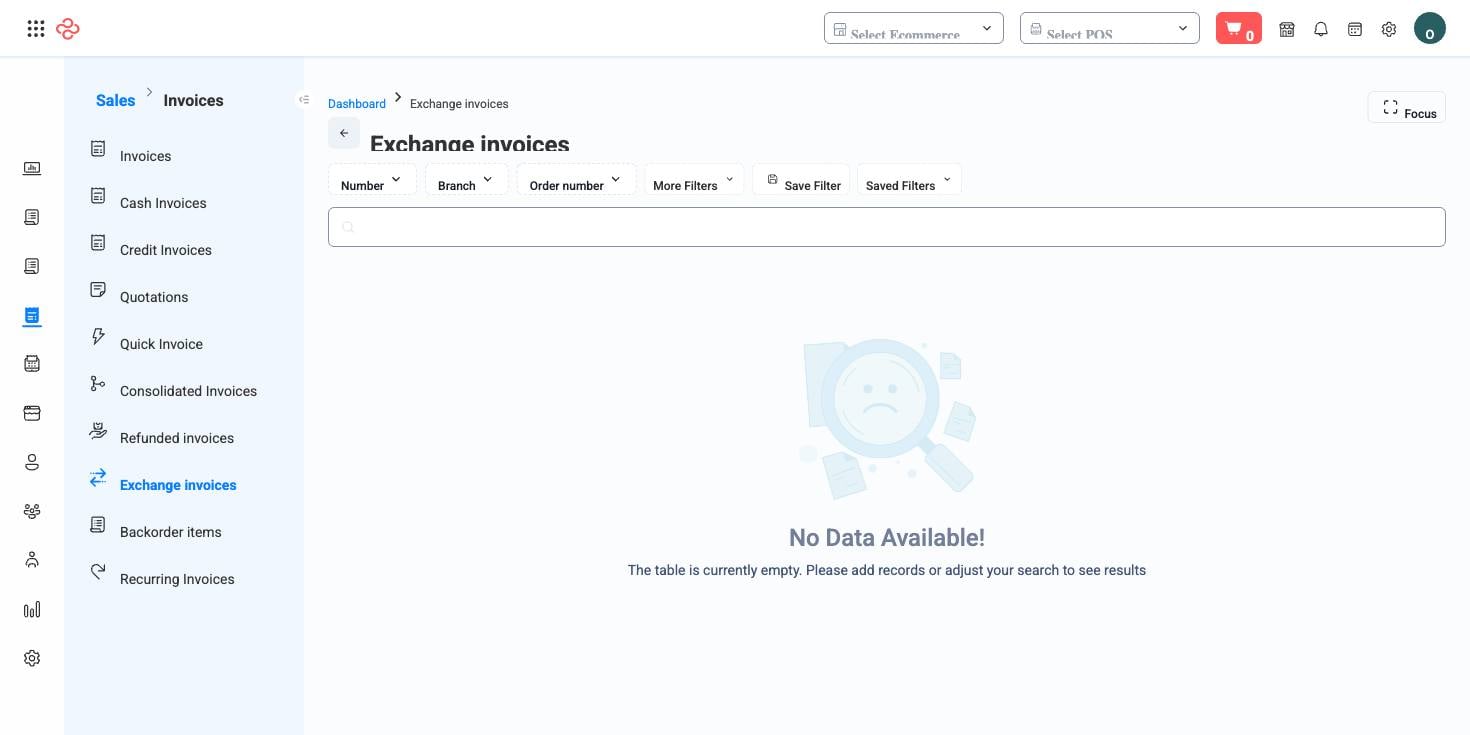
Menu path: Sales > Exchange Invoices
What the document holds
| Field | Meaning |
|---|---|
| Main invoice | The original sale being exchanged against |
| Invoice number / Order number | The references being exchanged |
| Customer, branch, date | Who, where and when |
| Lines | Product, quantity, unit, price, total price and discount |
| Back to inventory | Whether the returned goods re-enter sellable stock |
| Invoice amount / Refund amount / Difference amount | The value going out, coming back, and the balance between them |
| Generated invoice / Generated refund invoice | The two documents this exchange produced |
| Payment due | Where the customer owes the difference |
| Refund reason | Why the exchange happened |
The difference amount is the whole transaction in one figure. If the new item costs more, the customer pays the difference; if it costs less, you owe them. Because OSOSS generates both an invoice and a refund invoice, each side is a real document you can produce later rather than a note in a margin.
Back to inventory is the judgement call. Goods returned unopened and resellable should go back to stock. Anything damaged, opened or unfit should not - putting it back overstates what you can sell and eventually disappoints a customer who orders it.
Process an exchange
- Find the Main invoice and open an exchange against it. Exchanging against the original sale is what keeps the customer's history and your stock honest.
- Add the returned lines, then the replacement lines, at the prices actually charged.
- Set Back to inventory per your inspection of the goods, not by default.
- Record the Refund reason. It is the only field that will let you find out, next quarter, which products are being exchanged and why.
- Read the Difference amount: collect it, or refund it.
- Save. The generated invoice and refund invoice appear in their respective lists.
Full reference
Every option and control on this page, at a glance.
Filters (15)
- Identity and numbering: Branch ID, Customer ID, Invoice number, Main invoice ID, Main invoice number, Number, POS session ID, Refund number, User ID
- Dates and periods: From date, To date
- Status and flags: Source
- Other: GeneratedInvoice, GeneratedRefundInvoice, MainInvoice
Standard list tools
Every list page in OSOSS shares these controls:
- Manage columns - the icon at the right edge of the header row: search columns, tick to show or hide, drag to reorder. Your selection persists for your user.
- Quick search - matches the page's primary field.
- Filter chips + More Filters - the chips are your defaults; More Filters exposes the full set below.
- Save Filter / Saved Filters - name a filter combination and recall it in one click; one can be your default view.
- Reset - clears filters back to defaults.
- Export All - downloads the current filtered rows with exactly the columns you have selected.
- Focus - hides the surrounding chrome for a full-width table.
- Row selection - the header checkbox selects the page or all matching rows, enabling bulk actions.
- Rows per page and page jumper - at the foot of the table.
- Custom fields - anything you define under Settings > Custom Fields appears here as both a column and a filter.
Related pages
- Invoices - the original sale
- Refunded Invoices - returns without a replacement
- Inventories - the stock a return restores
What you can do on this page
Every action on this page, step by step. What you see depends on your role, so a control your account is not set up for simply does not appear.
Export the list
- Filter and choose your columns first - the export mirrors exactly what is on screen, not the whole table.
- Click Export All.
- The file downloads as a spreadsheet: one row per record, your visible columns in your order.