
Website Consolidation Invoices
This page lists consolidation invoices raised against orders from your online store - several web orders merged into one document a customer settles once.
Menu path: Website > Consolidation Invoices
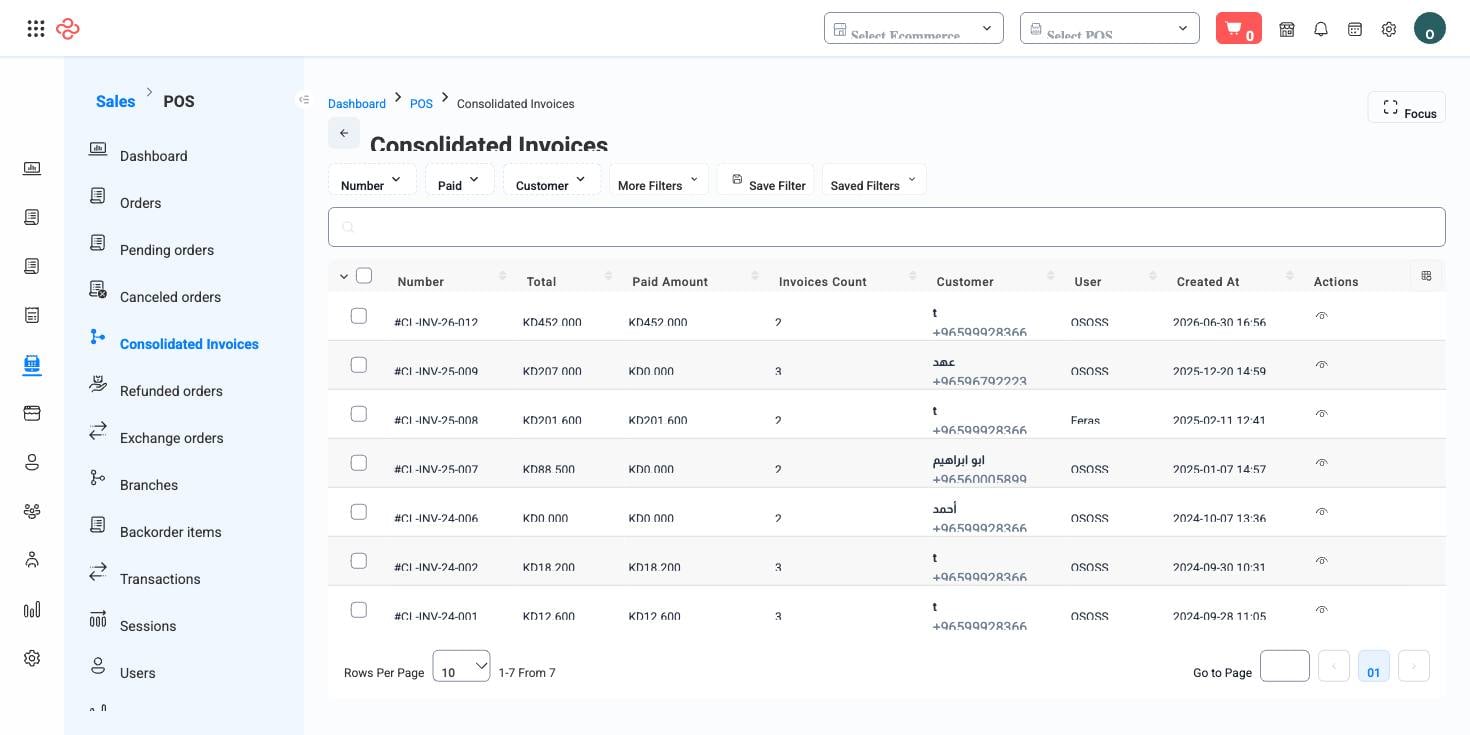
When web orders get consolidated
Online consolidation suits a specific and valuable customer: the one who orders repeatedly on account. A corporate buyer placing three orders a week does not want three payment links; they want one invoice at the end of the month that their accounts department can process.
| Column | Meaning |
|---|---|
| Number | The consolidated document's reference |
| Customer | Who it is issued to |
| Invoices count | How many web orders it covers |
| Total | The combined amount |
| Paid amount | How much has been settled |
The original orders keep their own numbers and detail, so a customer can still query one delivery. The consolidation sits above them as the thing that gets paid.
Consolidate web orders
- Confirm the customer is genuinely an account customer. Consolidating for a one-off shopper who pays at checkout creates work with no benefit.
- Filter Website Orders to the customer and the period, and check that nothing already paid online is included.
- Select the orders and create the consolidation.
- Add the note their accounts payable will need - the period covered and any purchase-order reference.
- Send it, then track the paid amount.
Full reference
Every option and control on this page, at a glance.
Filters (8)
- Identity and numbering: Currency ID, Customer ID, Number, Paid, User ID
- Dates and periods: From date, To date
- Status and flags: Source
Standard list tools
Every list page in OSOSS shares these controls:
- Manage columns - the icon at the right edge of the header row: search columns, tick to show or hide, drag to reorder. Your selection persists for your user.
- Quick search - matches the page's primary field.
- Filter chips + More Filters - the chips are your defaults; More Filters exposes the full set below.
- Save Filter / Saved Filters - name a filter combination and recall it in one click; one can be your default view.
- Reset - clears filters back to defaults.
- Export All - downloads the current filtered rows with exactly the columns you have selected.
- Focus - hides the surrounding chrome for a full-width table.
- Row selection - the header checkbox selects the page or all matching rows, enabling bulk actions.
- Rows per page and page jumper - at the foot of the table.
- Custom fields - anything you define under Settings > Custom Fields appears here as both a column and a filter.
Related pages
- Website Orders - the orders being consolidated
- Consolidation Invoices - the same flow across all channels
- Customer Companies - the account customers who need this
What you can do on this page
Every action on this page, step by step. What you see depends on your role, so a control your account is not set up for simply does not appear.
Export the list
- Filter and choose your columns first - the export mirrors exactly what is on screen, not the whole table.
- Click Export All.
- The file downloads as a spreadsheet: one row per record, your visible columns in your order.