
Website Orders
Website Orders is the operations desk for your online store. Every purchase a customer completes on your storefront or mobile app lands here, and this is where your team moves each order through its life - from the moment it arrives, through preparation and dispatch, to delivery and final fulfillment. If Sales > Invoices is where you watch the money, this screen is where you run the work.
Menu path: Sales > Website > Orders
URL: https://my.ososs.com/dashboard/store/new-orders
How the order lifecycle works
The status tabs across the top of the list mirror the fulfillment journey. Click a tab to see only the orders sitting at that stage:
| Tab | Meaning |
|---|---|
| Opened | New orders waiting for someone to act - your pending queue |
| Processed | Accepted and being prepared |
| Dispatched | Out with a driver or shipping company |
| Delivered | Received by the customer |
| Fulfilled | Complete - goods delivered and payment settled |
| Refunded | Money returned - see Refunded Orders |
| On hold | Paused deliberately |
| Canceled | Voided orders |
| All | Everything, regardless of stage |
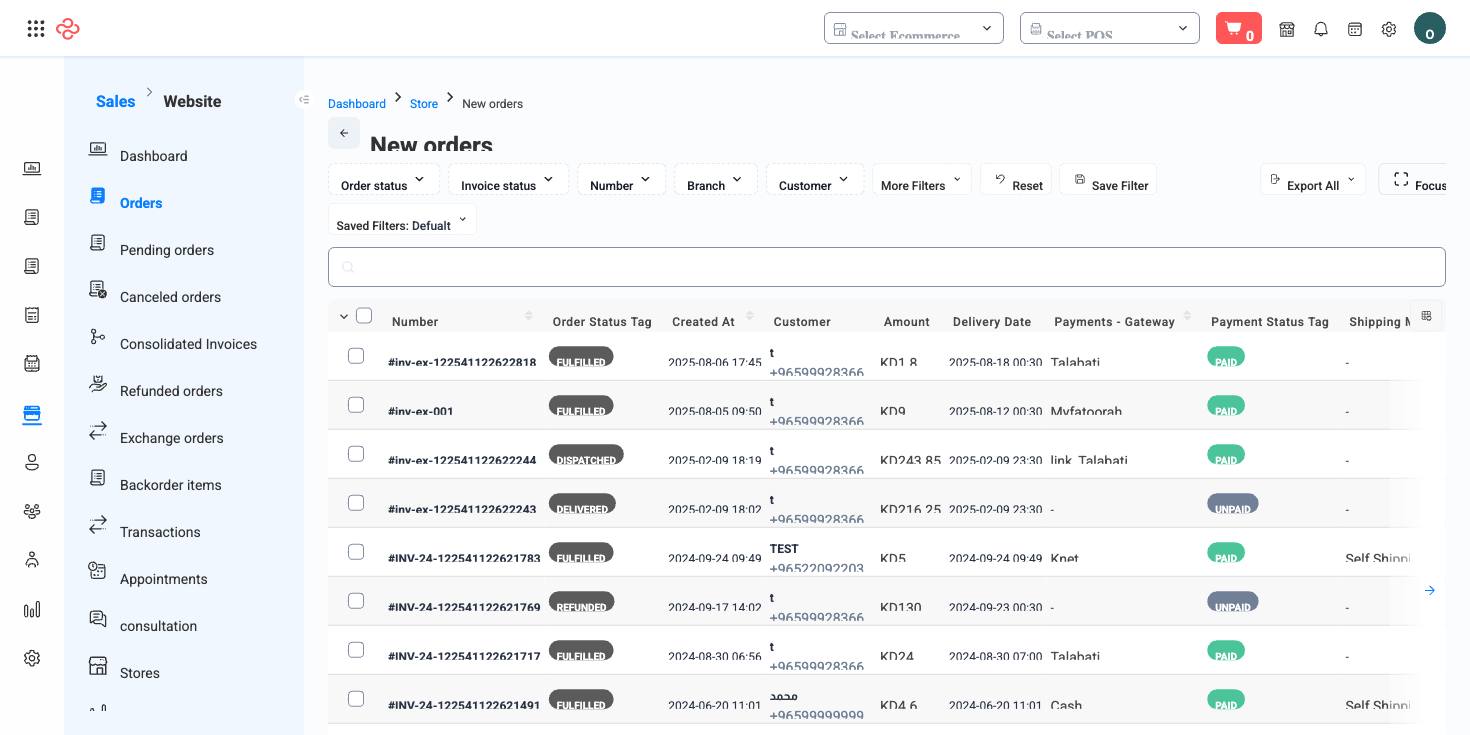
Each row shows the order number, order status tag, created date, customer, amount, delivery date and time, payment gateway, payment status tag, and shipping method - so you can see at a glance what is due, who ordered it, and whether it is paid.
Process an order
- Open the Opened tab - this is your pending work.
- Open a row to review items, customer details, and the requested delivery window.
- Advance the order: Processed when you accept and start preparing it, Dispatched when it leaves, Delivered on receipt, then Fulfill.
- For unpaid orders, use Mark As Paid when the money is collected; paid orders can be closed in one step with Fulfill Paid Invoice.
- If the order cannot proceed, use Cancel.
Deliver with your own drivers
Driver-delivered orders carry two extra steps built into the row actions:
- Assign Invoice To Driver - pick the driver who will carry the order; the driver filter and ETA status filter then let you track their load.
- After delivery, Pay Commission records the driver's delivery commission against the order, so driver payouts stay reconciled with the orders they actually delivered.
Combine orders into one statement
Select the orders of a single customer (a company with many small orders, for example) and choose Create Consolidation Invoice to merge them into one billing document. The consolidation invoice id and not in consolidation invoice filters help you find what has and has not been consolidated. See Consolidation Invoices.
Finding orders
The quick search matches the order number. Beyond it, 47 filters cover branch, customer, driver, ETA status, coupon, payment gateway, payment status, platform and source, shipping method, product, delivery date and time windows, geography (country, city, area), collection status, and more. Save any combination with Save Filter to reuse it in one click.
Printing, exporting, and deleting
- Bulk print: select rows and print the batch in Arabic or English - handy for preparing a driver's paperwork for the day.
- Export All: choose your columns (manage-columns icon at the right of the header row), apply filters, and press Export All; the file respects both.
- Delete: open the row menu, choose Delete, and confirm. Deleted records may be recoverable via the deleted filter where available.
What you can do on this page
Every action on this page, step by step. What you see depends on your role, so a control your account is not set up for simply does not appear.
Open and read a record
- Click the row, or choose View in the row's actions menu.
- The detail page shows the record's own fields, its related documents, and the actions that apply to it in its current state.
- Use the breadcrumb or your browser's back button to return - your filters, sort, and page position are preserved.
Delete a record
- Open the row's actions menu and choose Delete.
- Confirm in the dialog. There is no undo from the interface.
- If the record is referenced elsewhere - used on a document, tied to a transaction - the delete is refused and the reason shown.
Switch between status tabs
- The tabs above the table are saved views over the same data, each pre-filtered to one state.
- Click a tab to switch. Your column choices carry across; the tab's filter is applied on top of any filter you set.
Tabs here: Opened, Processed, Dispatched, Delivered, Fulfilled, Refunded, On hold, Canceled, All
Act on many records at once
- Tick the checkbox on each row you want, or the checkbox in the header row to take the whole page.
- A bar appears with the count selected and the actions available.
- Choose your action and confirm. It runs across every selected record.
Available here: print_ar, print_en
Actions on a single record
These appear in the row's actions menu and on the record page, and only when the record's current state allows them:
- Assign Invoice To Driver - hands the order to a delivery driver, who then sees it in the driver app.
- Cancel - voids the document while keeping it on file for audit; stock and balances it touched are released.
- Create Consolidation Invoice - merges the selected documents into one consolidated invoice.
- Delivered - sets the delivery state to delivered.
- Dispatched - sets the delivery state to dispatched/out for delivery.
- Fulfill - marks the order as delivered/completed and commits the stock movement.
- Fulfill Paid Invoice - fulfills only invoices that are already fully paid - useful as a bulk step at end of day.
- Mark As Paid - settles the document without going through a payment gateway; use it for cash or off-system payment.
- Pay Commission - records the vendor's or agent's commission payout for this document.
- Processed - moves the record to processed.
Export the list
- Filter and choose your columns first - the export mirrors exactly what is on screen, not the whole table.
- Click Export All.
- The file downloads as a spreadsheet: one row per record, your visible columns in your order.
Print or save as PDF
- Choose Print in the row's actions menu, or open the record and use Print there.
- Pick the template or format if you are prompted.
- Your browser's print dialog opens - print it, or choose Save as PDF as the destination.
Full reference
Every option and control on this page, at a glance.
List columns
Shown by default: Format number, Order status tag, Created at, Customer, Amount, Delivery datetime, Incomes - gateway, Payment status tag, Shipping method
Also available: Barcode, Collection status, Currency, Currency code, Customer group, Delivery tag, Delivery type, Driver, Driver commission, Due, ID, Invoice number, Is commission paid, Is delivery, Is paid, Is returned, Note, Order status, Paid, Payment gateway, Payment method, Platform name, POS session ID, Purchase order, Seller, Shipping address, Source, Status, Status tag, Type, Unpaid, UTM campaign, UTM content, UTM medium, UTM source, UTM term, VAT number
Expandable column groups: Customer, Incomes, Items - Each group expands to its own sub-columns in the manage-columns dialog.
Filters (46)
- Identity and numbering: Academic year ID, Barcode, Branch ID, Consolidation invoice ID, Coupon ID, Customer company ID, Customer ID, Driver ID, Format number, Gateway ID, ID, Ids, Not in consolidation invoice, Number, Order number, Paid, Payment ID, POS branch ID, POS session ID, POS user ID, Product ID, Shipping method ID, Track ID, User ID
- Dates and periods: From date, From delivery date, From delivery time, From payment due, Invoice date, To date, To delivery date, To delivery time, To payment due
- Money and payment: Collection status, Payment status, Same company currency
- Location and delivery: Area, City, Country
- Status and flags: ETA status, Has extra expenses, Order status, Platform, Source, Status
- Other: Purchase order
Status tabs
Opened, Processed, Dispatched, Delivered, Fulfilled, Refunded, On hold, Canceled, All
Bulk actions
- Print ar
- Print en
Form fields (1)
Account ID
Record actions
- Assign Invoice To Driver
- Cancel
- Create Consolidation Invoice
- Delivered
- Dispatched
- Fulfill
- Fulfill Paid Invoice
- Mark As Paid
- Pay Commission
- Processed
Sortable columns
Delivery date time, Delivery tag text, Order status tag, Payment status tag text
Standard list tools
Every list page in OSOSS shares these controls:
- Manage columns - the icon at the right edge of the header row: search columns, tick to show or hide, drag to reorder. Your selection persists for your user.
- Quick search - matches the page's primary field.
- Filter chips + More Filters - the chips are your defaults; More Filters exposes the full set below.
- Save Filter / Saved Filters - name a filter combination and recall it in one click; one can be your default view.
- Reset - clears filters back to defaults.
- Export All - downloads the current filtered rows with exactly the columns you have selected.
- Focus - hides the surrounding chrome for a full-width table.
- Row selection - the header checkbox selects the page or all matching rows, enabling bulk actions.
- Rows per page and page jumper - at the foot of the table.
- Custom fields - anything you define under Settings > Custom Fields appears here as both a column and a filter.