
Quick Invoice
Quick Invoice creates a payable invoice from almost nothing - a customer, an amount, and a way to send it. It exists for the sale that has no product lines: a deposit, a balance owing, a phone order you will detail later, a service agreed over WhatsApp.
Menu path: Sales > Quick Invoice
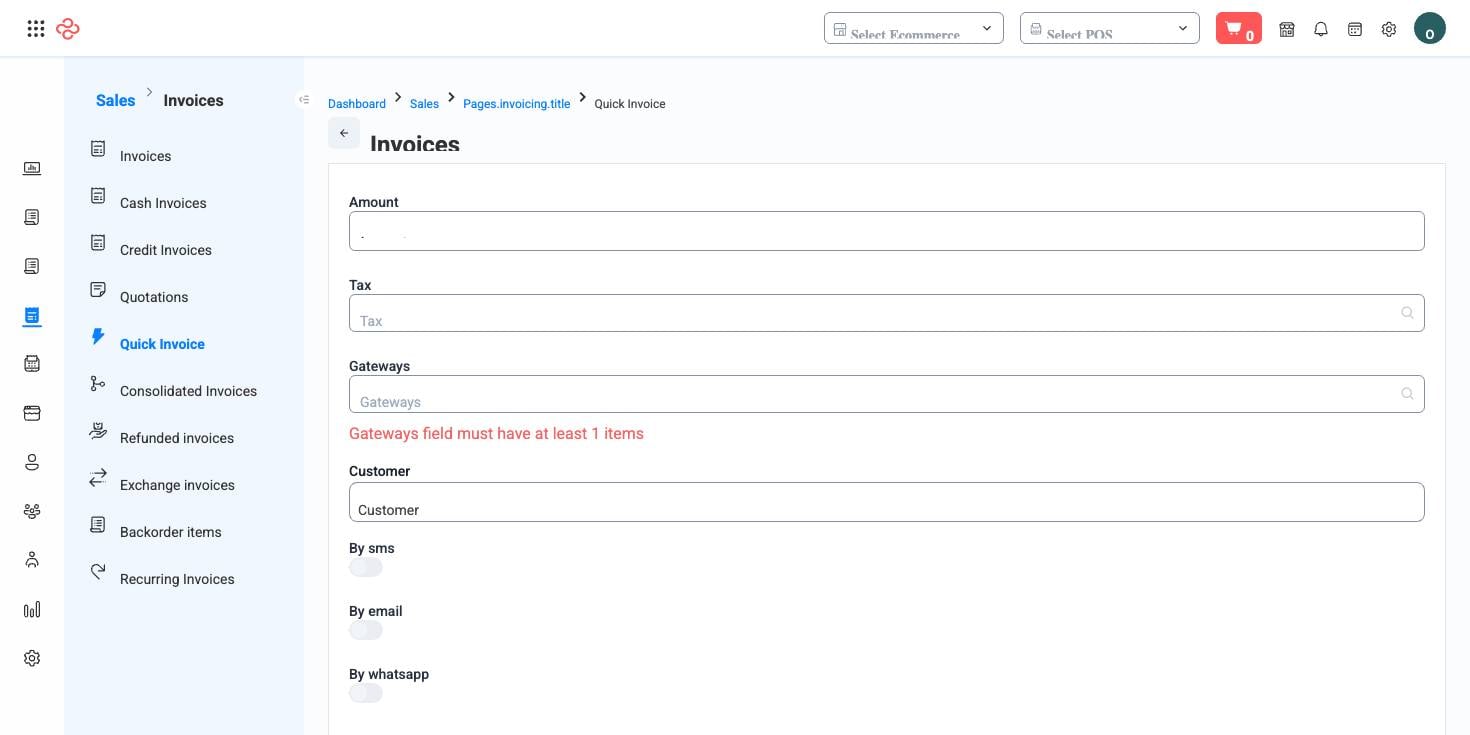
Screenshot from the live OSOSS Dashboard
What it captures
| Field | Purpose |
|---|---|
| Customer | Who is being billed |
| Amount | The total to charge, entered directly |
| Tax | The rate applied, if any |
| Gateway | The payment method or online gateway offered |
| By email / By SMS / By WhatsApp | The channels the invoice and its payment link are sent through |
The send switches are what make this more than a shortcut. In one action you create the charge and deliver a payment link to the customer, which means a phone conversation can end with the customer paying rather than promising to.
Bill a customer in one step
- Choose the Customer, or create them inline if this is a first contact.
- Enter the Amount. This is a direct total, so it must already include what you intend to charge.
- Set the tax rate if the sale is taxable.
- Choose the gateway - an online gateway if you want them to pay now, a manual method if they will pay on delivery.
- Switch on the channels to send through. WhatsApp is answered fastest; email leaves the best paper trail.
- Save. The invoice exists in Invoices like any other, and payment lands the same way.
Tip: Use Quick Invoice for deposits. A customer who has paid a deposit through a link is a customer who has committed, and the deposit shows against their balance the moment it clears.
Note: Because the invoice has no product lines, it moves no stock and carries no cost - so it will not appear in product or margin reporting. For anything you want to see in sales analysis by item, raise a normal invoice with lines instead.
Warning: An amount typed directly is an amount nobody cross-checked. Read it back to the customer before sending; a transposed digit in a payment link is embarrassing in both directions.
Related pages
- Invoices - where the created invoice lives
- Payment Forms - a public page customers pay through
- Customers - the customer being billed