
Backorder Ingredients
A backorder ingredient is a recipe component that has been consumed beyond what you had in stock. It is the production-side twin of a backordered product: the customer received their meal, but the kitchen used flour, cheese or packaging that the system had already counted down to zero.
Menu path: Inventories > Backorder Ingredients
URL: https://my.ososs.com/dashboard/backorder-ingredients
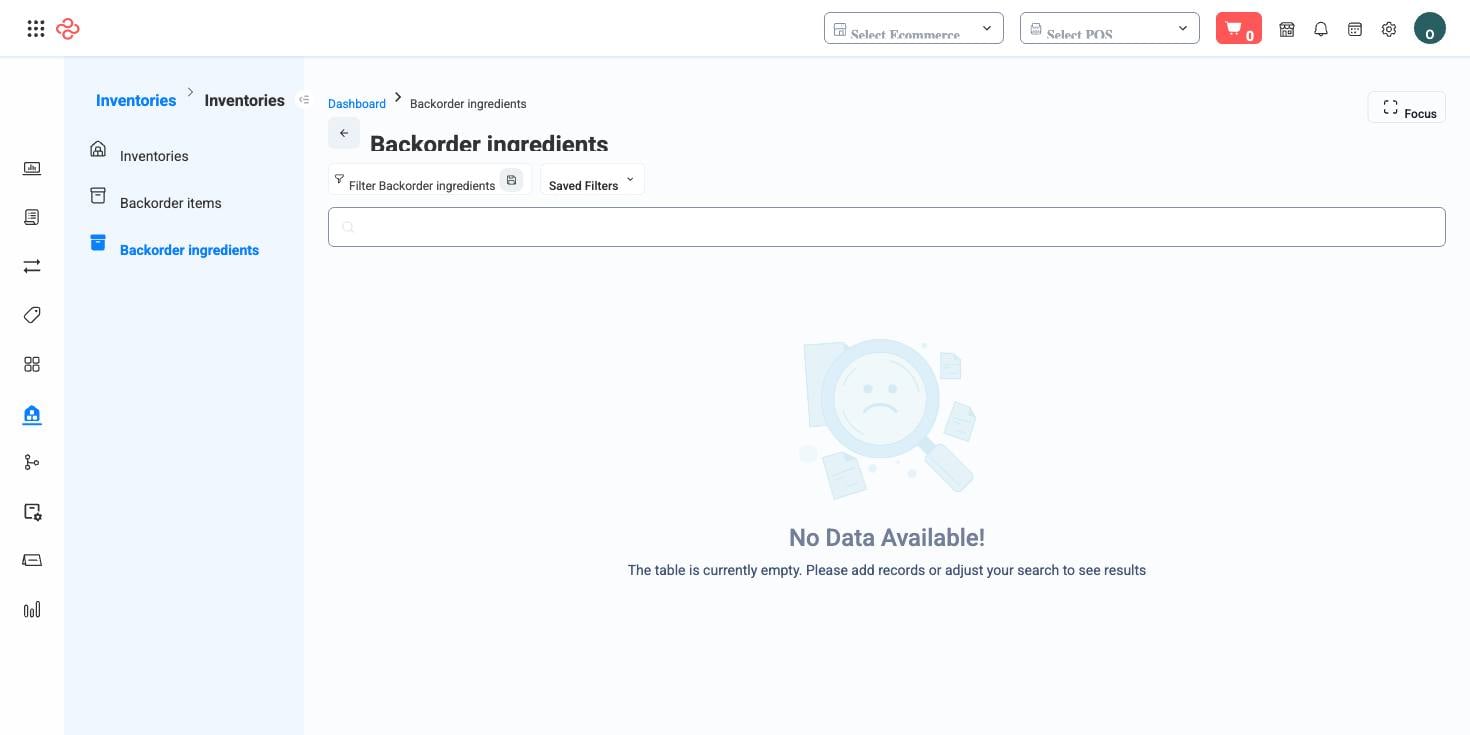
When these rows appear
The page is only meaningful if your products are built from ingredients - a recipe, a bill of materials, a packaging list. Each time such a product is sold or produced, OSOSS deducts the ingredients it consumes. Where the ingredient balance was insufficient, the shortfall lands here rather than blocking the sale.
Each row records the branch, the invoice that caused the consumption, the product, the quantity short, and when it happened. That combination is what makes the page diagnostic rather than merely a list: you can see which branch runs dry, on which items, and how often.
Clearing and preventing shortfalls
- Sort by branch to see whether the problem is one location or the whole operation.
- Receive the missing ingredients - through a purchase receipt or a transfer - and the entries clear as stock arrives.
- Compare the shortfall quantities against your recipes. If an ingredient is consistently short by a similar amount, the recipe quantity is understated or portioning at the branch is heavier than the recipe assumes.
- Raise the ingredient's reorder threshold so Stock Shortages warns you before the kitchen does.
Full reference
Every option and control on this page, at a glance.
Filters (8)
- Identity and numbering: Branch ID, Customer ID, Ingredient ID, Invoice ID, Invoice item ID, Number
- Status and flags: Invoice source
- Other: Invoice
Record actions
- Deduct
- Delete
Standard list tools
Every list page in OSOSS shares these controls:
- Manage columns - the icon at the right edge of the header row: search columns, tick to show or hide, drag to reorder. Your selection persists for your user.
- Quick search - matches the page's primary field.
- Filter chips + More Filters - the chips are your defaults; More Filters exposes the full set below.
- Save Filter / Saved Filters - name a filter combination and recall it in one click; one can be your default view.
- Reset - clears filters back to defaults.
- Export All - downloads the current filtered rows with exactly the columns you have selected.
- Focus - hides the surrounding chrome for a full-width table.
- Row selection - the header checkbox selects the page or all matching rows, enabling bulk actions.
- Rows per page and page jumper - at the foot of the table.
- Custom fields - anything you define under Settings > Custom Fields appears here as both a column and a filter.
Related pages
- Ingredients - the components and their recipes
- Manufacturing Orders - planned production that consumes ingredients
- Backorder Items - the finished-goods equivalent
What you can do on this page
Every action on this page, step by step. What you see depends on your role, so a control your account is not set up for simply does not appear.
Delete a record
- Open the row's actions menu and choose Delete.
- Confirm in the dialog. There is no undo from the interface.
- If the record is referenced elsewhere - used on a document, tied to a transaction - the delete is refused and the reason shown.
Actions on a single record
These appear in the row's actions menu and on the record page, and only when the record's current state allows them:
- Deduct - posts a deduction against the record.
- Delete - removes the record, subject to the reference check above.
Export the list
- Filter and choose your columns first - the export mirrors exactly what is on screen, not the whole table.
- Click Export All.
- The file downloads as a spreadsheet: one row per record, your visible columns in your order.