
Backorder Items
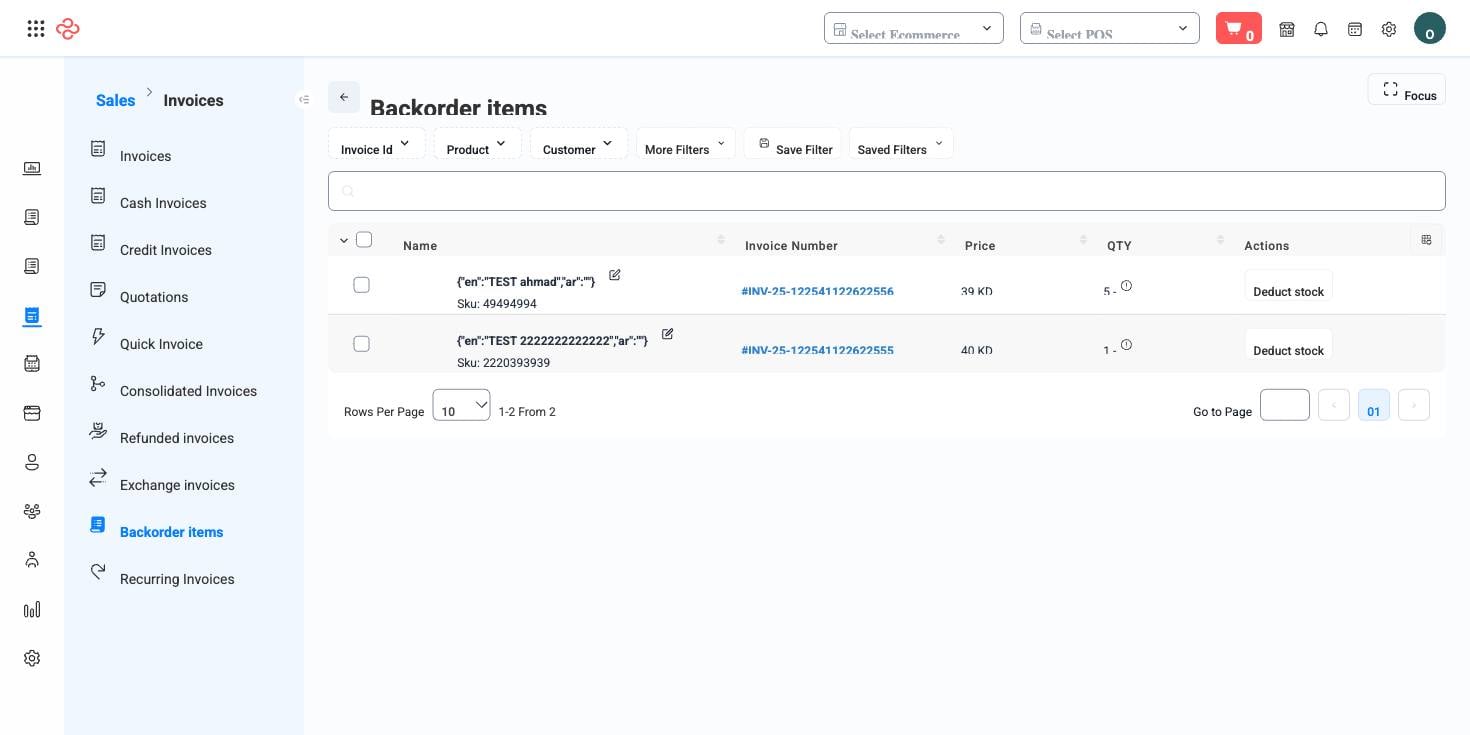
A backorder item is a quantity you have sold but did not have. This page is the consolidated list of those debts across every channel - the register, the website, the mobile app and the API - which makes it the shortest honest answer to "what do we owe customers right now?"
Menu path: Inventories > Backorder Items
How backorders arise
Backordering is a per-product, per-channel policy, not an accident. Products carry an enable-backorder switch, and branches carry one too. When both allow it, a sale that exceeds available stock completes anyway and the shortfall is recorded here instead of blocking the customer at checkout.
Each row identifies the product by name, SKU and barcode with the outstanding quantity. The entry is not something you close by hand: when stock arrives for that product - through a purchase receipt, a transfer or a stock count correction - the shortfall is consumed automatically and the row clears.
Working the list daily
- Open the page each morning and sort by quantity to see where the exposure is largest.
- For each product with a real shortfall, check whether stock is already inbound on a purchase order before raising another one - duplicate ordering is the usual cost of a neglected backorder list.
- Raise a purchase order or move stock in from another branch with a transfer.
- For anything that appears here week after week, the fix is upstream: raise the product's reorder threshold, or switch backordering off for it.
Full reference
Every option and control on this page, at a glance.
Filters (69)
- Identity and numbering: Barcode, Bill ID, Branch ID, Brand ID, Category ID, Exact barcode, External ID, Has barcode, ID, Parent ID, Pickup rule ID, Product barcode, Shipment barcode, Shipment number, SKU, SKU or barcode, SKU or barcode or name, Unit ID, Vendor ID, Vendors ID
- Dates and periods: Created from date, Created to date, Deleted from date, Deleted to date, Enable in store, Event end, Event register end, Event register start, Event start, Expiry date, Has receive quantity after date, InventoryTransactions, Last date, Out of stock, Products - enable quantity in store
- Money and payment: Price greater, Price less
- Products and stock: Attributes, Attributes values, Enable backorder, Has enabled ingredients, Order by category, Product kind, Quantity greater, Quantity less
- Status and flags: Active shop, Disable in, Enable in, Enable registration event, Event status, Has sub type, Is available, Not type, SEO status, Show deleted only, Sub type, Type, Type or children type, With has children
- Other: Conditions, Main image, Main only, Name, Not configurable, Only parents, Producible, Sell this, Show children, Show note field
Record actions
- Archive
- Clone Images Between Siblings
- Deduct
- Delete
- Delete Broken Image Urls
- Discover Images
- Enable In Pos
- Enable In Store
- Recalculate Quantity
- Restore
- Review Import
- Unarchive
- Update
Sortable columns
Ave cost, Categories, Invoices sold quantity, Quantity
Standard list tools
Every list page in OSOSS shares these controls:
- Manage columns - the icon at the right edge of the header row: search columns, tick to show or hide, drag to reorder. Your selection persists for your user.
- Quick search - matches the page's primary field.
- Filter chips + More Filters - the chips are your defaults; More Filters exposes the full set below.
- Save Filter / Saved Filters - name a filter combination and recall it in one click; one can be your default view.
- Reset - clears filters back to defaults.
- Export All - downloads the current filtered rows with exactly the columns you have selected.
- Focus - hides the surrounding chrome for a full-width table.
- Row selection - the header checkbox selects the page or all matching rows, enabling bulk actions.
- Rows per page and page jumper - at the foot of the table.
- Custom fields - anything you define under Settings > Custom Fields appears here as both a column and a filter.
Related pages
- Stock Shortages - products below their threshold, before anyone has sold them short
- Backorder Ingredients - the same problem on the production side
- Purchase Orders - where the restock is raised
What you can do on this page
Every action on this page, step by step. What you see depends on your role, so a control your account is not set up for simply does not appear.
Delete a record
- Open the row's actions menu and choose Delete.
- Confirm in the dialog. There is no undo from the interface.
- If the record is referenced elsewhere - used on a document, tied to a transaction - the delete is refused and the reason shown.
Actions on a single record
These appear in the row's actions menu and on the record page, and only when the record's current state allows them:
- Archive - moves the record out of the active list without deleting it; find it again with the archived filter.
- Clone Images Between Siblings - copies images across the variants of the same product.
- Deduct - posts a deduction against the record.
- Delete - removes the record, subject to the reference check above.
- Delete Broken Image Urls - clears image links that no longer resolve.
- Discover Images - scans linked sources for product images and attaches what it finds.
- Enable In Pos - makes the item sellable in POS.
- Enable In Store - publishes the item to your online store.
- Recalculate Quantity - recomputes stock on hand from the underlying transactions - run it after a correction.
- Restore - brings back a soft-deleted record with its data intact.
- Review Import - reopens the import result for inspection.
- Unarchive - returns an archived record to the active list.
- Update - applies an in-place update to the record.
Export the list
- Filter and choose your columns first - the export mirrors exactly what is on screen, not the whole table.
- Click Export All.
- The file downloads as a spreadsheet: one row per record, your visible columns in your order.