
Abandoned Carts
An abandoned cart is a basket a customer filled and did not pay for. This page lists them with everything you need to decide whether to chase: who, what, how much, how long ago, and whether they can be messaged.
Menu path: Marketing > Abandoned Carts
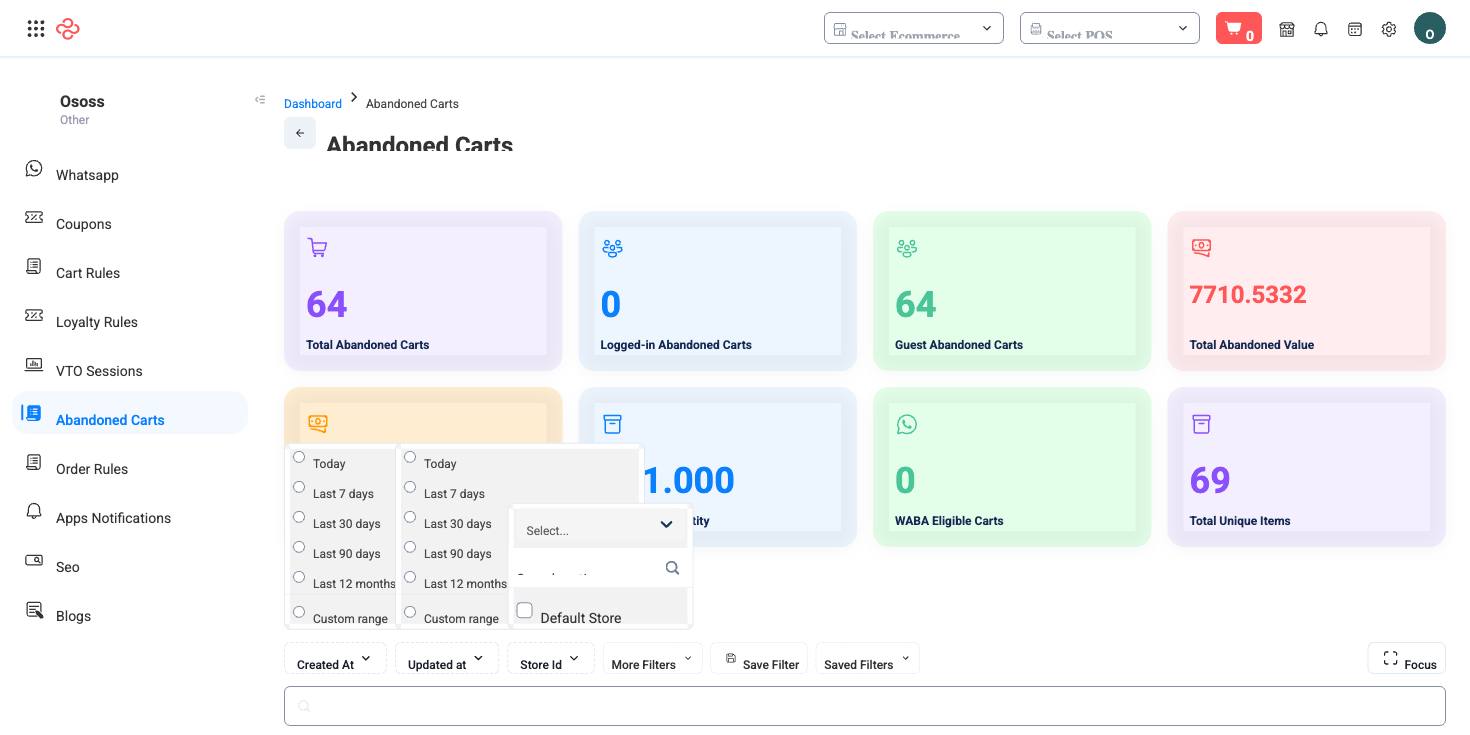
What the list gives you
| Column | Why it matters |
|---|---|
| Customer name, email, mobile | Who to contact and how |
| Customer group | Which pricing and audience they belong to |
| Items count and item quantity | How serious the basket was |
| Sub total, tax, shipping charge, discount, total | What the order would have been worth |
| Sales channel and store name | Where it happened |
| Abandoned since | How long the basket has been sitting |
| Last campaign sent at | Whether you have already chased this one |
| WABA eligible | Whether the customer can be messaged on WhatsApp |
| Status | Where the cart stands |
Abandoned since and Last campaign sent at are the two columns that turn this from a list into a process. The first tells you which carts are still warm; the second stops you messaging the same person three times, which is how a recoverable cart becomes a blocked contact.
WABA eligible matters because WhatsApp is the channel abandoned carts actually respond to - but only customers who can be reached that way should be chased that way. See WhatsApp Templates for the messages themselves.
Recover carts
- Filter to carts abandoned within the last day or two and sort by total. Recency and value together decide where your effort goes.
- Check Last campaign sent at before doing anything - skip anyone already contacted.
- Send one message that names what they left. A message that says "your basket is waiting" performs far worse than one that says "the two items you chose are still available".
- Do not lead with a discount. Many abandoned carts are interruptions rather than objections, and a reminder recovers them at full price.
- If the same products are abandoned repeatedly, read that as a signal - unclear delivery cost, a slow checkout step, or a price that only looks wrong at the last screen.
Full reference
Every option and control on this page, at a glance.
Dialogs and drawers
- Cart Details Drawer
- Delete Cart Modal
Record actions
- Clear
- Create Segment
Standard list tools
Every list page in OSOSS shares these controls:
- Manage columns - the icon at the right edge of the header row: search columns, tick to show or hide, drag to reorder. Your selection persists for your user.
- Quick search - matches the page's primary field.
- Filter chips + More Filters - the chips are your defaults; More Filters exposes the full set below.
- Save Filter / Saved Filters - name a filter combination and recall it in one click; one can be your default view.
- Reset - clears filters back to defaults.
- Export All - downloads the current filtered rows with exactly the columns you have selected.
- Focus - hides the surrounding chrome for a full-width table.
- Row selection - the header checkbox selects the page or all matching rows, enabling bulk actions.
- Rows per page and page jumper - at the foot of the table.
- Custom fields - anything you define under Settings > Custom Fields appears here as both a column and a filter.
Related pages
- WhatsApp Templates - the messages you recover with
- Cart Rules - promotions that prevent abandonment
- Website Orders - the carts that did convert
What you can do on this page
Every action on this page, step by step. What you see depends on your role, so a control your account is not set up for simply does not appear.
Open and read a record
- Click the row, or choose View in the row's actions menu.
- The detail page shows the record's own fields, its related documents, and the actions that apply to it in its current state.
- Use the breadcrumb or your browser's back button to return - your filters, sort, and page position are preserved.
Actions on a single record
These appear in the row's actions menu and on the record page, and only when the record's current state allows them:
- Clear
- Create Segment
Export the list
- Filter and choose your columns first - the export mirrors exactly what is on screen, not the whole table.
- Click Export All.
- The file downloads as a spreadsheet: one row per record, your visible columns in your order.